Table of Contents
Chart Report
Creating a Chart Report
BIPLUS provides a rich series of chart reports. Charts generally imply a grouping of some sort (show number of orders by country / agent, etc.).
Most chart reports will require a statement that will group by a query attribute (country or agent) and apply an aggregation against a measure (sum of the order amount or count of order id).
After creating a separate category for Charts, we now create a report and from the dropdown combo box, we choose Chart Report for the Type and then select Pie Chart for the report sub-type.

Then navigate to the Chart Properties. The chart properties is Object Oriented meaning that depending on the value of the chart sub-type, different options will appear. These are the options for a pie chart.
- Display Scale: Defines what percentage of your BIPLUS window size is occupied by the current chart report.
- Legend Position: A legend contains a list of the variables appearing on the chart. One can select Left, Right, Top, Bottom position to show the Legends.
- Top N: Displays TOP N values from the chart. If you select TOP 5 values out of 15 records then TOP 5 values will be displayed and remaining 10 will be displayed combinely with label Others.
- Show Name Label: Displays Name as Label for each record in the chart report.
- Show Value Label: Displays Value for each record in the chart report.
- Show Percent Label: Displays Percentage for each record in the chart report.
- Maximum Label Length: Allows you to set the maximum Name label length in characters.
- Percentage Format: Allows you to set percentage format (e.g. 999, 999.0, 999.00, 999.000)

Here the developer has the option as to which chart properties are to be set initially at runtime. The example shows that the name and value labels are to be shown at run-time and that ALL the values are to be shown in the pie chart (as opposed to Top 3 or bottom 3 (Top N = 3, check sort data in ascending order) based on value and where the legend for the chart is to be shown (or hidden).
The SQL for this query is really simple and is selected from a view (Ordersmatrix) which had lots of complexities of joins, which are removed for the developer / power user.

Now the report is ready to be tested. Click the Viewer button. Following image also displays Name Label and Value Label.

The simple types of charts with a single-grouping column, are:
- Pie charts (2D or 3D)
- Vertical Bar Graphs (2D or 3D)
- Horizontal Bar Graphs (2D or 3D)
- Plot point Charts
- Radar Chart
The type of chart can be selected from the list of chart sub-types available in the drop-down box.
Creating a Vertical Bar chart Report
You can also convert the above same report (Pie Chart) to Vertical Bar Chart. Select pie chart report from reports tree. Right click and select Copy option. Now change the Name of the report to Vertical bar chart Report and change its Sub-Type to Vertical Bar Chart from editor tab. Now run the report from Viewer tab and you will see the following result.

Now here is the interesting part when you go to Chart Properties you will see some additional option which does not exist in Pie Chart report.

- Domain Axis Label: Allows user to set his own label for Domain Axis.
- Range Axis Label: Allows user to set his own label for Range Axis.
- Secondary Range Axis Label: Allows user to set his own label for secondary Axis.
- Tilt Label Threshold: Allows you to set the limit for a bar chart label. Once the limit is reached chart label will tilt automatically.
- Display Scale(%): Defines what percentage of your BIPLUS window size is occupied by current chart report.
- Legend Position: A legend contains a list of the variables appearing in the chart. One can select Left, Right, Top, Bottom position to show the Legends.
- Series Color Mapping: One can set different color to series as per their choice. Here you need to mention Series Name and style color. Series is depend upon your data type, it can be either Row Data or Group Data.
- Lower Bound: Lower limit for chart values. An Additional 5% values will be displayed on report.
- Upper Bound: Upper limit for chart values. An Additional 7.5% values will be displayed on report.
- Maximum Row Range/Page: Number of rows(chart Bars) to be displayed on a single page of the chart report.
- Maximum Label Length: Allows you to set maximum Name label length in characters.
- Markers: Markers in BIPLUS are used to define range limit.
- Show Value Labels: Displays Value for each record in the chart report.
- Wrap Labels: Wraps Domain Axis Labels.
- Show Seris Filters: Row Data and Group Data can used as Series and then we can used them to filter.
- Auto Adjust Range Axis: This automatically adjusts the secondary range axis.
- Use Scrollpane: Enables scroll bar to view large number of bars.
- Convert Null Values to Zero: As title specifies, this converts null values to Zero.
- Data Type: A chart report data can be displayed as Category or Series. BILUS has 4 types of data types.
 Row data as Category: Row data will appear as a Category and their respective values will appear as Series(bar).
 Row data as Series: Row data will appear as a series.
 Group data as Category: This groups the data as a category.
 Group data as Series: This shows the grouped data as a seris.
Plot Chart
Shows changes over a period of time by drawing a continuous line from one data point to the next. One data point for each data sampling and one line for each attribute selected. The below image shows an example of a simple plot chart.

First create a chart report having Sub-type as Plot Chart.
Write the following SQL to create a Plot Chart.
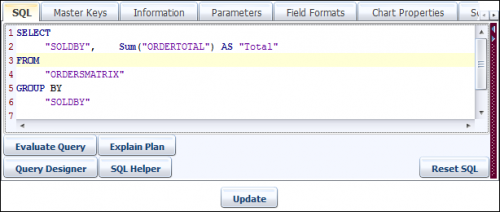
Now got the Chart Properties tab. Plot Type defines that how you want connect the values. Select Line and Circle here. Now two values in chart report will be connected by a Line and each value will have a circular point.

Plot Shape Size defines the size of each point shape.
Plot Line Thickness defines the thickness of the line.
Now save the report using Update button. Goto to Viewer tab to see the result.
Now lets create another plot chart using following SQL. This plot chart shows graph sale done by each salesman by year.
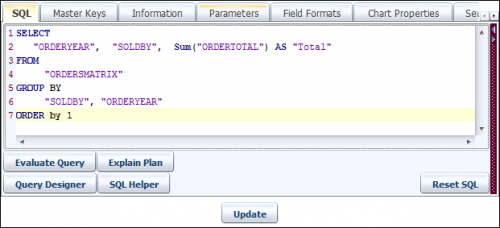
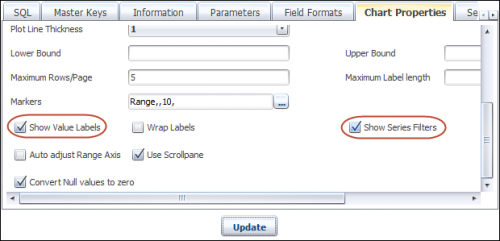
Again to Chart Properties tab. Select data type as Group Data As Category.

Also enable the Show value Labels & Show series Filter features.
Now run the report to view the result.
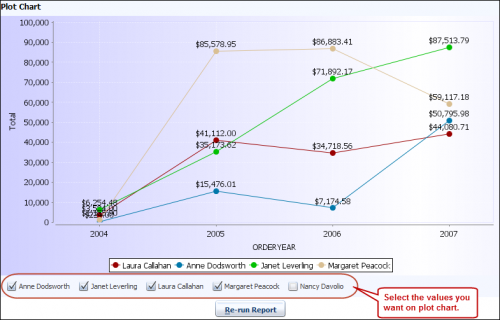
The series filter allows you to filter the data.
Radar Chart
A radar chart is a graphical method of displaying multivariate data in the form of a two-dimensional chart of three or more quantitative variables represented on axes starting from the same point. The relative position and angle of the axes is typically uninformative.
The radar chart is also known as web chart, spider chart, star chart and polar chart.
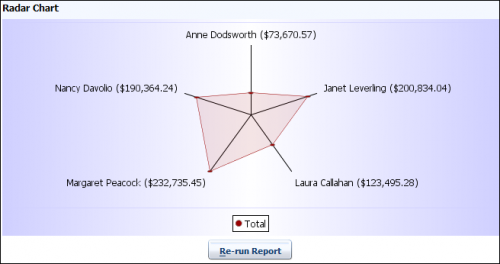
First, Create a chart report of sub-type Radar Chart. Write down following SQL in the report.
Now go to the Chart Properties tab. Enable both Show Name Labels and Show Value Labels features.

Click on Update button to update the report. Select the Viewer tab
Creating Gauge Chart Report
BIPLUS also supports Gauge Charts, which contain dials, pointers and display data. State indicators are all about giving context to your values, so you know what that value means in the context of its application.
What is a Gauge Chart?
Gauge charts are similar to speedometers / tachometers in your car. They point to a single measure which usually has an upper and lower limit and the end user can see very quickly and visually, exactly where the current value is. For this reason, Gauge charts are very useful for visualizing KPI (Key Performance Indicators).
KPI’s can mean various things to various people. In an accounting department, the Liquidity Ratio with upper and lower bounds can be seen. Liquidity Ratio is the ratio of Assets to Liabilities. So a ratio of 2 means that for every dollar in liabilities the company has, it has 2 in assets. Each company could set their own benchmark for what is an acceptable level.
You could also show an average collection period (how many days on average does it take to collect invoices), with a target of 30 and a Gauge chart showing how long it has taken to collect invoices. So when invoices are collected in less than 30, this is a good variance from the target and when collection exceeds 30 days, this is bad.
In a similar vein, manufacturing could have output KPI’s, OH&S could have the number of accidents for the month, with zero being the target and any deviation from zero being flagged as an alert. With Gauge charts, it is important to know that the query underlying the Gauge chart report should only ever return a single row. If multiple rows are returned, BI Plus ignores all rows except the first row returned. Creating Gauge charts are very easy and simple, let’s see how.
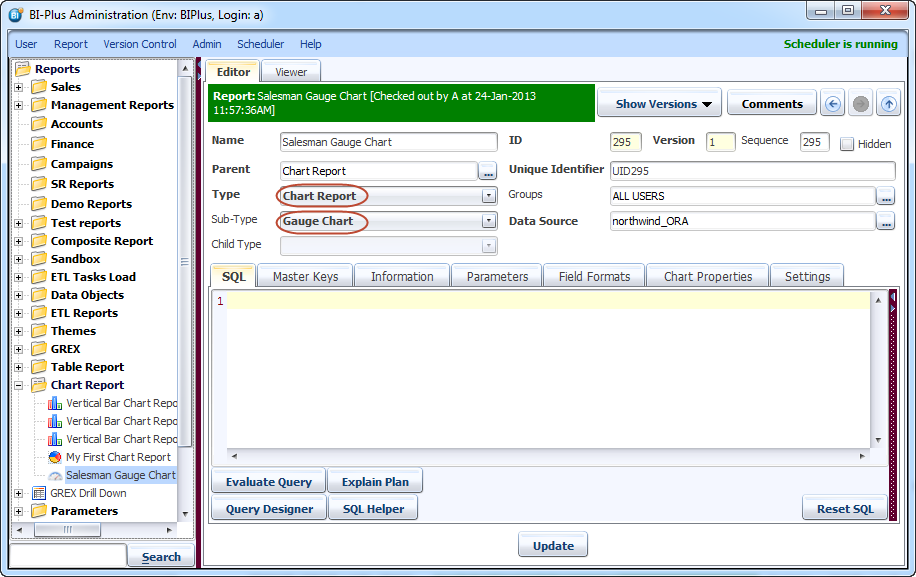
Add a report in report tree by clicking Report menu ⇒ Select Add Report. Now give suitable name to the report (e.g. Saleman Gauge Chart), select the data-source for the query, select type as Chart Report and Sub-Type as Gauge Chart as shown in the image below. Click Update button to save the report in reports tree.
Below SQL returns a single row for a salesman (John). This has three columns Minimum, Maximum & Average which specify Range Start, Range End and Value. Value field points the needle to the specified value.
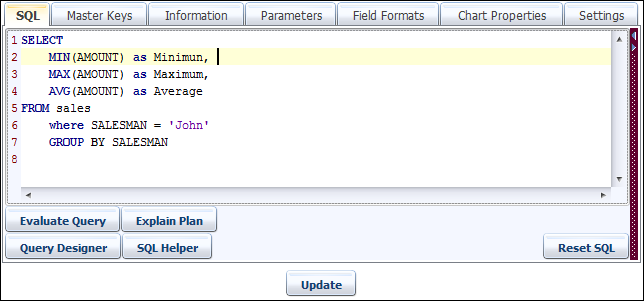
When creating Gauge Charts, we always need to use Dial Column Mapping. Using Dial Column Mapping we can assign Fields to their respective Columns. Dial Column Mapping feature in Chart properties tab ⇒ Dial Column Mapping.
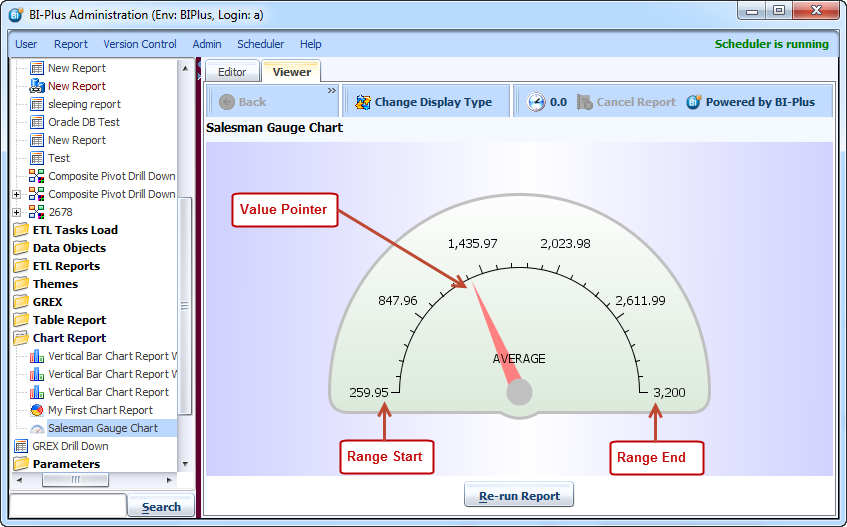
- Range Start: Start Range Value of a Dial.
- Range End: End Range Value of a Dial.
- Value: Target Value of Pointer.
Following image shows mapping of column.

After Mapping, Click on OK button. Update the Report using Update button and from Viewer Tab run the report. The Gauge Chart report will appear like shown in the image below. Note that for any of these, you can hard-code a numeric literal instead of using a column value from the result set returned by the query.
Dial Ranges:- For better understanding of the gauge value in the context of the information it represents, we can also use the Dial Ranges feature. This helps the end user to determine at a glance, whether the value is good, bad or in an acceptable range. Just like your car’s speedometer, the value returned is acceptable only in the context of the information it represents. 90 km/hour could be with an acceptable range on a freeway, but is dangerously above the expected range in a built-up urban area. Using Dial Range feature we can set range, color for that entire range and gradient. Set Start, End as shown in the image below. Set any color & gradient of your choice.
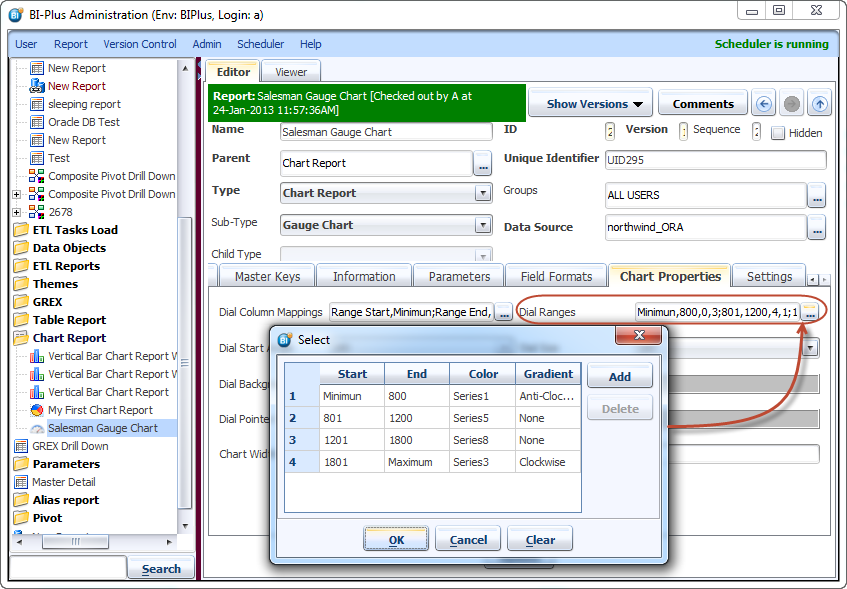
Click on the OK button. Update the Report and from the Viewer Tab run the report. After applying Dial Ranges, the Gauge chart report will appear as shown in the image below. The Dial Ranges features will create a tooltip that is invoked using a mouse-over behavior.

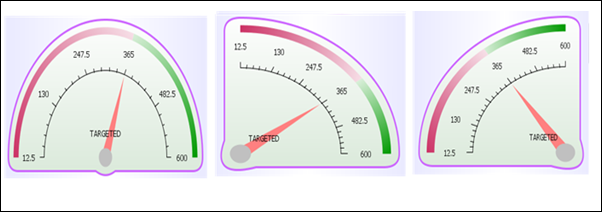
Dial Start Angle: Using this feature one can set the starting angle of Dial. The options for angle size are 240º, 210º, 180º, 150º, 120º, 90º, 60º, 30º.
Dial Size: We can also define the size of the Dial. Following image shows different Dial size patterns.
Following is a Chart Properties tab
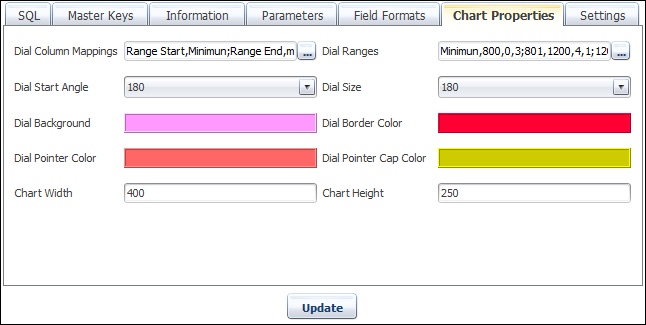
Dial Background: To set the background color of Dial.
Dial Border Color: To set Border Color of Dial.
Dial Pointer Color: To set Pointer Color.
Dial Pointer Cap Color: To set Pointer cap color.
In the above example, the following properties are set:
- Dial Background = Light Pink
- Dial Border Color = Red
- Dial Pointer Color = Salmon
- Dial Pointer Cap Color = Yellow
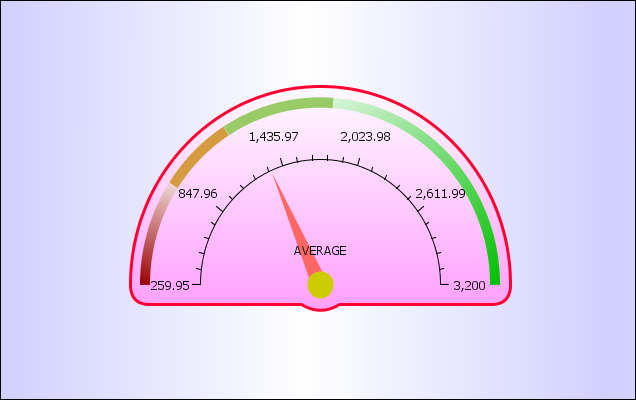
Chart Width: To set Dial’s width.
Chart Height: To set Dial’s Height.
These are all basic feature of Gauge Chart reports but with the help of Master Keys, Parameters, Field Formats one can create a very effective Chart Report.
Creating Multiple Gauge Chart Report
Still now you have learned about Gauge Chart Report. However you may have noticed that BIPLUS displays Gauge Chart Report only for single row returned, even if multiple rows are returned BIPLUS ignore all rows except the first one. So What if one wants to display several Gauge Chart Reports using several rows returned? BIPLUS also have a solution for this, when you have several rows to return (multiple varying KPI’s for instance) and you want to dynamically create a gauge chart of each of these, then we use the Multiple Gauge Chart Report.
Most of the features in the Multiple Gauge Chart report are similar to Gauge Chart Report; even report creation process is also same except the Sub-Type, which is Multiple Gauge Chart in this case. (As shown in the image below).
<Html> <Img src = /lib/exe/fetch.php? &media=biplus: documentation: add_multi_guage.png height=“45%” width=“45%”> </Html>
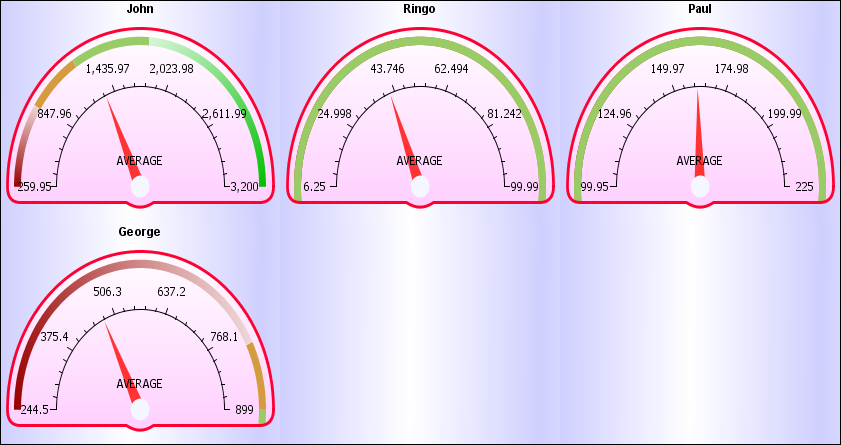
This SQL query will return four rows using which Multiple Gauge Chart report will get created. The first column in the SQL query is the default chart name given in the Multiple Gauge Chart, which is SALESMAN name in this case. Now map the Column with Field as we did it in Gauge Chart Report using the Dial Column Mapping feature. Update the Report using Update button and from Viewer Tab run the report. In the following chart report Chart Name assigned to each Gauge chart is returned by SQL query.
<Html> <img src = /lib/exe/fetch.php?&media=biplus:documentation:multi_guage_chart_result.png height=“45%” width=“45%”> </html>
Number Rows: To set number of Rows for Gauge Chart report. Number Columns: To set number of Columns for Gauge Chart report.
Example of Number Rows & Number Columns is shown in the image. In Number Columns, column value is defined as three and in Number Rows; row value is defined as two so in the First Row only three Gauge Chart report will appear and remaining will appear in the second row.
Creating Flow Chart Report
The flowchart is a means of visually presenting the flow of data through an information processing system, the operations performed within the system and the sequence in which they are performed.
A flowchart is a formalized graphic representation of a logic sequence, work or manufacturing process, organization chart, or similar formalized structure. The purpose of a flow chart is to provide people with a common language or reference point when dealing with a project or process.
Flowcharts use simple geometric symbols and arrows to define relationships. In programming, for instance, the beginning or end of a program is represented by an oval. A process is represented by a rectangle, a decision is represented by a diamond and an I/O process is represented by a parallelogram
Create a chart report in of sub type Flow Chart report.
Note: While creating Flow chart report for the first time, we need to map columns using Column Mappings before updating the report. So first we will write SQL query and using that query we will map columns.

The above SQL query will create five columns (highlighted in following image) ID, PARENT, DISPLAY, CELL_STYLE and LINE_STYLE. In Flow chart report we create each node with the help of the SQL query and these columns will be used to pass values for the creation of nodes
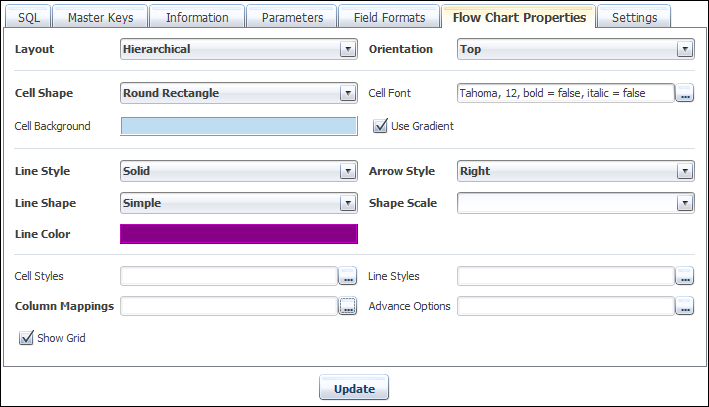
Now lets do column mappings. Now map these columns using a Column Mappings feature which is in Flow Chart Properties tab. See image below.
Map each Field item with their respective Column as shown in Image below and click OK button and then Update button.
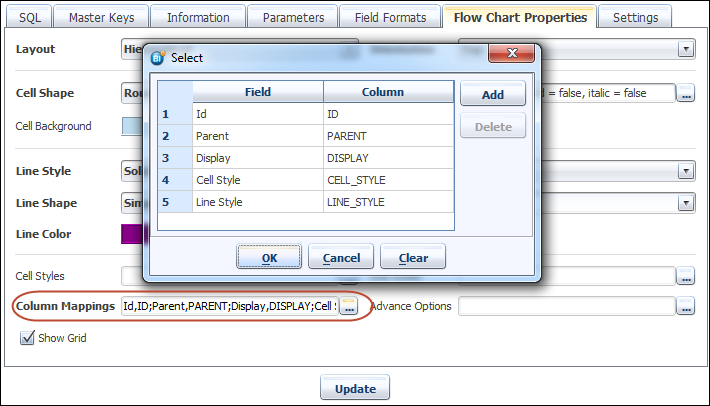
Now as you have seen using Column Mapping we can assign Fields to their respective Columns. Column Mapping Fields represents node’s properties and nodes are created according to the value passed by the columns.
- ID: Represents ID of the node.
- Parent: Represents ID of the node.
- Children: Children of the node.
- Display: Children of the node.
- Cell Style: Shape, Size and Color of the node.
- Line Style: Shape, Size and Color of the node.
Cell Style: Cell style feature allows us to choose a different type of shapes for the nodes (e.g. Round Rectangle, Rectangle, Diamond, Circle, Cylinder, Triangle). BIPLUS also allow us to set different colors, fonts and width to the nodes
After opening cell style dialog, one can add cell style rows with the help of Add button and create multiple cell styles with the combination of different Cell Shapes, Background, Font and Width. Each cell style row contains an ID (see image) which is passed through SQL query to create node of that specific style. Here I have created six different types of styles which we will use later on in this documentation.

Line Style: using Line Style feature we can decide which Line Shape, Line Style, Line Scale, Arrow Style, Color, Label to choose.
The line Style feature allows user to create different combination of line style with help of shapes, styles, scales, colors. You can select values using dropdown list. Click OK button to save a Line Style. Each Line style row contains an ID same as Cell Style, which is passed through SQL query.
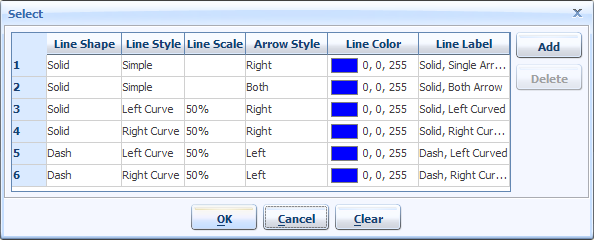
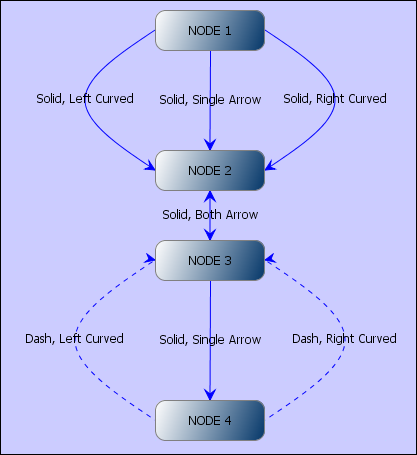
Line Style: contains Solid, Dash, None (Invisible) Line Styles. Line Shape: contains Simple (Straight), Left Curved and Right Curved Shapes. Line Scale: Scale for curved lines. Arrow Style: Arrow pointing direction like Right, Left, Both, None (without arrow) Line Color: Color combination for Lines. Line Label: Text Label of Line.
This image displays the different types of Line styles in the Flow Chart report.
Map Chart
BIPLUS allows us to express information on maps. In the initial releases, only Australian maps are supported, but with more global business outreach, worldwide maps will be supported in not too long.
Currently State and Detail (city) level maps are supported, which can map waypoints all the way to the postal code or city. Each postal code / city has a certain latitude and longitude co-ordinate. At its lowest level, waypoints on maps correspond to a pair of latitude / longitude coordinates.
BIPLUS has an internal table of every postal code and city in Australia, so there is no need to know the co-ordinates for each postal code, or even to know the postal code for each city / town in Australia.

In the map chart above, the center of each state has been identified and a Waypoint is configured for each state level value returned. The chart provider in this case is Open Street Map.
We have a query that returns data to be used. There are multiple aggregations:

Now if we open the Map Properties pane, we can set certain options on the map.
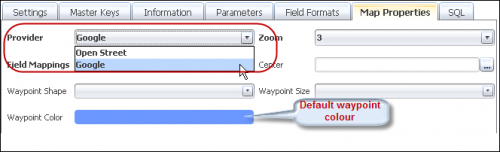
The provider can be selected between Google Maps and Open Street Maps (http://openstreetmaps.org ). For high-volume traffic, Google has a commercial arrangement which can be entered into. At all times, the customer should be aware of Google’s usage and licensing restrictions around the maps. Please check with Google what these restrictions, conditions and licensing detail are.
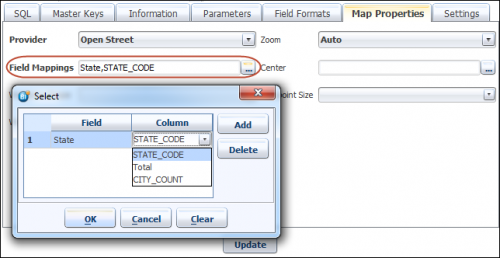
In the Map Properties, open the Field Mappings dialog to configure which columns from the query map to which map attributes.

In this example, since we are using State level maps, we have now mapped the STATE_CODE column of the query to the State attribute of the map.
Notice the initial zoom level is set to 3 (will show an entire region the size of Australia, South Asia, New Zealand and Southern Ocean etc.).

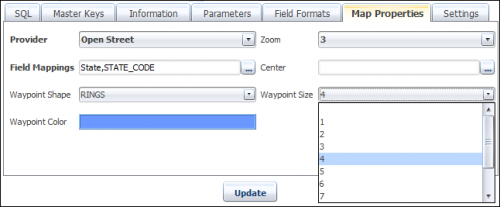
Using waypoint shape field you can select a waypoint shape from various types. BIPLUS supports Star, Bubble, Square, Circle, Rings, Triangle Arrow, X and Cross.
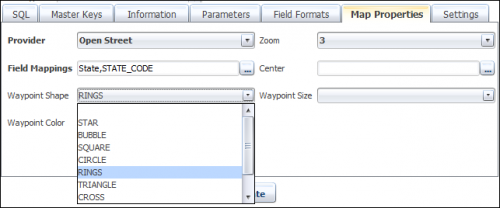
You can also set the size of the waypoint.
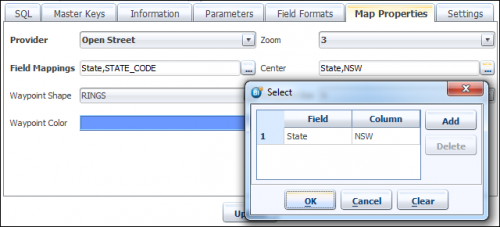
If you want to define any center location for the map then you can define it using Center field.
We can now also configure conditional format, so that the waypoints display a different color for any conditions that meet the criteria. We do this via Field Formats, using Row Style formatting.
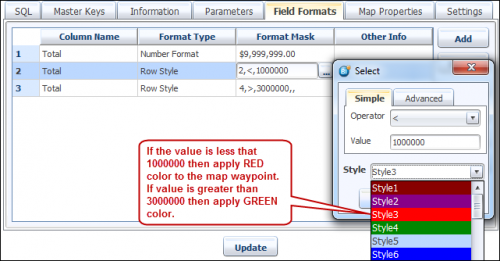
The above image shows that we have 2 conditions configured for changing the color of the waypoints. If the value of Total is less than 1,000,000 then apply style 3 (offset 2) from the relevant theme and if the value of Total is above 3,000,000 then apply style 5 (offset 4) from the theme used.
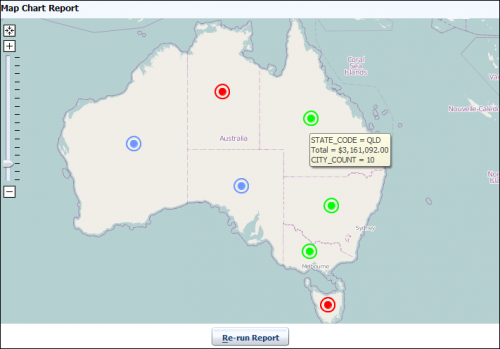
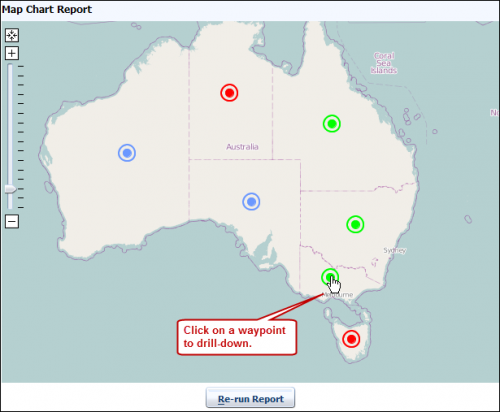
This gives us the map report as shown below and we can see that Sales for Northern Territory and Tasmania are below the threshold of $1,000,000 thus displaying as a red waypoint (default waypoint of concentric circles used) and that there are 3 states whose Total Sales value exceeded $3,000,000 therefore displaying with green waypoints.
The waypoints can be invoked to use Drilldown just like with any other report.
City / Post Code / Zip Code level maps
We will now configure city level maps for the state drilled down on. This example will show how you can create the drilldown map report showing the city summary for a given state / region. First, create STATE_CODE as MASTER_KEY in the parent map report.
Create a drill-down child report under the above created map report example. Give it a name (e.g. Map Report for City). Now, write down following SQL in the report.

Notice in this query that we are using the STATE_CODE passed down from the parent report as the query filter, so this will be a regional level map, showing city summaries for the State.
In the Map Properties tab, open the Field Mappings and link the map city property to the relevant CITY column of the query.
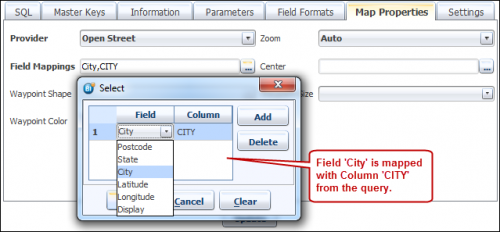
Set the zoom level of the map appropriately. Zoom level 5 should give you an area equivalent to a state (about 100,000 square kilometers / 40,000 square miles).
One of the default properties of maps in BI Plus is the auto-centre ability. What this means that before displaying the map, BI Plus will work out the extremities of the waypoints in relation to N, S, E, W, draw a rectangle around these, find the center and this will be the central point of the map. You may also manually set a center point by opening the Centre property and assigning it to any of the values from the query, or the passed down master key (specify MASTER_KEY).
Assign any relevant field formats, Conditional formatting of waypoints (via Row Style Field Formats) like we have done in the previous Map Chart report. You are now ready to run the map for the state / regional level.
Click on any of the waypoint for drill-down.
You will get map report by City.
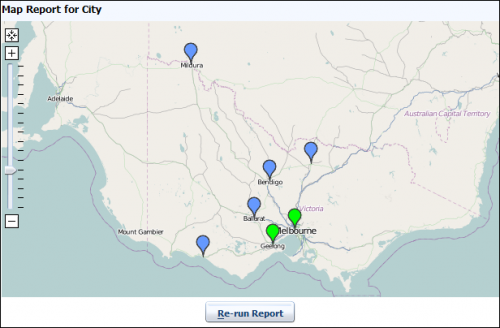
The levels of drilldown is theoretically unlimited, but the Zooming has a limit on the city/postal level.

Additional Reports Features
Hiding Report from End User
BIPLUS has a feature that hides reports from end users(Reporter). Typically, reports would be developed in a development environment and then migrated into a production environment, but there may be times when end users should not see a report in its current format (like when identical data is not available outside of production and the data itself is causing a problem that needs to be investigated.
For occasions such as the one described above, a check box can be checked, which will set the invisible flag in Reporter (end user) mode causing the report and all subsequent children not to be displayed in the tree of available reports.

Comments
1) As in any development situation, a developer might want to add comments for other developers to pick up on, or a reminder to themselves for reference in a few months as to why he / she did something in a particular way.

Press OK and then Update the report to store the report comments in the repository. Once comment is added comment button color is converted into RED color to notify the user.
The comments for a report is just another attribute of the report and thus stored within the BIPLUS repository. Comments are migrated from 1 environment to another. Developer comments are not visible to end users, only to Developers and Power Users when logged into the Developer application.
2) The other type of comment is a comment for the end user to see, or a new user might need some guidance (help) on how to navigate, to see what this report is, what the end user can expect to see and any special instructions on how to run this report.
Comments for End user(reporter) is added from Information ⇒ Help. See below.

This is what pops up to the end user if they click on the Report Help option from tool-bar. The help created by the developer for the end user will appear as a pop-up window.
