Table of Contents
Configuration Management
BI PLUS System Architecture
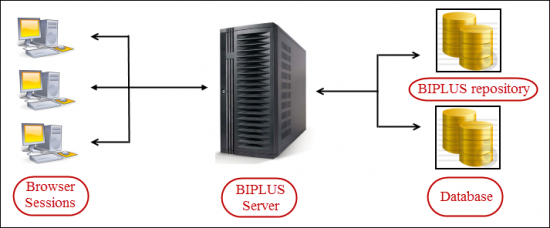
BI PLUS runs as a Client-Server web-based architecture. Browser sessions request information from the Server, and Server uses BI PLUS repository to pull information from a Database and deliver it to the client via HTTP. From the diagram above, we can see that there are always at least 2 connections involved. One of these connections is always to the BI PLUS Repository database, the other is the target database, which is any SQL compliant database.
Setting up Configuration
Open the Configuration Management dialog by navigating to Admin Menu ⇒ Repository Administration ⇒ Configuration Management.
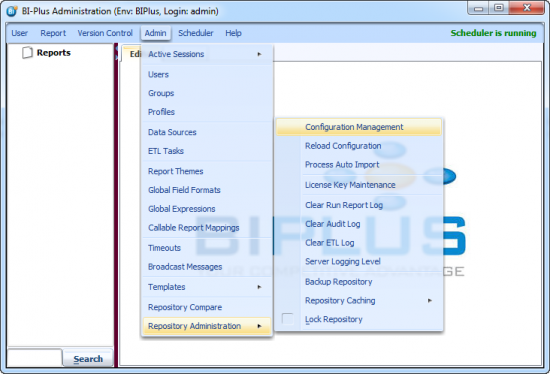
Now you will see the Configuration Management dialog as shown below.

Configuration Management has the following tabs:
General
General tab supports the following features. Server Home:-
This feature sets the system variable for server home which is used for scheduling, for referencing certain gif’s and other objects that are dependent on a location. For instance, you could set up the Tomcat server on a localhost setting, but if the server is to be referenced by applications across a network, referencing a file at http://localhost:8123/BIPLUS/images/my_image.gif will just not work. However, if the image is referenced as «server-home>/images/my_image.gif by all applications, the file will be found. This is the variable that all calls to BI PLUS should be using for FTP, GIF locations, etc.

Display Name:-
The Display Name is the logical name of the environment that is presented to the user as a drop-down combo box when logging in. You will see that the display name in this environment is set to “BIPlus”, and from the screen shot, you will see that the first value of the combo-box populated is from the first environment listed in BIPLUS.xml file, and the two names match. The user never needs to know the finer details of how the connection is established, any tnsnames properties or database connect strings, these are all set up. If multiple environments are set up in the BIPLUS.properties file, then it is important to have unique names for each of the <display-name> properties for the environments found in BIPLUS.xml, because these are the values that are popped up to the user at run-time during login.

Note: By default Display Name is hidden. You can enable this by making Show Environment to TRUE in Admin → Repository Administration → Configuration Management → Defaults → Overridden Values → Add → Show Environment
Unique Identifier Prefix:-
When we create a report in BI PLUS, every report is given a Unique Identifier, which is displayed on every report itself (in developer mode). The default prefix is UID. One can set their own prefix according to their comfort. The screen shot shows how the prefix appears in a BI PLUS report.

Logging Level:-
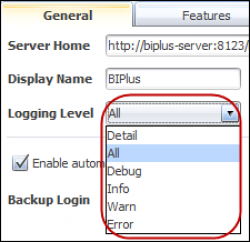
When Tomcat is started, for the BI PLUS application, it reads the biplus.xml configuration file to see what level of logging it should produce. The output is sent to multiple log files in the log sub-directory of the application. The available levels of logging are:
- Detail: Every type of event can be viewed using Detail log. It also includes development logs.
- All: When logging is set to all mode, every single request to Tomcat is displayed in the log file. This is typically used for initial setup, testing, development and debugging. In a production environment with thousands of users hitting the server, you would typically not want the logging level set to “all”, as it will flood the tomcat log and consequently the file systems with an unnecessary amount of data as it logs every call event, most of which will be meaningless in such a highly concurrent environment. All details of every SQL statement are also shown in the log file, which is good for debugging purposes. This logging mode also requires additional disk space to be made available to handle all the logging information that is written to the file system. This does not include development logs.
- Debug: Debug information is included in this type of log mode.
- Info: When logging is set to “info”, the amount of detail sent to the server is substantially less. Every call to the server is logged with the relevant call request code.
- Warn: Warning information only is included in this log mode.
- Error: When logging level set to error, messages will be displayed in the Tomcat console log only when some failure occurred, for example “could not connect to database” etc. or some other untrapped error condition or critical bug.
- Maximum Log Files: You can set the maximum number of files for which logs will be generated. BI PLUS support up to 1,000 files. Each file is up to 500 kb in size. Once the file limit is reached, BI PLUS overwrites the oldest file.
- Enable Automatic Repository Backup: Enabling this makes automatic backups of the BIPLUS repository everyday. Repository backup includes Reports, Themes, Datsource, Users, ETL Tasks, Scheduled Reports, Groups, Profiles, Templates, Global Filed Format, Global Expressions and few more things. In short, everything you need to successfully restore an environment to its former state should the environment be destroyed. This backup is stored at “C:\BIPLUS\Apps\BIPLUS\backup\export\” location with backup date & time as in their names. What is not stored is the historical versions of each object. That only happens with a database backup.
- Backup Login: Specifies which login is used to authenticate with during the Repository backup.
- Backup Count: Every repository backup is stored in a .zip file. You can set the maximum file count using this attribute. BI PLUS support up to 25 files. Once the file limit is reached, BI PLUS overwrites newest log over oldest file.
Features
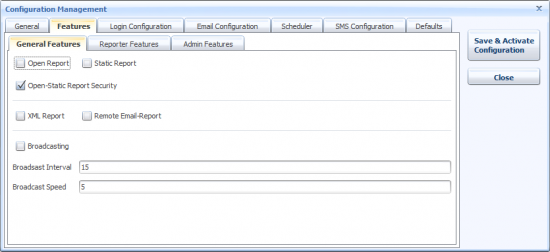
Next tab in Configuration Management is Features. Using feature tab we can hide/display various features.
- General Features
- Open Report: Enable/Disable Open Report.
- Static Report: Enable/Disable Static Report.
- Open Static-Report Security: Enable/Disable Open Static-Report Security.
- XML Report: Enable/Disable XML report.
- Remote Email Report: Enable/Disable Remote Email Report.
- Broadcasting: Enable broadcasting for Reporter. Broadcasting message appears in the browser's status bar. Broadcast messages are set up in Administrator mode, and the message is either disabled or enabled. This is not a very widely used feature, but it is available as a means of global communication with those users who run BI Plus in a browser.
- Message Update Interval: This value is specified in minutes. After a certain duration, it checks for updated message on the server and displays them.
- Broadcasting Speed: This attribute controls how fast to display the characters in the message. The value indicates characters per second. A reasonable value is 8 - 10 characters per second.
- Reporter Features
- Auto Refresh report: Enable/Disable Auto refresh report for reporter.
- Auto Schedule: Enable/Disable schedule reports without approval from admin.
- Comments: Enable/Disable 'Comments' in reporter.
- Copy: Enable/Disable Copying in reports.
- Customize View: Enable/Diable 'Customize View'
- Desktop Shortcut: Enable/Disable 'Desktop Shortcut' in reporter's report tree.
- Email As(Using Outlook): Enable/Disable 'Email As(Using Outlook)'.
- Email Report: Enable/Disable 'Email Report'
- Favorites: Enable/Disable Favorites.
- Filter: Enable/Disable 'Filter'.
- Graphical Explorer: Enable/Disable 'Graphical Explorer'.
- Layout Setting: Enable/Disable 'Layout Setting'.
- Notes: Enable/Disable 'Notes'.
- Open Report: Enable/Disable 'Open Report'.
- Pivot Analysis: Enable/Disable 'Pivot Analysis'.
- Print Report: Enable/Disable 'Print Report'.
- Refresh Report cache: Enable/Disable 'Refresh Report and Cache'.
- Save Report: Enable/Disable 'Save Report'.
- Schedule Report: Enable/Disable 'Schedule Report'.
- Send SMS: Enable/Disable 'Send Report'.
- Show User Menu: Enable/Disable 'Show User Menu'.
- Treatments: Enable/Disable 'Treatments'.
- View Server Log: Enable/Disable 'View Server Log'.
- Admin Features: You can Enable/Disable admin features for Admin, Developer, Power user.
- Active Users: Enable/Disable visibility of 'Active Session' feature in Admin menu.
- Add Report: Enable/Disable visibility of 'Add Report' feature in Report menu .
- Broadcasting Update: Enable/Disable visibility of 'Broadcasting Message' feature in Admin menu.
- Callable Report Map Update: Enable/Disable visibility of 'Callable Report Mapping' feature in Admin menu.
- Cancel Checkout Report: Enable/Disable visibility of 'Cancel Checkout report' feature in Version Control menu.
- Change Run Report Log: Enable/Disable visibility of 'Clear Run Report Log' Feature in Admin menu.
- Checkin Report: Enable/Disable visibility of 'Checkin Report' in Version Control menu.
- Checkout Report: Enable/Disable visibility of 'Checkout Report' in Version Control menu.
- Clear Audit Log: Enable/Disable visibility 'Clear Audit Log' feature in Admin menu.
- Clear ETL Log: Enable/Disable visibility of 'Clear ETL Log' feature in Admin menu.
- Clear Report Cache: Enable/Disable visibility of 'Clear Report Cache' feature in Report menu.
- Clear Run Report Log: Enable/Disable visibility of 'Clear Run Report Log' feature in Admin menu.
- Clear Repository Cache: Enable/Disable visibility of 'Clear Repository Cache' feature in Admin menu.
- Create Data-Objects: Enable/Disable creation of Data Object type reports.
- Datasources Update: Enable/Disable visibility of 'Datasource' feature in Admin menu.
- Delete Report: Enable/Disable visibility of 'Delete Report' feature in Report menu.
- ETL Target Update: Enable/Disable visibility of 'ETL Task' feature in Admin menu.
- Export Report: Enable/Disable visibility of 'Export' feature in Report menu.
- Global Expression Update: Enable/Disable visibility of 'Global Expressions' feature in Admin menu.
- Global Format Mask Update: Enable/Disable visibility of 'Global Field Formats' feature in Admin menu.
- Grex Configuration: Enable/Disable visibility of 'Grex' feature in BIPLUS.
- Groups Update: Enable/Disable visibility of 'Groups' feature in Admin menu.
- Import Report: Enable/Disable visibility of 'Import' feature in Report menu.
- Import Report (Server): Enable/Disable server side import of files. For server side import, files are dropped at C:\BIPLUS\Apps\BIPLUS\import\current location.
- License Key Update: Enable/Disable visibility of 'License Key Maintenance' feature in Admin menu.
- Lock Repository: Enable/Disable visibility of 'Lock repository' feature in Admin menu.
- Manage Configuration: Enable/Disable visibility of 'Manage Configuration' feature in Admin menu. You can also enable this feature by editing configuration.xml file.
- Manual SQL Edit: Enable/Disable 'Edit Manually' button in SQL editor.
- Pivot Configuration: Enable/Disable visibility of 'Pivot Configuration' feature in BIPLUS.
- Profile Update: Enable/Disable visibility of 'Profile' feature in Admin menu.
- Refresh Data-Objects Metadata: Enable/Disable 'Refresh Metadata' button in Data-Object report's SQL panel.
- Reload Configuration: Enable/Disable visibility of 'Reload Configuration' feature in Admin menu.
- Scheduled Reports Update: Enable/Disable visibility of 'Scheduled Reports', 'Scheduler report for user' and 'Schedule ETL job' features in Scheduler menu.
- Scheduler Start: Enable/Disable visibility of 'Start Scheduler' and 'Stop Scheduler' features in Scheduler menu.
- Template Update: Enable/disable visibility of 'Templates' feature in Admin menu.
- Themes Update: Enable/Disable visibility of 'Report Themes' feature in Admin menu.
- Timeout Update: Enable/Disable visibility of 'Timeouts' feature in Admin menu.
- Update All Checkout Reports: Enable/Disable visibility of 'Show All Checked out Reports' feature in Version Control menu.
- Update Reports: Disabling this feature restricts user to make any kind of update in report.
- Use Database Tables: Enable/Disable visibilty of database table in SQL helper.
- Users Update: Enable/Disable visibility of 'User' feature in Admin menu.
- View Server Log: Enable/Disable visibility of 'Show Server Log' feature in Help menu.
Login Configuration
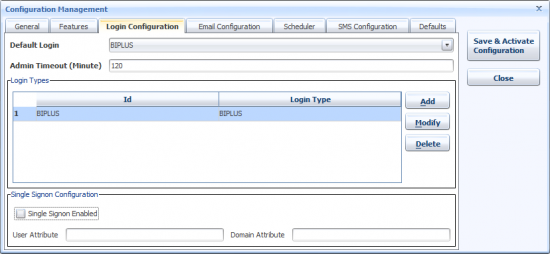
Login Configuration tab has following features…
Default login: Set the default Login type .
Admin Timeout: If a session is idle for specified time (minutes) then the session will b e terminated. The default timeout duration is 120 minutes.
Login Types: BIPLUS supports 4 login types.
- BIPLUS: BIPLUS has its own built-in authentication model, so that the administrator can easily define users in BIPLUS together with their passwords. Once the BIPLUS Administrator defines the user, and the privilege groups they belong to, they can log on.
- LDAP: A LDAP authentication service needs to be running on the network somewhere that the users can get to. With LDAP, users of the system will have a single (same) sign-on benefit. Parameters for this are
- LDAP Server: LDAP Server UPL [ldap://ldap_server:389]
- LDAP Auth Type:
- LDAP Parameters: These parameters are used to identify the records from the LDAP server. [ou=People, o=SeeMoreData.com]
- Datasource: Each user that connects to the BI Plus application will be prompted to login. The user types their normal database login credentials. In an Oracle situation, this could be login=scott, password=tiger to connect to the scott demo schema. For SQL server, this could be ‘sa’, and so forth.
- Custom: BIPLUS provide the ability to configure a customised login from an existing application. for details of this, please contact BIPLUS engineering
Single Signon Configuration: Single sign-on (SSO) is a property of access control of multiple related, but independent software systems. With this property a user logs in once and gains access to all systems without being prompted to log in again at each of them. This accepts User Attribute & Domain Attribute provided by network team.
Email Configuration
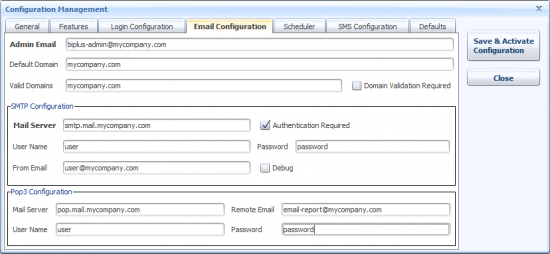
Admin Email: This is where the system administrator's email should be entered. Any notification from BI PLUS (related scheduler, license key, tomcat, errors) are forwarded to this email address.
Default Domain: If in scheduling a report, you simply specify Bob, Julie, Jack and you have the <default-domain> set to “mycompany.com”, then when BI PLUS finds no ‘@’ in the email , it will translate these email addresses at run-time to: Bob@mycompany.com ; Julie@mycompany.com ; Jack@mycompany.com .
Valid Domain: The list of domains that scheduled reports can be sent to is listed here, with a comma separating the list of various domains.
Domain Validation Required: Enable /Disable whether BIPLUS is to check outgoing email addresses against the list of valid domains.
SMTP Configuration:
- Mail Server: The SMTP host is used for interactive emailing of reports and also emailing of scheduled reports.
- Authentication Required: If this section is enabled, then all requests to have scheduled reports will be automatically emailed by BIPLUS to Admin for authentication.
- User Name: This is a mail user that is defined as a user in the Exchange / Lotus notes / Netscape mail / other mail server.
- Password: The password associated with the user-name for the given SMTP mail server.
- From Email: This email ID will be displayed as 'sent from'.
- Debug: If this is enabled then debug information of email connection with mail server will be displayed in log.
POP3 Configuration:
- Mail Server: POP3 is usually used for incoming mail only, so this will be the SMTP server outbound address, the place where mail is sent from.
- Remote Email: Sends Email to remote email.
- User Name: This is a mail user that is defined as a user in the Exchange / Lotus notes / Netscape mail / other mail server.
- Password: The password associated with the user-name for the given POP3 mail server.
Scheduler
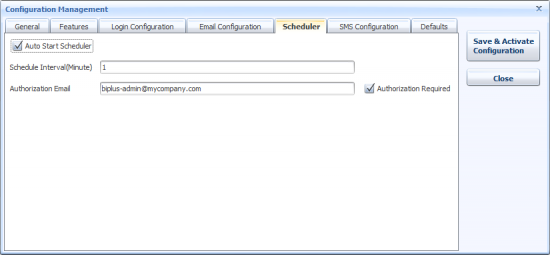
The Scheduler is one of the most powerful features of BIPLUS.
- Auto Start Scheduler: This specifies whether the scheduler will be auto-started at instance start-up time or whether the Administrator needs to manually start the scheduler. In a production environment, this tag would almost always be set to true.
- Schedule Interval (Minutes): Once the Scheduler is started, the minute interval between when Scheduler interrogates the repository for the list of scheduled reports that need to be run. This is specified as an integer, with a maximum setting of 1440 (24 hours X 60 minutes). To get the scheduler to check for scheduled reports every 30 seconds, set this to 0.5. To force the scheduler to check for scheduled reports every hour from startup, set this value to 60.
- Authorization Email: This portion of the scheduler specifies who is to be notified when a user has scheduled a report. All scheduled reports that have a recurring frequency need to be approved by a designated reports administrator.
- Authorization Required: If this section is enabled, then all requests to have scheduled reports will be automatically emailed by BI PLUS to the email address specified in 'Authorization Email' field.
SMS Configuration
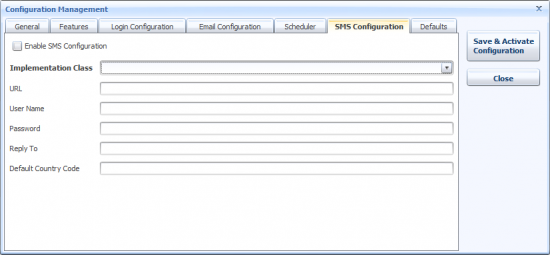
- This entire section will be customized Please contact BIPLUS engineering if you need help linking BI Plus to a SMS gateway for automated content delivery via SMS messaging..
Defaults
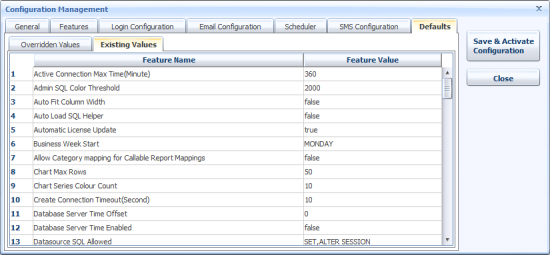
Defaults tab in Configuration Management dialog has two sub-tabs…
Overridden Value: Overwrite default values for specific attributes.
Existing Value: The current and default values of the various configuration attributes.
There are several features in defaults tab. Let's examine each of these and how they affect BI PLUS.
- Active Connection Max Time(Minute): All active connections to datasources will be reset once the time limit is reached. A new connection is made again when a report based on that database connection is run. You can view logs for this, it will appear as 'Creating new connection' in the log.
- Admin SQL Color Threshold: Set the maximum characters where BI Plus will highlight key verbs and items in SQL. Once the SQL exceeds this threshold, it will all appear monochrome. Be careful of setting this too high as it has performance implications.
- Allow Category Mapping for Callable Report Mapping: This feature allows you to set Categories and their child reports as Callable Report Mapping. By default this feature is disabled, allowing you to map individual reports only for the Callable Mapping embeddable interface.
- Auto Fit Column Width: Auto Fit Column Width feature adjusts all columns width according to screen size area. You can enable this feature from the Defaults tab for all reports, also for individual report from the Table Properties tab in table reports by setting its value to 'TRUE'. Once the report is executed, you can enable/disable it dynamically from right click pop-up menu ⇒ Layout ⇒ Auto Fit column Width.
- Auto Load SQL Helper: This specifies whether you want to automatically load SQL helper in SQL editor or not. If you set this to True, then for every selected report, the SQL helper will be automatically opened.
- Automatic License Update: If this is set to 'True', then after license key expiry, BI PLUS will search for new license key on SMD website server. If a new license key is already generated for the customer's environment, then BI PLUS automatically picks up that license from the seemoredata.com server and applies it to the environment.
- Business Week Start: This feature allows you to set business week start either from Monday or Sunday.
- Chart Max Rows: This allows you to set maximum number of rows to be displayed in a single page of different types of chart report. This setting determines how many domain values are displayed on bar charts, plot charts, etc.
- Chart Series Color Count: You can increase color series limit in Admin ⇒ Report Themes ⇒ Chart Report tab. These color series are further used in chart reports. The default colors series limit is 10.
- Create Connection Timeout(Second): This feature tries to establish connection with the repository for the duration stipulated (in seconds). Once the time limit is reached, BI PLUS gives up trying to connect.
- Database Server Time Enabled:
- Database Server Time Offset:
- Datasource SQL Allowed: Enabling this allows you to enter SQL in the datasource connection. SQL are entered in datasource properties. (Admin ⇒ Datasources ⇒ Modify ⇒ Properties ⇒ Type as SQL). Typically this might affect sessions, like 'alter session set schema = 'AP''
- Default Evaluate SQL Rows: Allows you to set default number of rows to be returned when 'Evaluate Query' operation is clicked in the report editor.
- Default Help Text: Allows you to enable/disable 'Report Help' feature. You can view 'Report Help' feature after run report operation is performed. Information for report help is added from Information tab ⇒ Help.
- ETL Logging Enabled: Enable/disable ETL related logging.
- ETL Run Exclusive: Specifies whether you want to run ETL tasks in parallel mode or in exclusive mode. In exclusive mode, the ETL tasks run one after another.
- Email As for Scheduler: Allows you to set default output type for schedule reports. When a user schedules a report then the default file format for that scheduled report is set here. If you set this value to 'PDF', then in the scheduler ⇒ Schedule Report for USER ⇒ Recipient ⇒ Email As you will see PDF as the default type.
- Export Token: Allows you to export a Token-Delimited File format. A CSV file uses a comma as the separating token, but you might want a pipe delimiter, tilde or something else.
- Failed Login Reset Time: After several failed login attempts, BI PLUS locks that user. Here you set the duration (in minutes) that the user is locked out for.
- Failed Login Threshold: Set number of failed login attempts allowed by BI PLUS. Once the limit is reached, that user is locked for specified amount of time.
- Financial Year Start Month: Financial year start month is different for each country. Here you can set financial year start month according to your country.
- Hyperlink Override: Discontinued
- Image Base: Specify the relative path to load the images that are used in reports for icons, logos, etc..
- Import Report Hierarchy: Every exported report is exported with its parent hierarchy. So when a report is imported, it can be imported in a specific category OR it can be automatically imported in a category according to its parent hierarchy. By default this feature is disabled and allows you to import the report object in any category.
- Inactive Connection Clean Frequency(Minute): Specify time(in minutes) to remove inactive datasource connections.
- Inactive Connection Max Time(Minute): Once the time limit is reached then all inactive connection will be removed.
- Internal Database: BI PLUS supports HSQLDB and Oracle as internal databases for its repository. Default internal database is HSQLDB.
- JNLP Memory Size(MB): Specify the JNLP maximum memory in MB. JNLP memory is used for client side operations.
- JNLP Window Height: Set default height of the JNLP window when BI PLUS is started.
- JNLP Window Width: Set default width of JNLP window when BI PLUS is started.
- Java Cache Dir: This is a custom setting and can often not be set for enterprise customers.
- Keep Alive Enabled: Discontinued
- Keep Alive Frequency: Discontinued
- Keep Alive Max Time: Discontinued
- Look & Feel: This changes look and feel of the entire BI PLUS application. The default value is Standard. It also accepts Classic to show classic look & feel. The Standard look & feel is recommended.
- Maximum Row to Client: Specify the maximum number of rows should to display on a single page.
- Messenger Autostart: If both 'Messenger Enabled' and 'Messenger Autostart' features are enabled, then BI PLUS users are logged into the chat menu automatically.
- Messenger Enabled: Making this 'True' displays 'Chat' feature in Reports menu. This does not login to the chat application automatically.
- Number Format Decimal Separator: This is generally a period, except in certain countries.
- Number Format Group Separator: the thousands separator used. This is generally a comma
- Offline Task End Time: Set the time to end offline tasks. Default time is 6.00 AM.
- Offline Task Start Time: Set the time to start offline tasks. Default time is 10.00PM.
- Parameter Report Column Count: When you have multiple parameters in a single report, you can set how many you want in a single line (to save screen real estate).
- Password Case Sensitive: Enable/Disable case sensitivity of passwords. If the password sensitive is enabled then password 'ADMINPASS' and 'adminpass' are interpreted differently.
- Pivot Popup Timeout: Set the duration (in seconds) of a pivot pop-up dialog before it disappears.
- Recent Report Enabled: Enable displaying the list of recently executed reports in reporter interface.
- Recent Run Reports: Set number of reports to be displayed in Recent Report Enabled:
- Report Cache Memory Size: Specify the maximum memory size (in MB) of report cache to be stored in memory.
- Report Cache in Memory Expire Time: Specify expiry time for report cache in memory. Once the duration limit is reached, the cache will be deleted.
- Report Data Date Format: This is the date format used to display date type in reports.
- Report Data Compression Size: Set the minimum dataset size for enabling compression. When running over slow networks, compressing and uncompressing saves a lot of time in data transmission. You will get no noticeable performance gains before 40 KB is reached.
- Report Data Compression Size Enabled: Enables/Disable report data compression feature.
- Report Data Encryption: Specifies encryption used for Report data. Valid values are 'DES' and 'DESede'.
- Report Data Encryption Enabled: Enable/Disable report data encryption. By default encryption is disabled.
- Report Data Encryption KeySize: Specifies the keysize for report data encryption.
- Report Disk Cache Type: Specify what kind of caching mode the users are to use. 'None' does not cache anything at all. 'Compressed' stores compressed cache on disk. 'Uncompressed' stores cache on disk without any compression.
- Report Drag & Drop Enabled: Allows you to Drog & Drop reports in report tree. By default this feature is enabled.
- Report History Frequency: Specify the time duration for the reports to stay in report history.
- Report History Max Reports: Specify the maximum number of reports to keep in the reports history buffer.
- Report History Max Time: Specify the maximum idle time for report history.
- Reporter Show User Menu: Enables/Disables visibility of the 'User' menu inside BIPLUS.
- Repository Backup Export Passwords: Allows you to export the password (like datasource, users) with repository backup.
- Repository Backup Location: Define the path / location to save repository backups.
- Reset Password Enabled: Enable/Disable visibility of the 'Forgot Password' feature on the login page.
- Run Log Retain Days: Set number of days that the log should be retain by BI PLUS. This run log information in stored in BI PLUS repository's RPT_RUN_LOG table.
- Run Report Click Count: Set number of mouse click needed to execute a report. This feature is applicable in reporter interface.
- Run Report in New Tab: Every report executed will be opened in new tab so that you can analyze multiple reports. This feature is applicable in reporter interface.
- SMD Calendar Back Year: Discontinued
- SMD Calendar Forward Year: Discontinued
- SMD Date Format: The Java date format to show date type values in the reporter interface.
- SMD Function Date Format: Discontinued
- SQL Start Allowed: SQL query for Data Manipulation commands (like INSERT, DELETE, UPDATE) are blocked in BIPLUS. If you want to start your SQL query other than 'SELECT' statement then mention that keyword here. Words like 'WITH', 'EXEC', 'EXECUTE' and 'DECLARE' give you more control and flexibility.
- Scheduler Max Concurrent Reports: Maximum numbers of scheduled reports that can be run simultaneously.
- Send Change Alert: An alert email is send to the Admin user when a report is checked-in by a user. Email information contains User_Name, Report_ID, UID and Comments.
- Show Count: Shows record count returned after SQL query execution. Record counts are displayed at the top of each report.
- Show Email Warning: Enable/Disable visibility of 'Warning Message' before sending a mail.
- Show Environment: Shows environment name of your installed BI PLUS application in the title bar. Default environment name is 'BIPlus'.
- Show Grid: Set the default value of 'Show Grid' feature in 'Flow Chart Properties' tab. Setting this to true enables grids for all flow chart reports.
- Show Java Help: Discontinued
- Show Language Selection: Setting this to 'true' displays language selection drop-down list on login page.
- Show Loader: When you open BI PLUS in a browser, it displays the loading bar with the title 'Please wait while BI PLUS loads'. By default BI PLUS displays this loader. You can disable this loader with this setting.
- Show Report Date & Time: Displays current Date and Time in report header.
- Show Report Timer: Displays timer for report execution which specifies the time taken to execute a particular report.
- Show SAP Datasources: Setting this to true displays SAP data-source at 'Admin ⇒ Datasource ⇒ Modify ⇒ Type ⇒ Write-back' location.
- Stats Collection: making this to 'true' sends anonymous stats.
- Table Row Style Count: Increase the Table Row Style color limit in Admin ⇒ Report Themes ⇒ Table Row Style tab. These color series are further used in Table reports. Default colors series limit is 9.
- Tomcat Service Name: This name will be used when BI PLUS is updated to new version and tomcat service needs a restart.
- Tree Sorting Order: Set Reports Tree sorting order. Sequence and Name are the values supported. Sequence sorts all reports according to the sequence they were created. Name sorts reports in alphabetical order.
- Unsafe Extension: List the file extensions to be blocked from selected list. Multiple file extensions are seperated by ',' (comma) symbol.
- Use Server Timezone for Clients: Enables server time-zone for clients.
- Writeback Report Enabled: Enables datasource type for write-back report. By default this feature is disabled. Once you enable this feature you will be able to see Write-back at 'Admin ⇒ Datasource ⇒ Modify ⇒ Type ⇒ Write-back' location.
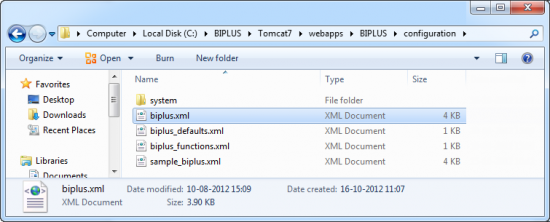
BIPLUS configuration settings are saved in the biplus.xml file. This file is found at C:\BIPLUS\Tomcat7\webapps\BIPLUS\configuration which is the default location. Open this XML file in WordPad or Notepad or in your favourite editor.