====== Drilldown ======
* [[biplus:documentation:admin_guide:drilldown?&#simple_drilldown|Simple Drilldown]]
* [[biplus:documentation:admin_guide:drilldown?&#configuring_multiple_drilldown_level|Configuring Multiple Drilldown Level]]
* [[biplus:documentation:admin_guide:drilldown?&#multiple_drilldown_children|Multiple Drilldown Children]]
===== Simple Drilldown =====
Drill down means to move from summary information to detailed data by focusing in on something. In a GUI-environment, "drilling-down" may involve clicking on some representation in order to reveal more detail. Drilling down is a hierarchical process in BIPLUS and it is a relatively easy process.
BIPLUS has unlimited levels of drilldown. In practice however, it is very rare to go more than 7 levels deep. In BIPLUS, the drilldown is a keyed process and accessing the keys of parent and grandparent reports is relatively simple, since BIPLUS supports a generational keyed access. This will become clearer over the next few pages.
Now consider a situation where your displaying Orders for a country (Summary Information) and you want to see detail orders for specific country by clicking (drill down) on it. This details information may contain OrderIDs, Orderdate, City etc. So lets create this kind of a report.
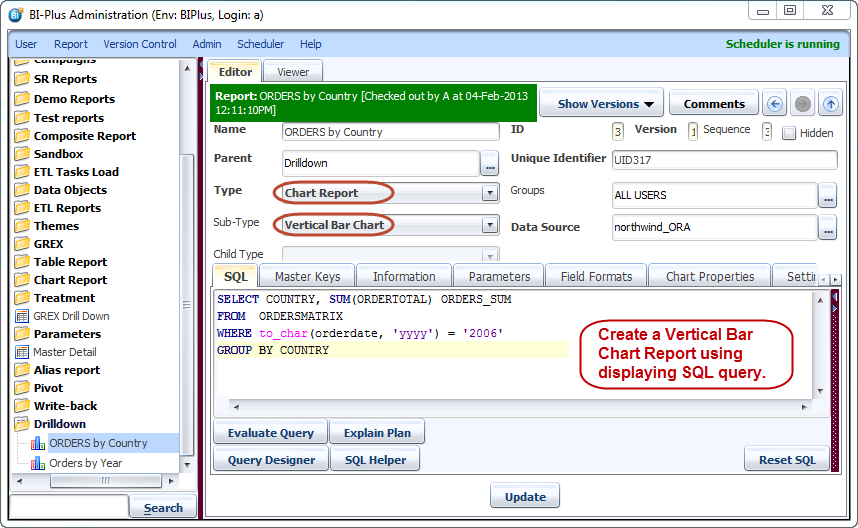
First you need to create a Chart report which is displaying Orders by COUNTRY. Give name to the report as **ORDERS by Country** and write SQL for it as shown below.
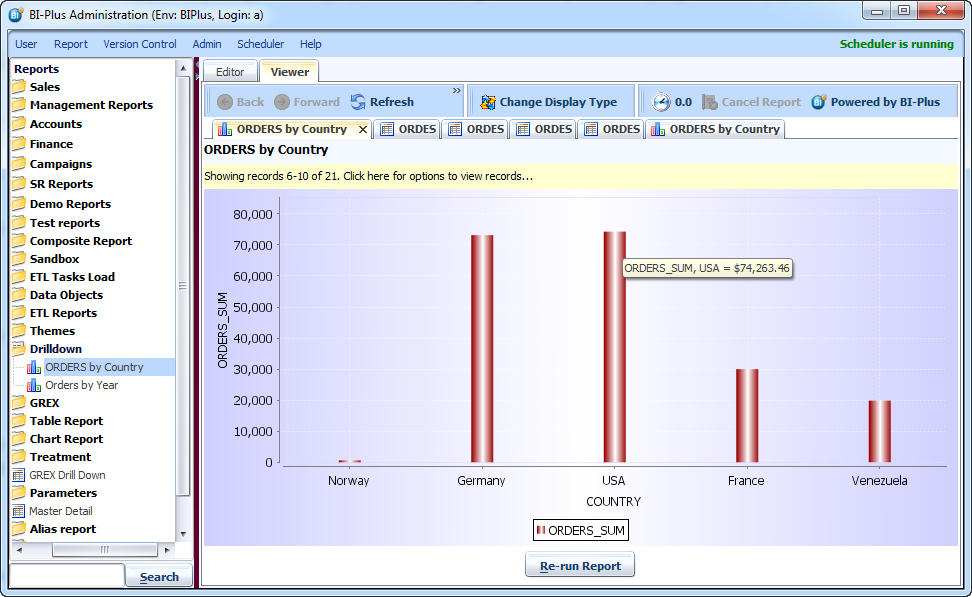
 Now lets run the report and you will see a vertical bar chart report for each Country with its sum of orders for the year 2006.
 Now if we wanted to go further and establish order details by City for the Country represented by each bar, we need to configure drilldown ability
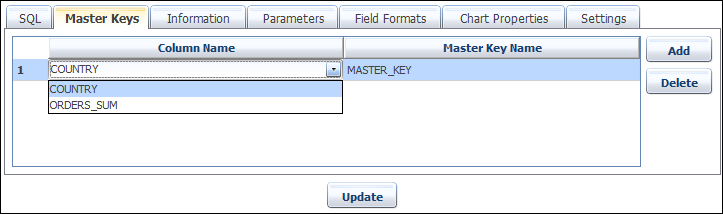
First we find the column that is to be used as the drop-down key. In our query, it is referenced as **Country**. Navigate the **Master Keys** tab, add a key and then from the 'Column Name' Dropdown list, select the column, which is parsed from the query statement. And then assign a MASTER_KEY. BIPLUS allows up to 10 keys per report.
Now if we wanted to go further and establish order details by City for the Country represented by each bar, we need to configure drilldown ability
First we find the column that is to be used as the drop-down key. In our query, it is referenced as **Country**. Navigate the **Master Keys** tab, add a key and then from the 'Column Name' Dropdown list, select the column, which is parsed from the query statement. And then assign a MASTER_KEY. BIPLUS allows up to 10 keys per report.
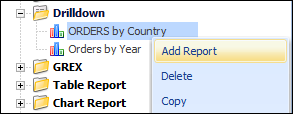
 Now we are ready to create the child report to drill down to, that references the value of the passed down key. First, in the left tree, we right-click the existing report (ORDERS by Country) and select the **Add Report** option to add a child report under **ORDERS by Country** report.
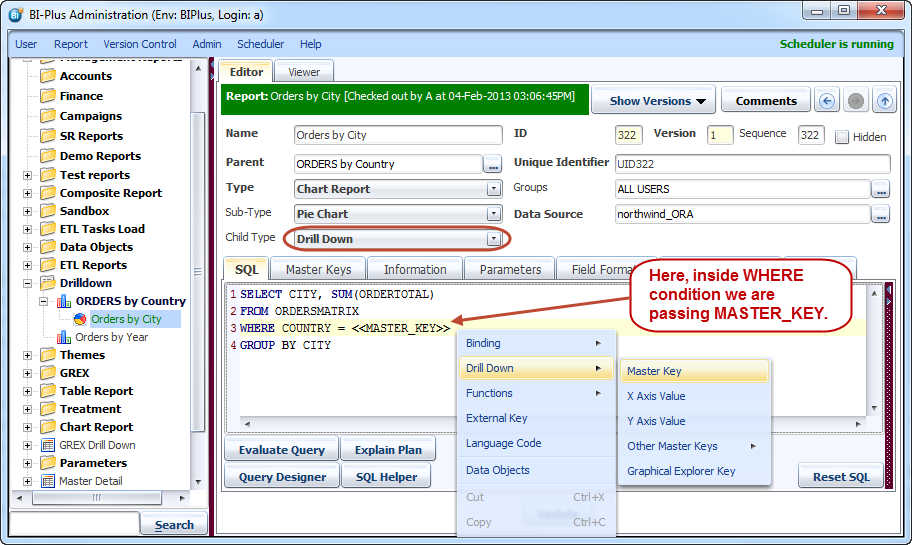
 Once the report appears, name the report (Orders in Detail), select the datasource, report type as Pie chart and select **Child Type** as **Drill Down**. This report will show the order by City for the country bar that was clicked in the parent.
Since this is a drilldown child report of the parent, the child type should (MUST) be set to drilldown. This has the effect of not showing the report to the end user from the selection tree but rather having it available to be drilled down to. The MASTER KEY value that was defined in the parent report will be used to drill down to the child.
Once the report appears, name the report (Orders in Detail), select the datasource, report type as Pie chart and select **Child Type** as **Drill Down**. This report will show the order by City for the country bar that was clicked in the parent.
Since this is a drilldown child report of the parent, the child type should (MUST) be set to drilldown. This has the effect of not showing the report to the end user from the selection tree but rather having it available to be drilled down to. The MASTER KEY value that was defined in the parent report will be used to drill down to the child.
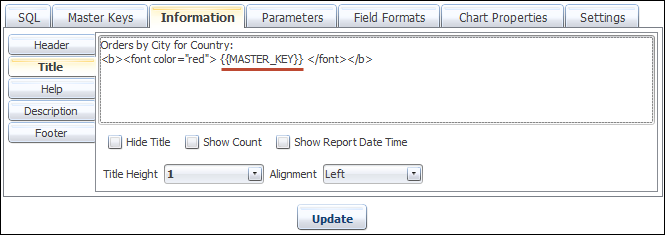
 To show the end user for which COUNTRY they are seeing total or orders, we can reference the passed down master key value in the header.
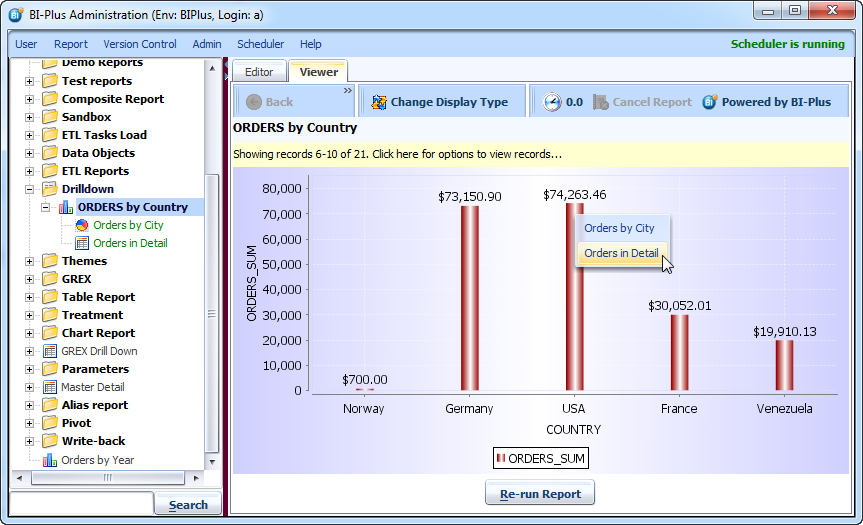
 Now run the parent report **ORDERS by Country**. Notice that the pointer turns to a hand when there is a suitable drilldown report child. click on one of the bars, here we have clicked ob **USA**.
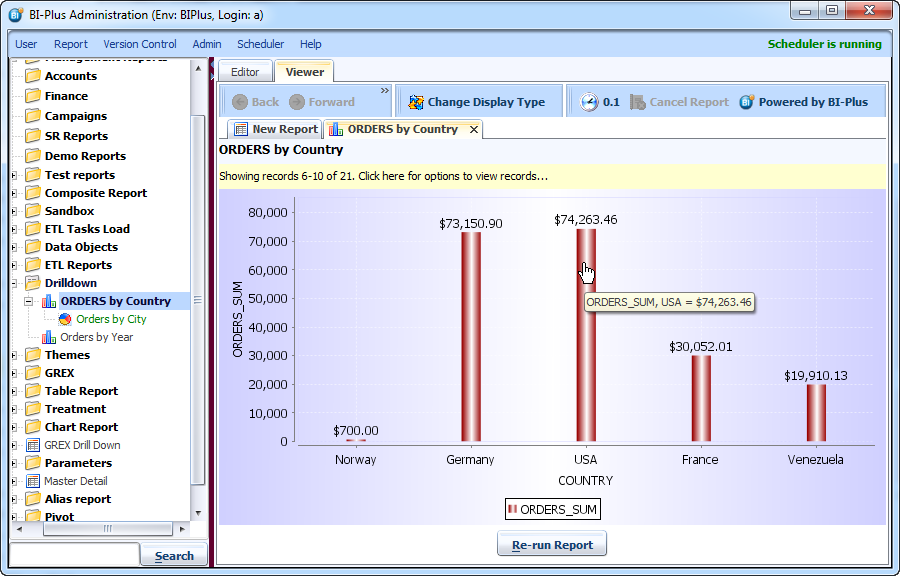 By double-clicking any of the bars, BIPLUS invokes a drilldown operation, capturing the value of the bar into the appropriate master key definitions.
 ===== Configuring Multiple Drilldown Level =====
Using above example we can drilldown from Orders by City to detail Orders for selected Country. Now let's drilldown to details of Orders by City and Country chosen.
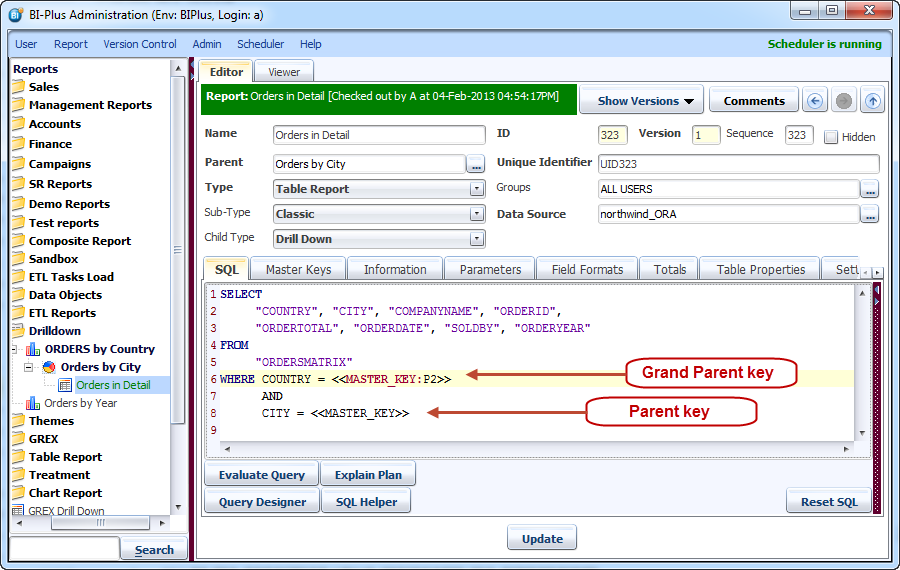
So add a child report under **Orders by City** report with name **Orders in Detail**. We will display this report as a Table report and select its Child Type as **Drill Down**.
Take particular note of how the grandparent key is referenced. This can apply to any generation, using the format <>.
* P1 would have the same effect as not putting in anything.
* P2 as the generation value represents the grandparent.
* P3 would be the great-parent, and so forth.
===== Configuring Multiple Drilldown Level =====
Using above example we can drilldown from Orders by City to detail Orders for selected Country. Now let's drilldown to details of Orders by City and Country chosen.
So add a child report under **Orders by City** report with name **Orders in Detail**. We will display this report as a Table report and select its Child Type as **Drill Down**.
Take particular note of how the grandparent key is referenced. This can apply to any generation, using the format <>.
* P1 would have the same effect as not putting in anything.
* P2 as the generation value represents the grandparent.
* P3 would be the great-parent, and so forth.
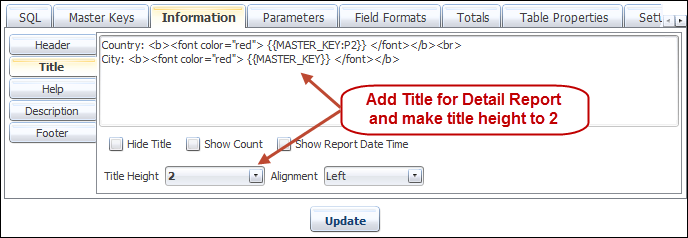
 Add grand-parent and parent key as title in **Orders in Detail** report.
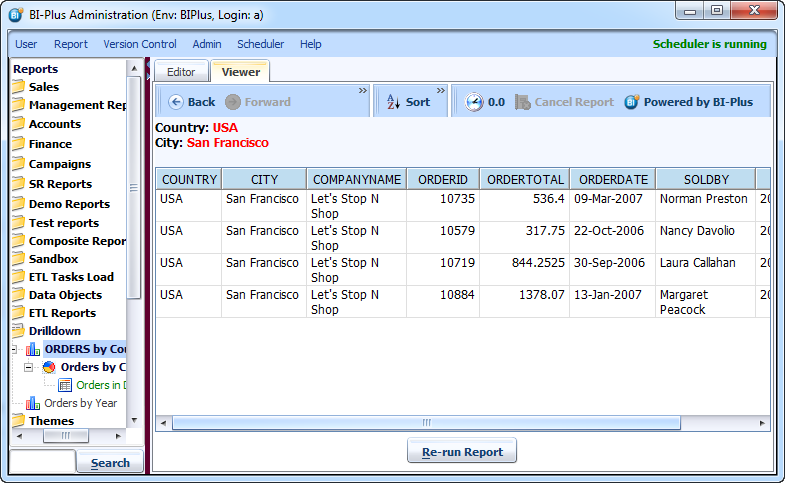
 On running this report and after drilling-down to **Orders in Details** report you will see following output.
 ===== Multiple Drilldown Children =====
Suppose from the top level report we wanted to have multiple child reports to drill down to. Thus from the grouping by Country bar chart summary report, we could drill down to:
* Orders by city
* Order Details
One or the other report could be hidden from the end user by way of the privilege groups. The top level report will encompass all the report groups for the child report (A, B, C) and each of the children may have any number (at least 1) of the parent’s privilege groups associated with it.
If for instance, the Orders by Country drilldown child was granted privilege groups A & B and the Agent Annual summary report was granted privilege groups B & C, then those end users who were part of group B would be able to drilldown to either report, but those end users who only had groups A or C granted to them would only be able to drilldown to the child report associated with the relevant privilege groups.
===== Multiple Drilldown Children =====
Suppose from the top level report we wanted to have multiple child reports to drill down to. Thus from the grouping by Country bar chart summary report, we could drill down to:
* Orders by city
* Order Details
One or the other report could be hidden from the end user by way of the privilege groups. The top level report will encompass all the report groups for the child report (A, B, C) and each of the children may have any number (at least 1) of the parent’s privilege groups associated with it.
If for instance, the Orders by Country drilldown child was granted privilege groups A & B and the Agent Annual summary report was granted privilege groups B & C, then those end users who were part of group B would be able to drilldown to either report, but those end users who only had groups A or C granted to them would only be able to drilldown to the child report associated with the relevant privilege groups.
 When you drills down from the top level and there is more than 1 report available to drilldown to, you will be presented with a pop-up selector as to which report you would like to see.