Table of Contents
Extract, Transform, Load (ETL)
What is ETL?
ETL is a database-centric collection of processes that involves…
- Extract: Extracting data from external sources. Most data warehousing projects consolidate data from different source systems. Each separate system may also use a different data organization/format. Some may use relation database or flat files. In general, the goal of the extraction phase is to convert the data into a single format which is appropriate for transformation processing.
- Transform: Transforming data to fit operational needs (which can include quality levels). The transformation stage applies to a series of rules or functions to the extracted data from the source to derive the data for loading into the end target. Some data sources will require very little or even no manipulation of data. This may include Joining, Sorting, applying aggregation, handling data quality issues, deriving new calculated values, generating surrogate-key values and many more.
- Load: Loading data into the end target (database, more specifically, operational data store, data mart or data warehouse). The load phase loads the data into the end target, usually the data warehouse (DW). Depending on the requirements of the organization, this process varies widely. Some data warehouses may overwrite existing information with cumulative information, frequently updating extract data is done on daily, weekly or monthly basis. Other DW (or even other parts of the same DW) may add new data in historical form, for example, hourly.
Another way we can use ETL is to move information to another application permanently. For instance, the new application might use another database vendor and most likely a very different database schema. ETL can be used to transform the data into a format suitable for the new application to use.
ETL in BIPLUS
The BI Plus ETL feature is opened by selecting the Admin menu ⇒ ETL Task option.
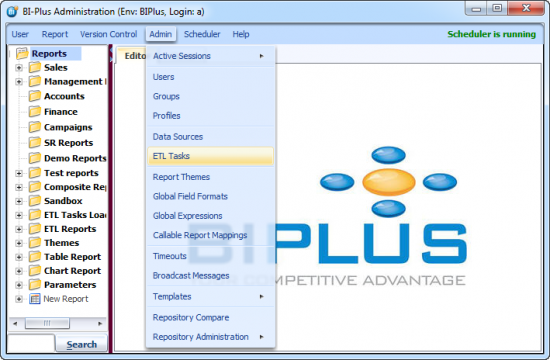
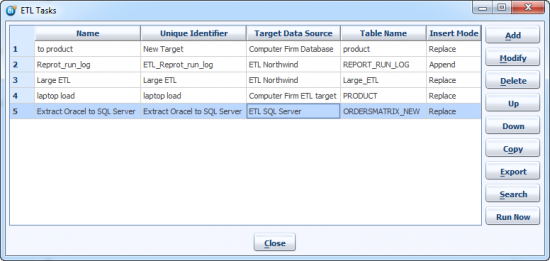
This opens the ETL Tasks dialog.

The ETL tasks dialog supports the following operations.
- Add: Add a new ETL Task
- Modify: Modify an existing ETL Task
- Delete: Delete the selected ETL Task.
- Up: Moves the selected ETL Task up one position in the list.
- Down: Moves the selected ETL Task downone position in the list.
- Copy: Make a duplicate copy of the selected ETL task.
- Export: Exports the elected ETL task to .SMD file.
- Search: Searches for an ETL task in the ETL tasks list.
- Run Now: Force executes a ETL Task.
Before creating an ETL task, create a report for the data which you want to extract. The example shows a report called Oracle OrderMatrix Table. This will be the source table which is an oracle based tabular report (rows and columns) and it will be extracted and loaded into MS SQL Server. The following image shows the Oracle OrderMatrix Table report.
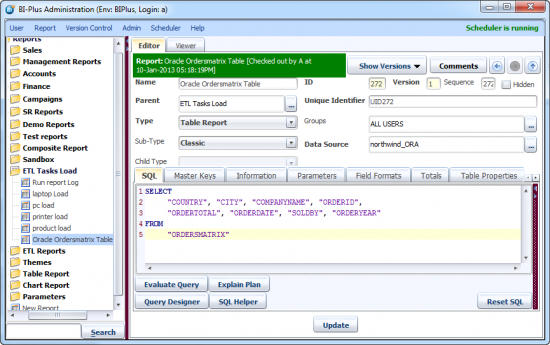
Open the ETL Task manager from the Admin menu. Click on the Add button to create an ETL Task. The ETL Task - New Task dialog is opened.
Here,
- Task Name will be the name of the ETL task.
- Unique Identifier is the unique identifier of the current ETL Task. This is essential for migrating ETL tasks across environments and preserving the details
- Description A meaningful description of the current ETL task.
- Target Data Source Select the Database where you want the extracted data to be loaded.
- Table Name is name of the table in the target database, to load the data into. If table name does not exist in the target data source, then the ETL manager creates the table for you(depending upon user privileges). You can also specify multiple tables.
- Batch Size defines number of records to be included in ech collection that is loaded into the target database. A larger batch size required more memory. The default batch size is 10,000 (records)
- Max In-Memory Batches The batches process in round-robin fashion. This setting defines how many batches will be cycled in memory in round-robin mode. Suppose there are a total of 30 batches and Max In-Memory Batches size is 10 then first 10 batches will be exracted and loaded then next 10 and so on…
- Insert Mode defines whether the data is to be appended or replaced in the target table. Replace will truncate the target table prior to loading the data, whereas Append just inserts the records to the end of the target table, leaving the existing records untouched.
- Commit Mode By default, BI Plus commits the records after each batch (Batch Completion ), but there is an option to only commit the records once the entire task has run successfully (Task Completion).
- Source Report is the report that defines the data to be extracted.
The screenshot below shows the Target Data Source. In this case the Target Data Source is 'ETL SQL Server' and the Table Name is 'ORDERSMATRIX_NEW'

Oracle Ordersmatrix Table is the Source Report and it can be selected from the Reports Tree that pops up if you click the '…' option.
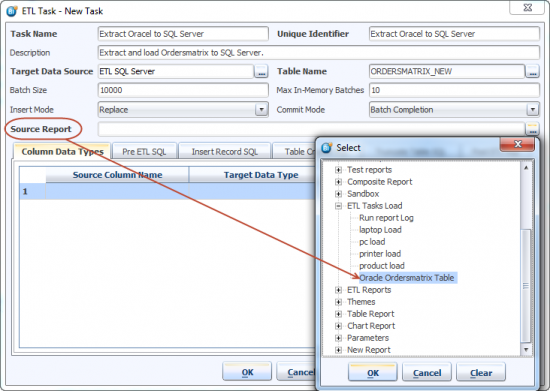
Once this basic information is filled then you can save the ETL Task. Click the OK button to save the Task.
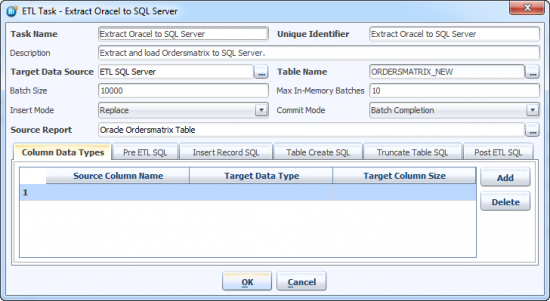
The saved task now appears in the ETL task Manager. Select the previously created task which is Extract Oracle to SQL Server and click on the Run Now button to start the ETL process.
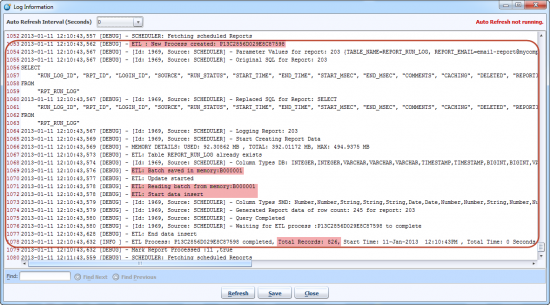
When you start an ETL process you can check the log to view the ETL process pass/fail status. The Help menu ⇒ Support ⇒ Server Log displays the log. The log in the following screen shows that the ETL process completed, the Total Record Count, the Start Time and the Total Time. The log shows that 826 records are transferred.
Everything has worked perfectly, so open MS SQL Server and check whether the data is loaded or not.
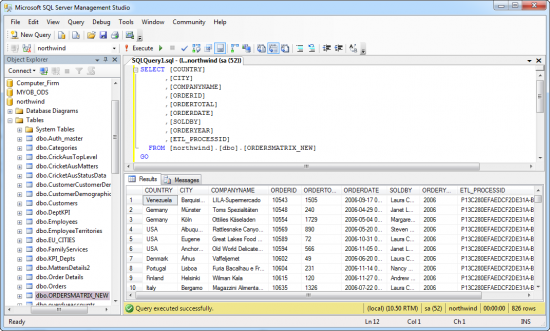
In the Northwind database, the ORDERSMATRIX_NEW table is created. The above image also displays that 826 rows existed in this table.
Note: When the new table is created in the ETL process, an additional 'ETL_PROCESSID' column is created with the new table. For each record this column contains information about the ETL ID, BATCH_NUMBER & ROW_NUMBER. If you are loading data to an existing table, then please add a column with name 'ETL_PROCESSID'