Table of Contents
Exporting & Importing
Migration of reports from one BIPLUS environment to another is achieved by means of export and import, which are found in the Report menu or by right clicking a report or sub-tree. It is possible to export the entire repository by exporting (with Cascade) the top level (Reports). This should be done regularly as a manual backup operation.
Export Packages
BIPLUS handles export & import functions via Export Packages. An export package contains optional supplementary components to a report, like the datasources, themes, global field formats, privilege groups, etc. that all pertain to the report being exported. The export process will create a hierarchy and order within the package, so that all of the privilege groups, themes, datasources, etc. can be imported prior to the report being imported, thus all the objects that the report itself is dependent upon, will already be in place in the target environment.
The advantage of an export package is that the developer can perform a single-object migration and not have to concern themselves with the dependencies of the report. So if a report relies on a particular theme or set of privilege groups to be in place, these can all the packaged together and on import, BI Plus will work out the dependencies and perform the import of the related objects in the correct order.
Another advantage to an export package is that if something was omitted from a package, there is no need to recreate the package, you can simply append to the export package without disturbing any existing dependencies.
Export files are stored as XML files with the suffix ‘.SMD’ and for BI Plus to be able to import a report definition, the file must have the suffix ‘.SMD’, otherwise it will not import it. an Exception is .zip files where the .SMD files are exported together with template files that support HTML, PDF, Word and XSLT templates.
What can be Exported and Imported?
Reports (SQL, Report Datasource, Master Keys, Parameters, Field Formats, Totals, Table Properties and Settings)
Users (Single or multiple Users with their settings)
Groups (Single or multiple Groups)
Profiles (single or multiple profiles)
Data Sources (Single or multiple data sources with connection passwords)
ETL Tasks (Single or multiple ETL Tasks)
Reports Themes (Single or multiple Themes)
Global Field Format (Single or multiple Global Field Format)
Global Expression (Single or multiple Global Expression)
Callable Mapping Reports (Single or multiple Callable Mapping Report)
Treatment (Single or multiple reports Treatment)
Scheduled Reports (Single or multiple Scheduled Reports)
How to Export?
To export a report or a tree of reports, right click on the node you wish to export.
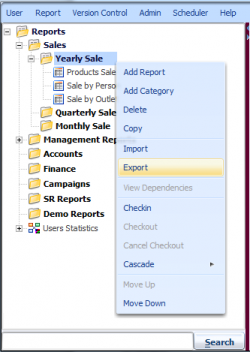
As soon as you click on the Export button, a popup message is displayed that will ask you if you want to create a new export package or if you want to append to an already existing export package. The advantage to this approach is that if there are a whole lot of different reports that you would to move to a target environment, this can now be done with a single operation rather than have to repetitively move each series of objects across in a hierarchy. Moreover, you can export datasources, privilege groups and themes in a single integrated export object.

When prompted, create a new export package. This opens a dialog to let you define where to store the export package output file. It is based on the client system, not the server. The default name for report is report UID (that you are currently on) and the export date. You can change the export file name as you like. We'll assume that you name it as 'Yearly Sale'.
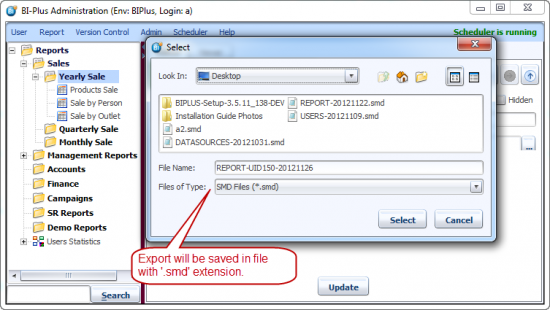
Click on the Select button to save the export. If the selected category/report has any child report/s then you will also get prompted for that.

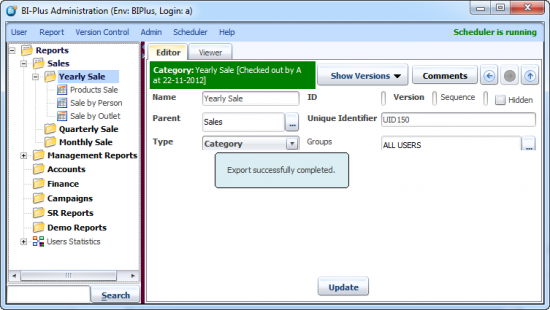
Click on the Yes button to save the export and the 'Export Successfully Completed' message will be displayed.
Now export a Data Source and choose the option Append to existing Package. Go to Data Sources in admin menu. Choose the ‘northwind_ORA’ Datasource from the Datasource dialog and then click the Export button. It will ask whether you also want to export the password for the data source connection. Click on the Yes button to proceed.
Note: When passwords are exported they are encrypted. This prevents prying eyes from seeing passwords in plain text.
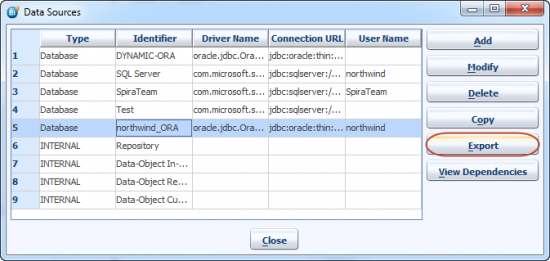
Now, you will get a prompt to append to existing package. Select the Append to existing Package option and click on the OK button.
Here, you have to select an existing .smd file to which you want to append the current export package. Select the previously exported 'Yearly Sale' export package.
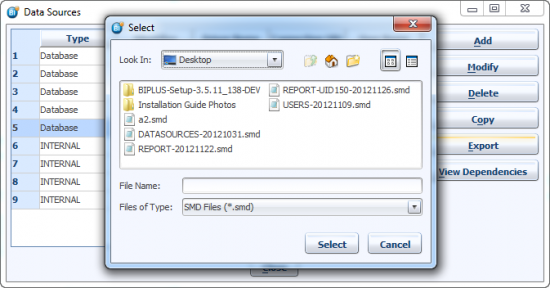
After clicking on the Select button, export will be appended and 'Export Successfully' message will be displayed.
If the Administrator (only Administrators can perform user maintenance and administration) wants to append any users to the export package, this is the way it can be done.
Keep in mind that it is generally administrators who perform the migration of reports and associated objects from one environment to another and thus the import function is enabled only for Administrators by default. However, import functionality can be granted to developers, this can be done from Configuration Management ⇒ Features ⇒ Admin Features ⇒ Import Report.
Importing Reports
When you import into a completely green-fields environment (where nothing beyond the basic repository installation has been done) you can import the package by selecting the Import option of the Reports menu. In the illustrated example, we have deleted 'Yearly Sale' category and 'northwind_ORA' data source from BIPLUS system.
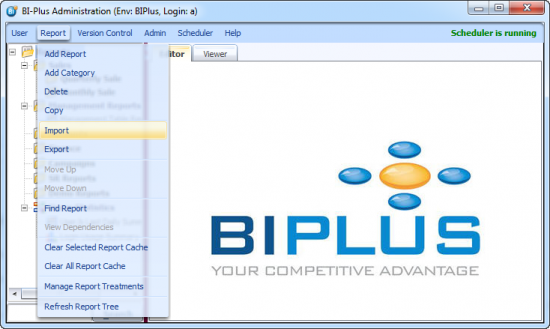
When asked to select the import package file, choose the ‘Yearly Sale’ package created previously and click on Select button.
The export package containing all the previously exported entities is displayed (like Reports & Data Source). Here the Administrator can selectively import subsets of the various object types by checking or unchecking the objects individually.
The Administrator does not have to think about the dependencies, BI PLUS knows that reports are the last things to be imported since it relies on privilege groups, themes, global field formats, datasources, etc. all to be present. Groups are imported first, since users, datasources and reports depend on this. Then it imports the rest of the objects that are checked from the list. Data sources and Users passwords are always encrypted in the export package and decrypted when they are imported to minimize the security risks.
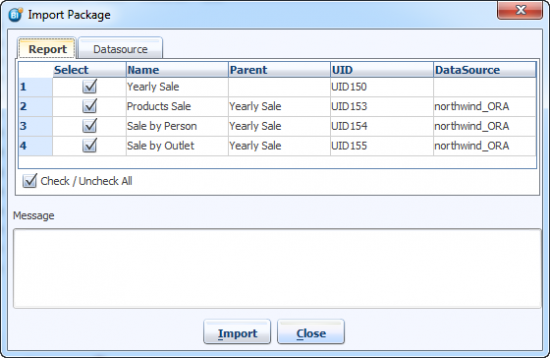
When importing a set of reports from inside a hierarchy in the source system where the same hierarchy does not exist in the target environment, you may be prompted to choose the parent for the top level report of the import.
After clicking on the Import button, you are asked to select a parent to attach the top of the hierarchy to. By clicking the ‘…’ button, the Administrator can select the parent to attach it to. For a Greenfields (empty) environment, select the top level of ‘Reports and click on the OK button.

This message tells you that the import has completed, together with Data sources and the report set.

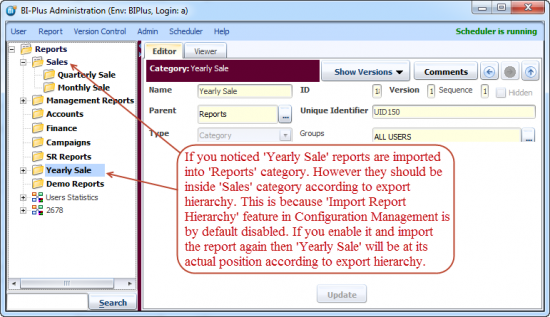
The 'Import Report Hierarchy' feature lets you import reports according to the exported hierarchy.