Table of Contents
Header & Footer
Header, Footer and Title
Header & Footer allow you to enter header or footer for your own report. The header appears right below the report title and Footer appears at the bottom of the report. You can write header/footer in simple text or HTML tags. Header/Footer provides an option to be displayed on each page or to Hide them. You can also display useful information in the report header / footer like Login name, Master Key, Parameter information and many more. Let's see a few of them and how doing that.
To achieve this go to the Information tab of the report for which you want to display the header / footer. Inside information tab you will see Header, Title, Help, Description and Footer sub-tabs. By default Header is always selected.

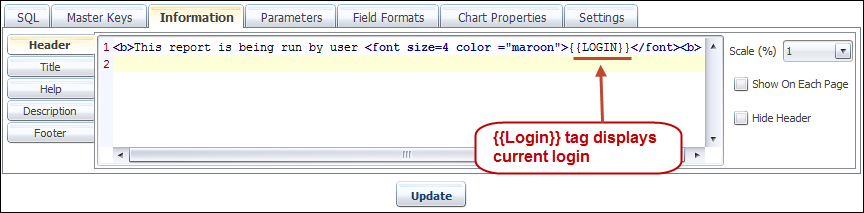
As told before, Header is always displayed just below the report title. You can insert simple text or HTML content inside the Header tab. Here we have entered some HTML content which displays a header message This report is being run by user with current user-name in maroon color with font size 4. {{LOGIN}} is a BIPLUS tag which fetches the current BIPLUS login username. See image below.
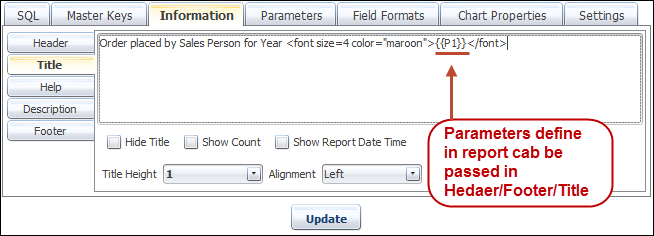
The same way you can add Title for the report. In title you can pass defined parameters {{P1}} which will display selected parameter's values. The title also allows you to Show Count which displays records returned by SQL query and Show report Date & Time which displays current date & time in the title.
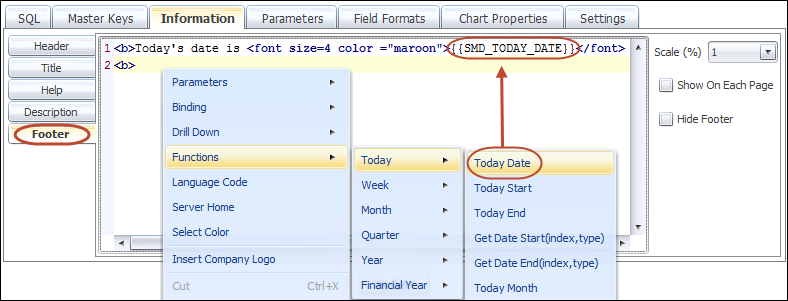
You can also add a footer. Footer message is always displayed at the bottom of the report. The example shows that footer is added in the report which display will Today's date. Using the right click menu you can add several date functions.
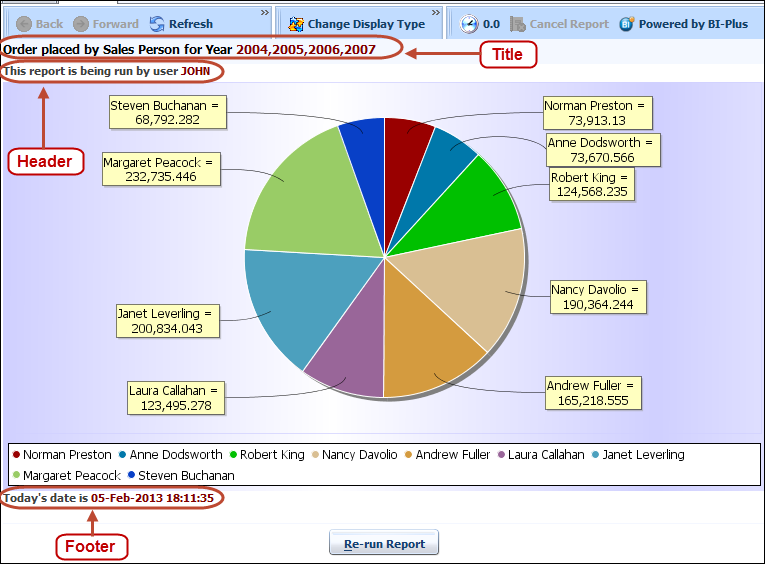
Once you add your desired information in Header/Footer/Title then you can run your report to see the outcome. Following image shows that how header/footer/title will appear in the report. As you can see Title is displaying year values as selected in the parameter (2004, 2005, 2006, 2007). The Header is displaying the current user name (JOHN) and the Footer is displaying today's date (5-Feb-2013).
Help & Description
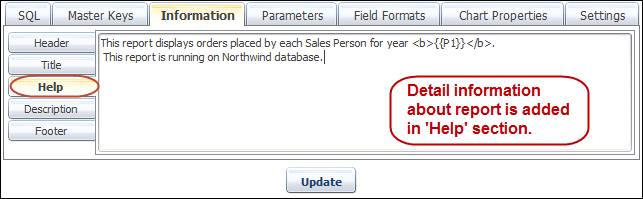
Help in BIPLUS allows you to define detailed information about the report which user can view to understand what this report is all about.
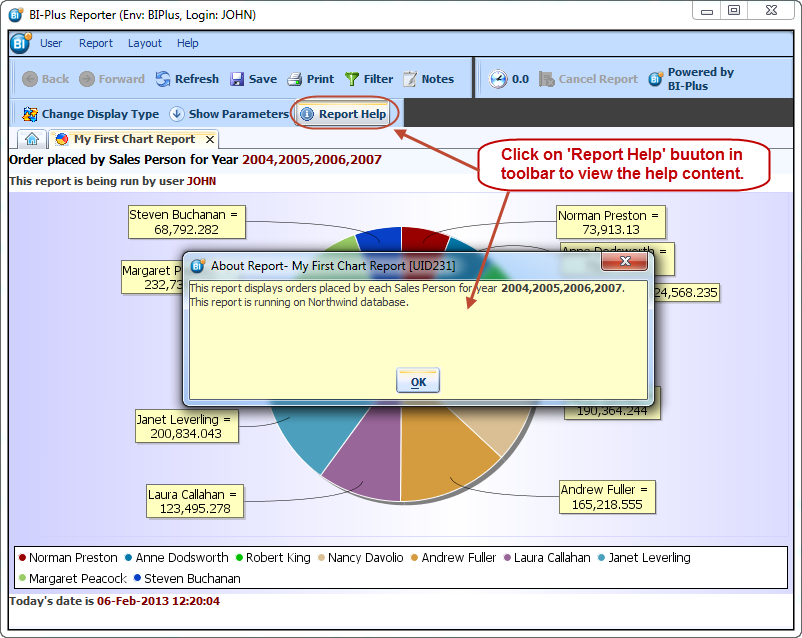
Once Help is added into report you can view it by clicking Report Help button from toolbar. This will open a pop-up dialog with information written about the report.
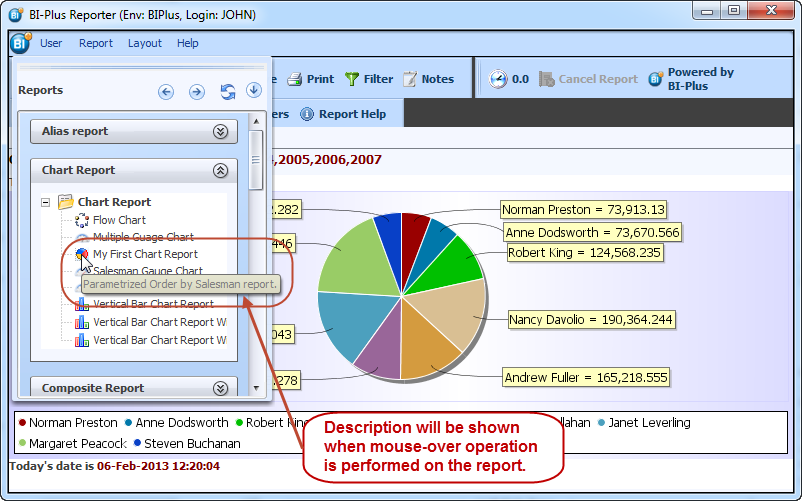
The Description is viewed only in reports tree of Reporter interface. Whenever you will perform a mouse-over action on the report for which it's written then you will see description written about that report.
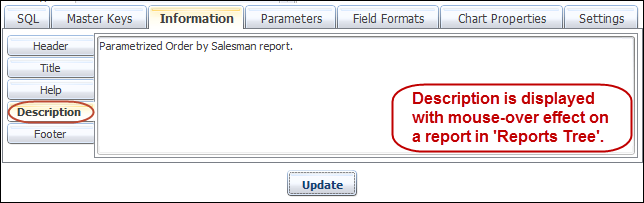
On mouse-over you can see the description about the report in reporter interface.