Table of Contents
Scheduler in BIPLUS
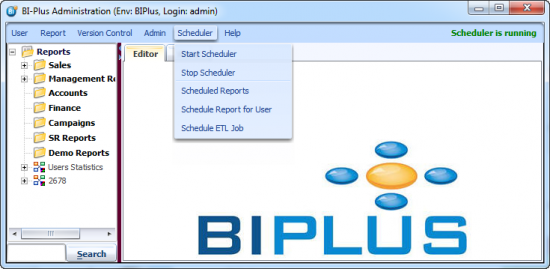
The Reports scheduler is one of the most powerful features of BIPLUS. The Report Scheduler is a recurring and automated interface to email static reports on a periodic basis to one or more recipients. The scheduler automatically runs your financial and BI reports on predetermined schedule, then publishes them in html, pdf, or Excel formats. Here are some key features of BIPLUS scheduler:
- Start Scheduler
- Stop Scheduler
- Scheduled Reports
- Scheduled Reports for user
- Schedule ETL Job
Note: Before scheduling any report you make sure that you have done the Email Configuration, otherwise reports will not be sent.
Start/Stop Scheduler
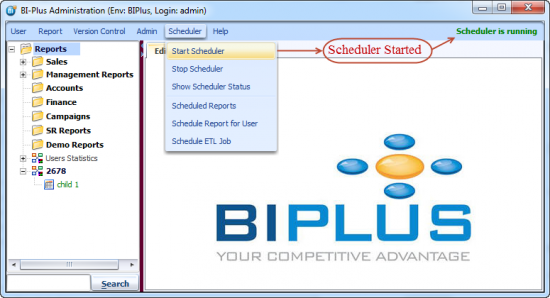
Only Administrator users can Start/Stop the scheduler. From the Scheduler menu, you can select the options Start Scheduler or Stop Scheduler. On the top-right corner of the BI PLUS dialog window, you should see the Scheduler status, it will be Green if the scheduler is running with message Scheduler is running. See the image below.
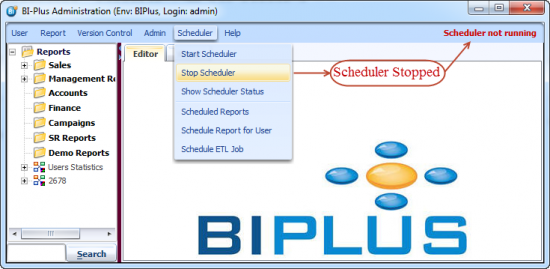
If the scheduler is stopped then the Scheduler not running message will appear in Red color.
Scheduled Reports
The Scheduled Reports dialog allows you to manage all scheduled items.

Authorize: Whenever a report is scheduled to run, if it is a once-off report or scheduled by Administrator, then the report will be scheduled and auto-approved by the system. Any recurring-frequency reports need to be first approved by the BIPLUS Administrator except One Time frequency scheduled items (One Time frequency reports are sent only once and they are auto approved). Until the Administrator approves the report, it will remain in Pending status.
In the above image, you can see that scheduled reports 5 & 6 have a Pending status. Select the scheduled Item you want to approve and click on the Authorize button. This way you can approve scheduled items.
Modify lets you modify a scheduled item. You can modify Frequency, Recipient, report to schedule and many more attributes.
Delete lets you delete a scheduled item.
Export is used to save scheduled items into a .smd file.
Suspend Stops a schedule item from running. Suspended items can be resumed using the Resume button.
Resume Resumes suspended scheduled items to resume back into service.
Run Now executes scheduled item immediately and performs action mentioned in the frequency.
Search is used to find a specific scheduled item from list of scheduled reports.
Schedule Report for User
This feature allows you to schedule a report, set schedule frequency and recipient information. As an Administrator, you can also schedule a report to be run on behalf of other user. Schedule Report for User has three features…
Report/User
This feature is available to Administrators only and used when the administrator wants to schedule a report on behalf of a user. If a report is selected in the reports tree, then BI PLUS automatically displays that report in scheduler, but you do have the option to schedule a different report to the currently selected one.
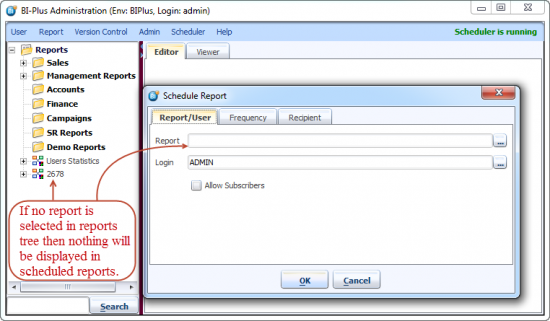
If no reports appear in the scheduled report dialog then you can use the browse button to select a report from reports tree.

An administrator can schedule a report on behalf of a user using login option.

Frequency
How frequently reports need to be sent, is supported by the Frequency attribute. The following image shows different types of frequencies supported by BIPLUS.
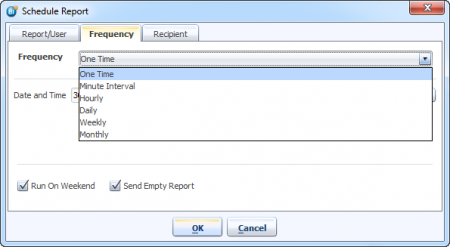
One Time: These kind of scheduled reports are sent only once and they do not need the Administrator's approval. You have to mention Date & Time and on that date and time, the scheduled item will be run. One Time scheduled reports are automatically removed from Scheduled Reports list once run (and the results sent, if configured).
Minute Interval: lets you run scheduled items for every minute interval. You need to select Start Time (hour:minute), End Time (hour:minute) and interval in minutes. Run on Weekend runs the report on weekend if enabled. Similarly, checking the Send Empty Report attribute will send a report with no email message in the email body.
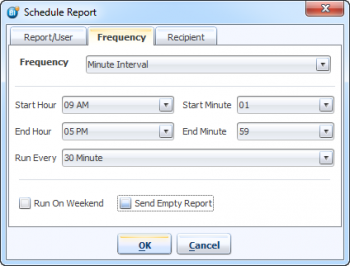
Hourly: Schedule let you select Start Hour, End Hour, Minute of hour and Runs Every. Using Start and End hour you can select hourly limit of this schedule. Minute of hour field is used when you want to execute the schedule report at a particular minute in the hour. for example: Run this at 15 minutes past the hour between 10 a.m. and 4 p.m. Runs Every field will repeat the iteration after every selected hours.

Daily: schedule allows you to run a report on daily basis. In this type, the time of schedule has be mentioned and also after how many days the schedule report should re-run is selected using Runs Every [optional].

Weekly: schedule lets you select day of the week, time (hour:minute) and when to repeat the schedule.
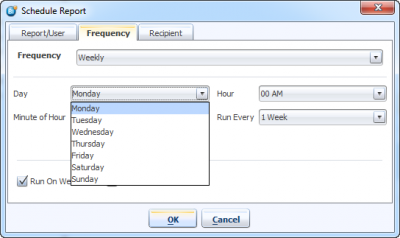
Monthly: lets you select a day of a month, time (hour:minute) and after how many months report schedule should re-run.

Recipient
The Recipient tab in scheduler is used to enter information about the recipient/s' email address, attachment and email type, file format of attached report, subject and body of email. The following image shows different types of options in the recipient tab.
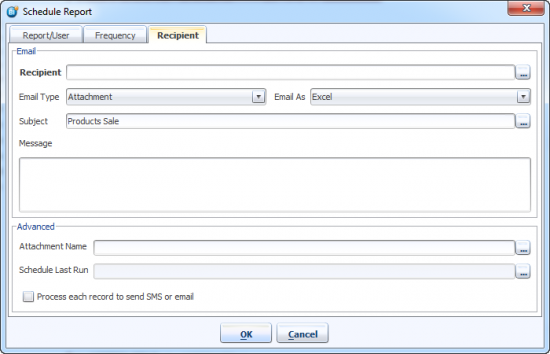
Recipient: used to enter the email address of the recipient.
Email Type: How email is to be sent is decided using email type. Attachment, Zip, Link options are provided.
Email As: Select file format for the scheduled report. File format supported by BIPLUS are HTML, PDF, XML, RTF, Excel, Text CSV, token Separated, Word.
Subject: the subject heading of the email to be sent.
Message: the body of email to be sent.
Attachment Name: lets you set the file name for attached report.
Schedule Last Run: displays the last scheduled run of the current report.
Process each record to send SMS or email: If this is enabled the process each record. Use triangular braces to map the column names.
Subscriptions
Subscription lets you or other users to subscribe to scheduled reports. While scheduling a report if the Allows subscribers checkbox is ticked, then all other users can subscribe that scheduled report. The following example shows that user TOM has scheduled a report and allowed subscribers for it.
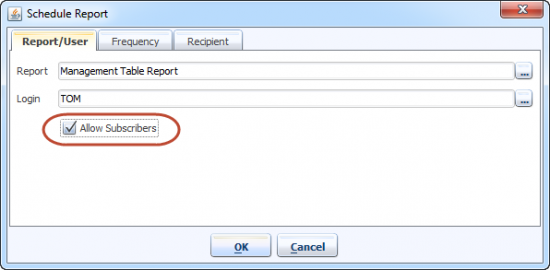
If you want to subscribe this report, open the Scheduled Reports dialog. Go to the Subscription tab, select that specific report and click the Subscribe button. Each time when that scheduled report will run, it will also run for you.
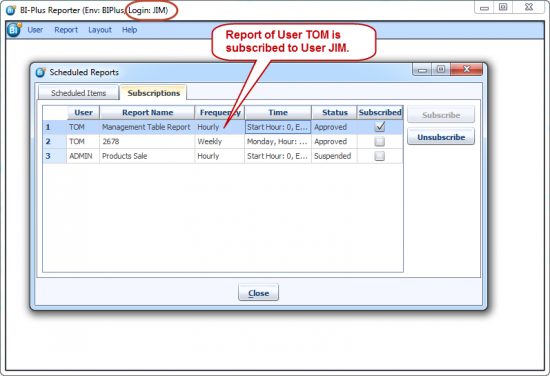
Only Administrator users can see the detail of which scheduled report is subscribed to by whom.
Schedule ETL Job
You can also schedule ETL jobs. It is similar to scheduling a report. Go to the Scheduler menu ⇒ select Schedule ETL Job.
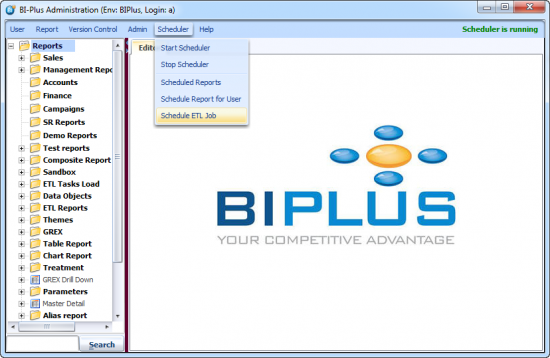
This opens the Schedule Report dialog. In the ETL tab of this dialog you can select the ETL Task which you want to schedule.
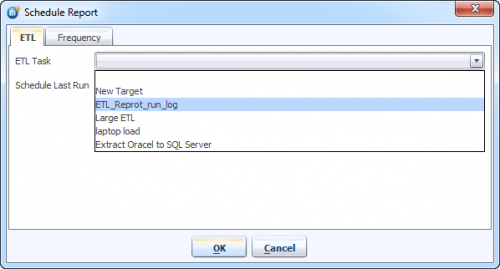
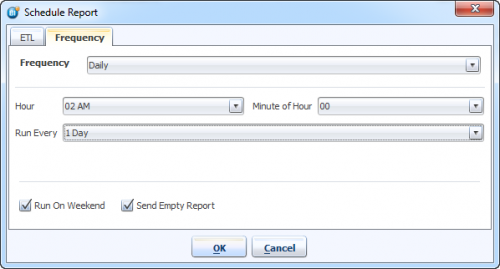
Using the Frequency tab you can set the frequency to schedule the ETL task. Click on the OK button to save the schedule.
To view your scheduled ETL jobs open Scheduled Reports from the Scheduler menu. This will show you all your scheduled reports and ETL jobs.
