Table of Contents
Writeback Report
Creating Write-back Report
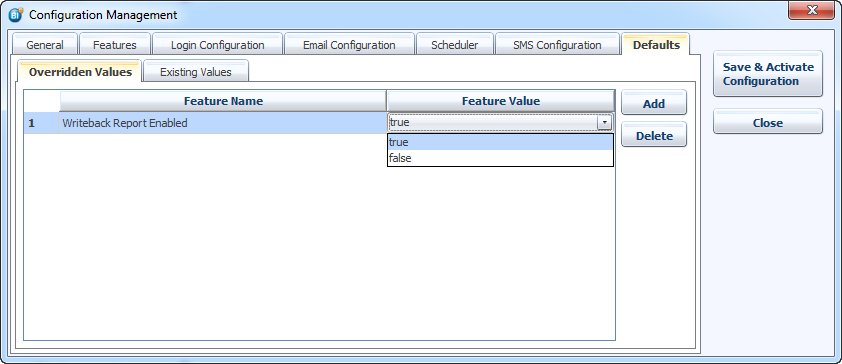
Write Back is the ability to enter values directly into a report which are saved into write back the database and those values then might be used in calculations and charts in the report. Before creating any write-back report in BIPLUS one must enable this feature from Configuration Management (Admin menu ⇒ Repository Administration ⇒ Configuration Management ⇒ Defaults tab).
Create a data-source of Type write-back. So that entered values in write-back will be stored in this data-source.

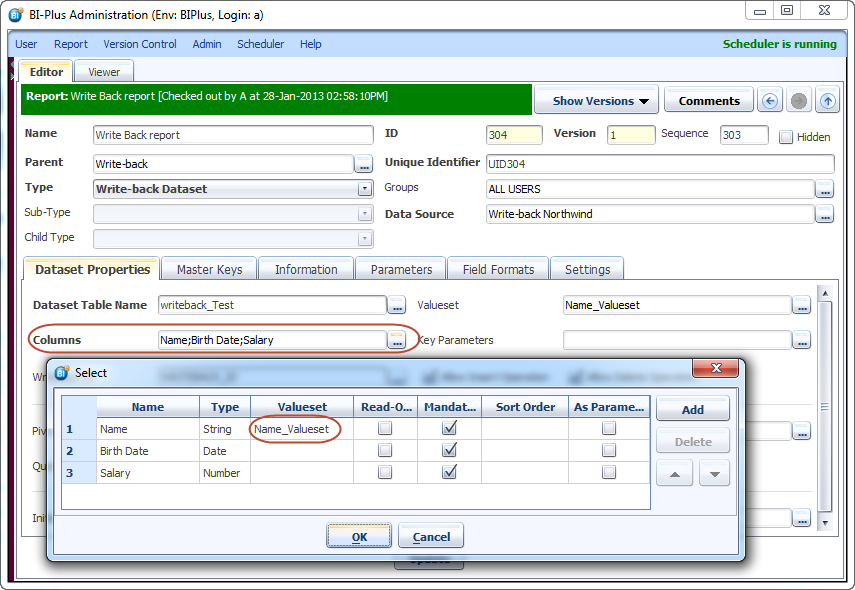
Now lets create write-back report. In Dataset Properties tab, one can manually enter Dataset table name or select table name from the given table list. We have given table name Writeback_test. Inside Column option, we select can enter the column names according to the requirement. We created three column Name, Birth Date and Salary.

Now run the write-back report using Viewer tab. Here using Add button add few records and enter values in those records.
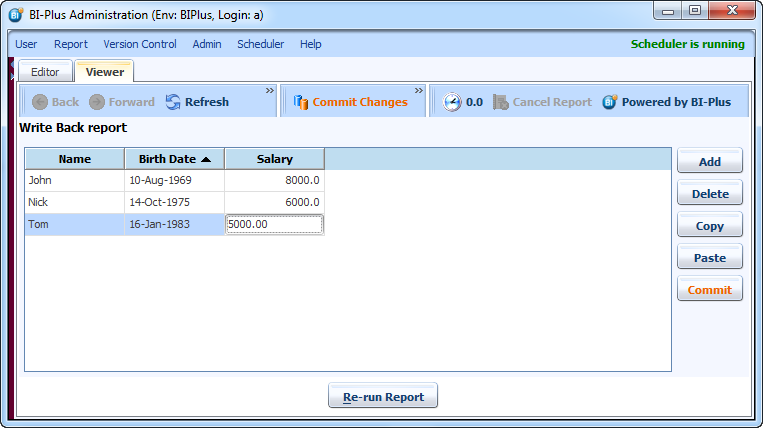
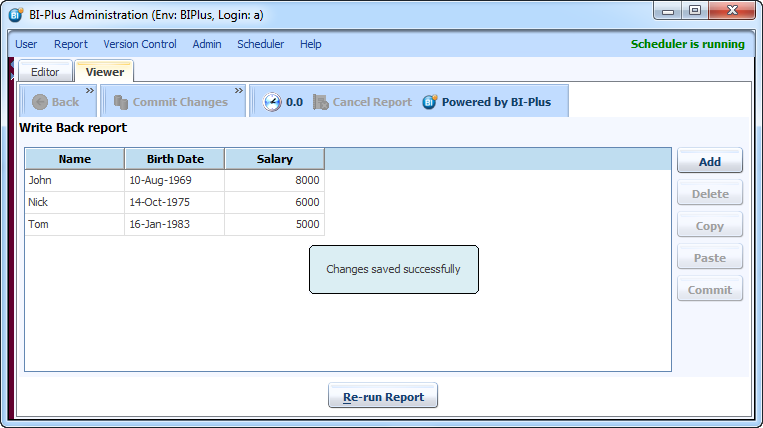
Once done click on the Commit button to save the changes. Changes saved successfully message will be displayed.
Valueset & Key Parameters
Valueset allows user to select pre-defined values. In Dataset Properties tab, using Valueset one can add valuesets. Following image shows that how to add valueset. Name define name of valueset. Type is way to retrieve the values (SQL, Dynamic SQL, Lists). Value column is either used to write SQL or to enter values separated by comma. The default value is used for default selected value.
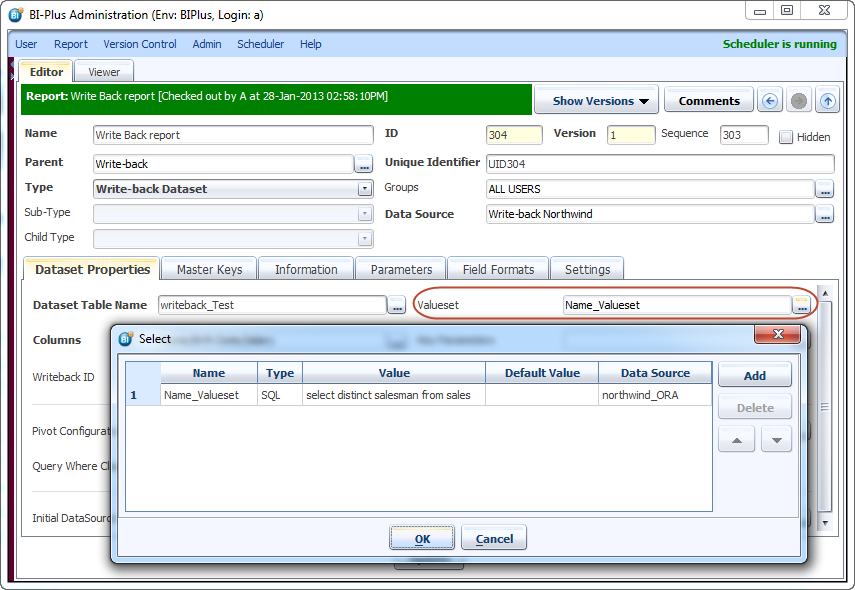
Now these valuesets need to map for the specific columns. Here Name_valueset is mapped with Name column.
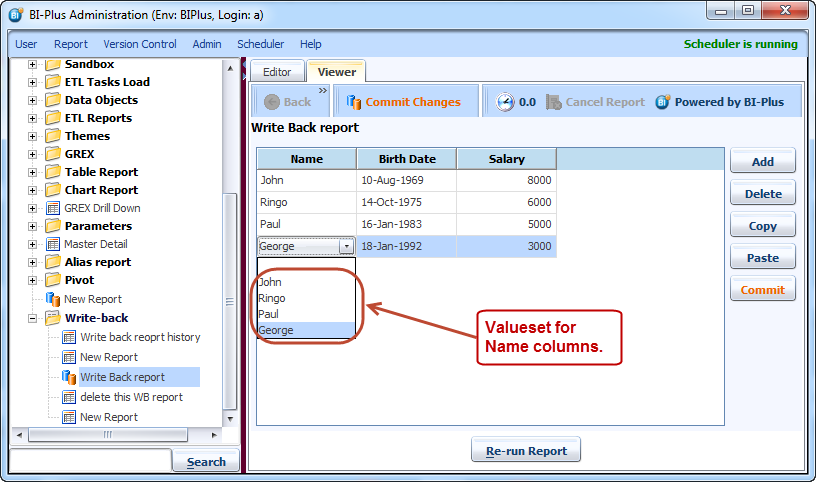
Now when you run the report you will see the value for the selected column
Key Parameter is used when you want to pass a Master_key or Parameter value in the report. So that master_keys and parameter values are checked against the key value for each write-back record. Each record added afterward will be given that key. “Select * from «tableName»” will display if any is available.
Admin can also restrict insertion and deletion operation using Allow Insert Operation and Allow Delete Operation.
Other Features in Write-back report
Pivot
Pivot in write back is similar to Pivot in Table reports the only difference is one is allowed to enter the values in Pivot Table and a record for respected value will be added into Dataset table.
Action
With Write-back action we can perform some operations for Write-back Dataset. We can execute two types of action:
BSH Function: For this we have to specify UID of the function in the Action Value column. SQL: For this we have to specify the whole SQL in the Action Value column.
Currently, we are supporting 4 types of events:
- Manual: This Event type will create a button in report Viewer under which all actions will be listed. With the help of this button one can execute the action. (Note: Action Name field is mandatory for manual actions. Actions options will appear below Commit button.)
- Post Commit: This type of action will execute after committing the data in the database.
- Post Get Data: This type of action will execute after getting the data from database e.g. running the write- back report.
- Pre Commit: This type of action will execute before committing the data.
Query Where Clause
One can apply a WHERE condition to the returning writeback records. Simply write the query in dialog excluding WHERE clause and run the report.