Table of Contents
Reports Tree
Reports tree in Reporter interface has several features, which allows user to create shortcuts, Schedule reports and add them to favorites. When you perform a right-clicks operation on any report in reports tree, you will get those options.

Run Now/Run Report (New Tab)
If the Run Now option is selected then BIPLUS runs the report in same tab replacing the previous report. Run Report (New Tab) option runs the report and opens it in a new tab. This way you can open multiple reports in a same BIPLUS window.
Schedule Report
Clicking this option opens the Schedule dialog. This way you can directly schedule the report without running it.
Add to Favorites
Reports which are most frequently-used can be added to Favorites list. Right-click on a report and select Add to Favorites option.

And the report will get added into the My Favorites category. This category is located at the top inside the report tree. Adding reports to Favorites makes it easy to access them.

Set as Home Page
When you want auto-default execution of a report them you can set it as the Home Page. So as soon as you log in, BIPLUS executes the selected report for you. To set a report, right-click on it and select Set As Home Page option.
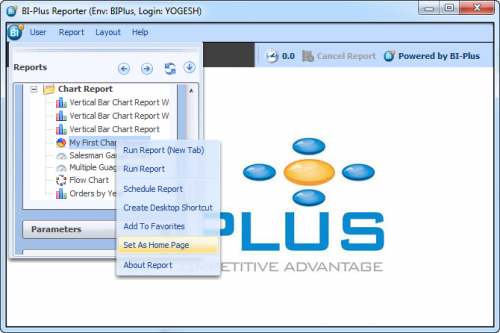
Now re-Login into BIPLUS using the same user-name and password.

To check whether a report is set as the Home page or not go to My Prefereces in Reports menu.

This opens a My Preferences dialog. Using this you can check which report is the current home page. You can also set new report as a home page. Clear button allows you to clear the home page report.

About Help
About Help displays the help written for the selected report. To view the help click on about Help option.
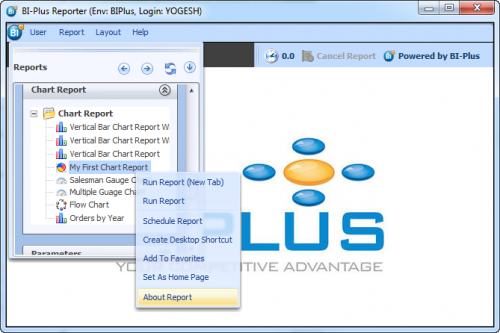
This will show you information about the current report if there is any. If no help is defined then you will get No Help defined for this report message. Help is defined by Developer/Admin user from Information tab.

Create Desktop Shortcut
This is used to create a desktop shortcut of one of the reports in the report tree.

Select OK button in the message dialog box confirming the report to be created as a desktop shortcut.

To open a report from a shortcut, double-click the desktop shortcut icon.

This will open the BIPLUS login, type in user and password and click on Login button.

BIPLUS will get opened with a report for which shortcut was created.
