====== Treatments ======
If a report is treated with some action (like filter, GREX, pivot ) then we can save that report with applied actions. So that next time you don't need to apply these action again and again. All you need to do is run that saved treatment. Treatment feature is mostly used from Reporter interface however we can also use it from Admin interface.
**Common Facts about Treatments**
* **Types:** There are three types of treatments
- Auto Apply: Applied to report automatically on report execution.
- Prompt: Shows a dialog to select the treatment. User can select the treatment or skip to treatment less report execution. If skipped then Auto apply treatment will be applied if existed.
- User Apply: It will neither be auto applied nor a prompt will be displayed. User has to manually apply from **Treatment ⇒ Apply**.
* **Sharing:** Treatments can be either **Shared** or **Private**. Private treatments are visible only to the user who created that treatment. Shared treatments are visible to every user. Private is default type. Auto apply treatments can not be shared.
* We can apply treatments on following features.
* **Filter**
* **Parameter**
* **GREX**
* **Pivot**
* **Advanced Pivot**
* **Customize View**
* Exporting a report having private treatment does not export private treatment with it. Only shared treatments can be exported.
Now lets see how to create a treatment. Here we are going to create filter treatment. Suppose a user want see records filtered by COUNTRY for those countries in which he is interested them creating filter treatment for them is the best option for him, so that he does need to apply filter each time he want to see those records.
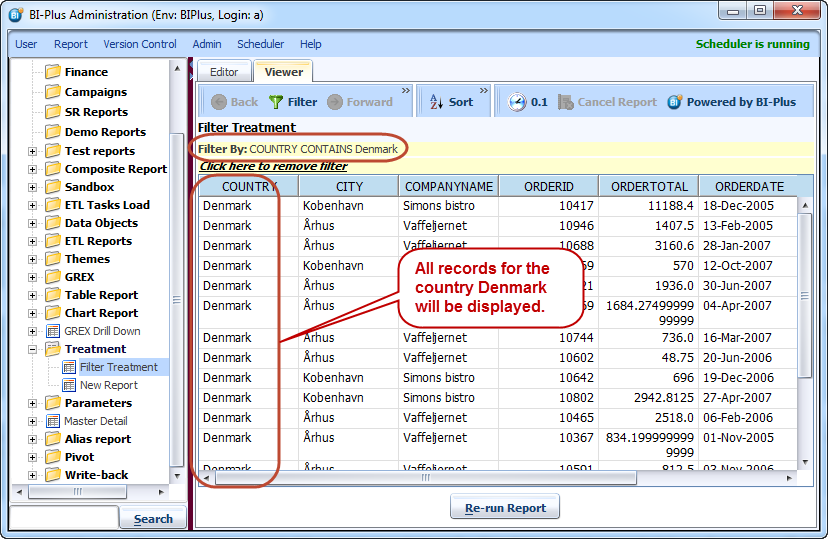
First, apply filter on a report. Here we are seeing records for **Denmark** only because it is filtered (Filter is highlighted in below image). Now right click on the report and select **Save** option from **Treatment** menu.
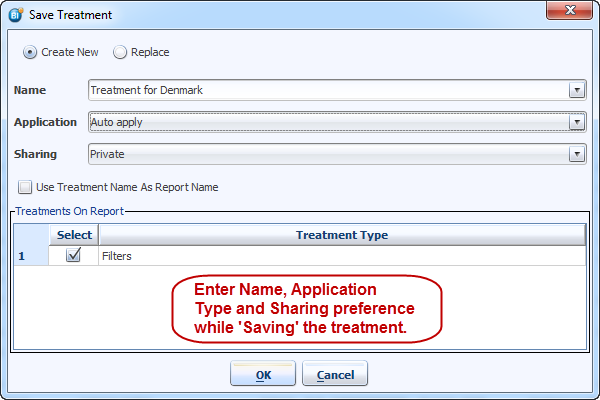
 This will open **Save Treatment** dialog. Here one has to select application type of treatment like Auto apply, Prompt, User Apply. User can also decide sharing preferences here. We have created a Auto Apply treatment which will applied automatically after report execution. Click on **OK** button to save the treatment.
 Now Run the report. This will display all records for Denmark.
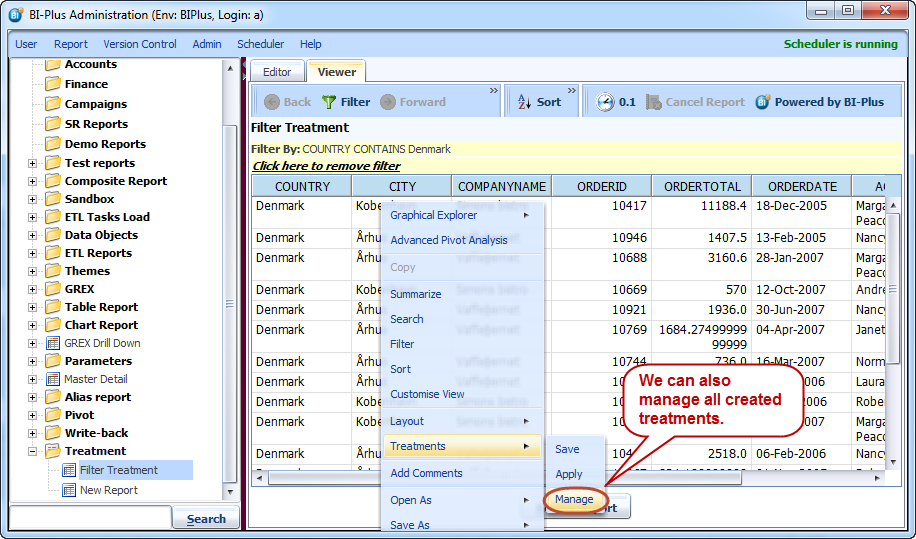
 This way we can create multiple treatments for each filtered condition for a single report. Here in this example we have created few multiple treatments for **Denmark, Germany, UK** and **USA**. How can we see those all created treatments...! Don't worry, we have option for that also. Right click on report and select **Manage** option from **Treatments** menu.
 Clicking on **Manage** will open **Manage Treatments** dialog which will show you all created treatments. Here, if you want to modify a previously created treatment then select that treatment and click on **Modify** button.
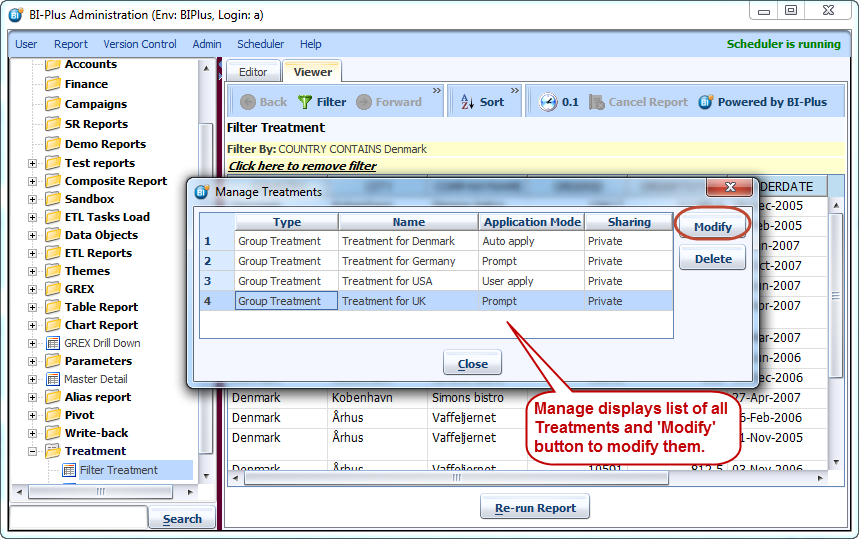 After clicking **Modify** buttob one can modify the whole treatment and its conditions.
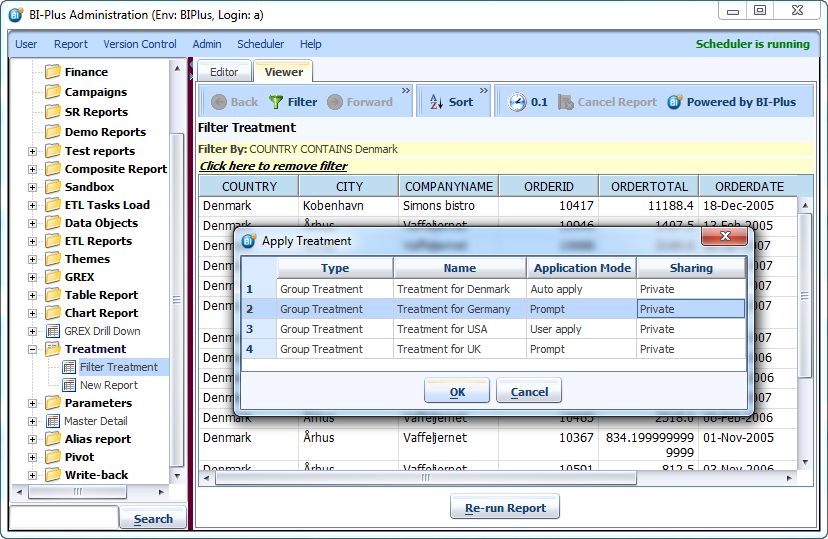
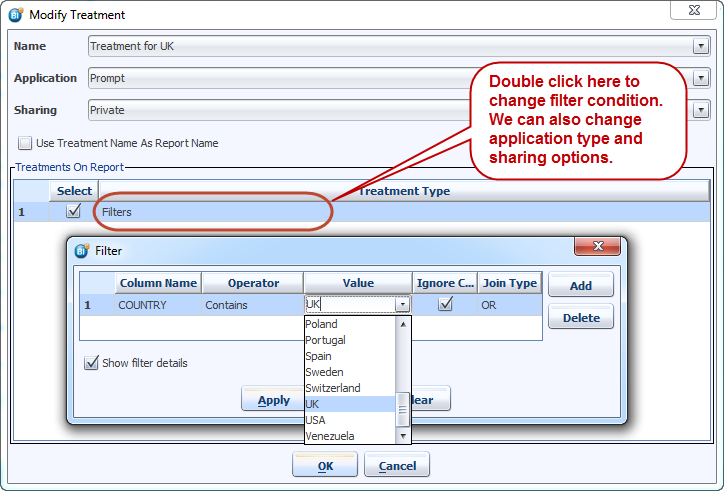 If you runs the same report now then you will get prompt for all **Prompt** type treatments. Select the prompt treatment which you want to apply and click on **OK** button. If you select **Skip** button then Auto Apply treatment will get applied automatically.
 If you want to apply **User Apply** treatment them right click on report and select **Apply** from **Treatment** menu. Using this user can apply any treatment.
 ===== Running Treatment from Reporter Interface =====
Creating treatments in reporter interface is exactly same as creating them in Admin interface. There is small difference between while running from reporter interface. If you noticed in admin interface reports tree does not show us all treatments however this is possible in reporter interface. We can see all treatments in reports tree.
===== Running Treatment from Reporter Interface =====
Creating treatments in reporter interface is exactly same as creating them in Admin interface. There is small difference between while running from reporter interface. If you noticed in admin interface reports tree does not show us all treatments however this is possible in reporter interface. We can see all treatments in reports tree.
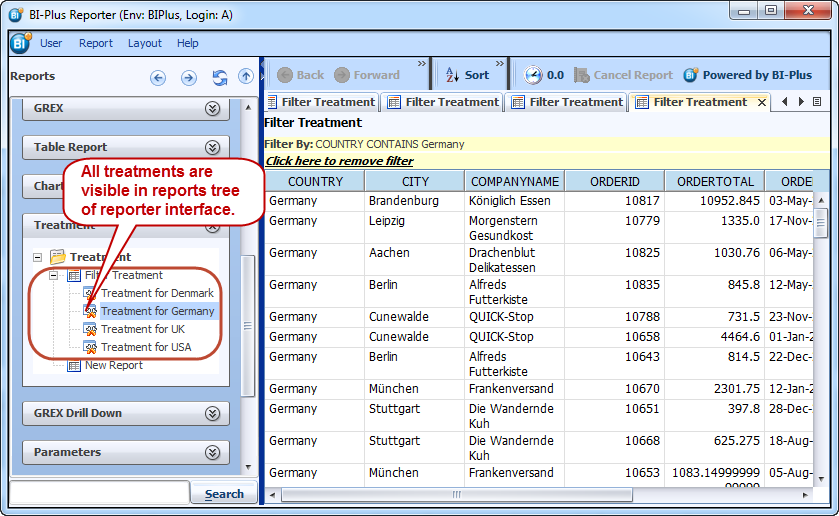 All user need to do is click on desired treatment and that treatment will be applied to the report.