Callable Report
BIPLUS can be used in interactive mode or it can be used as a pure back-end reporting engine, where the particular report is called from another application, and bound.
This section will be very Siebel-centric, but can be adapted for any application to call BIPLUS Reports, via an http request.
BIPLUS allows a call from other applications, either as static HTML-bound reports, or as interactive Java-enabled pages, where the user has full interactivity with the report, just like in the user mode. The reason for static reports is that not all environments have their browsers configured with the full Java 2 JRE (Java Runtime Environment). In fact, in some environments, like Siebel, prior to version 7.5.3, if you enabled the Java 2 JRE, certain components of Siebel that relied on Microsoft VM would not work (like Siebel Communications server).
Also if a customer logs into a vendor’s web site (think of a bank or insurance company or Investment management company where portfolios are held) and the user wants to get a report, it is an unreasonable expectation that a casual internet user would have the correct browser setup required to enable a fully interactive report to be displayed as an applet in the browser. But many such web sites, can now allow their visitors and customers to generate reports by having a JavaScript or web server-based process collect information and make the request to SMD server.
This can be done in one of 2 ways:
- Call the report directly using a Report Id via http.
- Call the Report indirectly via a Callable MAP via http.
In this section, We will show direct calls as hyperlinks, and indirect calls as coming from the Siebel application.
For Siebel, we can identify exactly where we are at any given time by clicking on the Help menu and selecting the About View option. This will bring up another pop-up applet displaying the exact details of where the user is currently in Siebel.
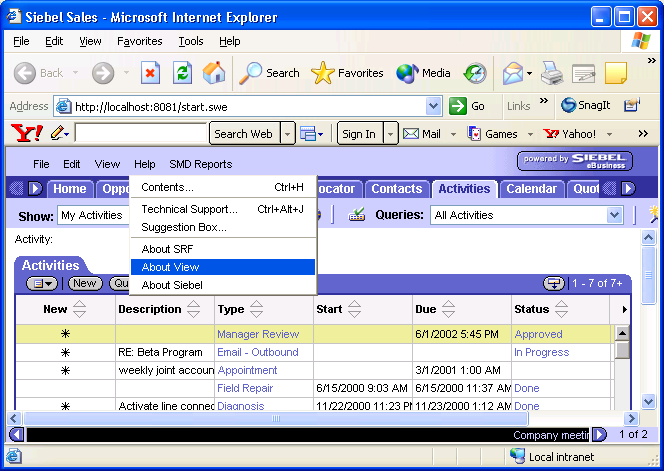
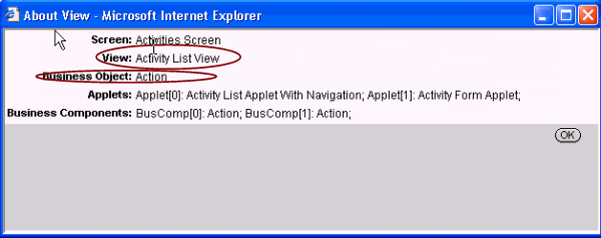
This opens About View dialog (See below). BIPLUS uses a Callable Report mapping to determine which reports are to be called from where in Siebel.
We use the four fields Business Object, Business Component, View and Applet to map exactly where we are in Siebel.
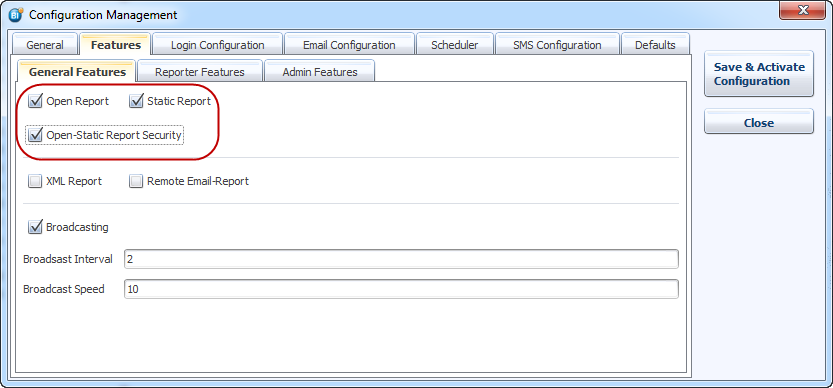
Before creating a callable mapping report make sure that Callable reports are enabled from the Configuration Management dialog.
Click on the Admin menu and select the Callable Report Mappings Option.
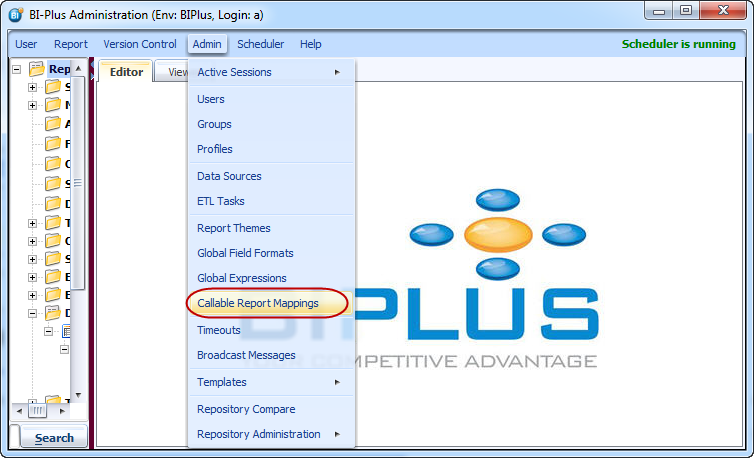
This opens up the Callable Report Mappings dialog. If you are using Siebel environment then you will see column names as below otherwise column names will be like Level1, Level2, Level3…
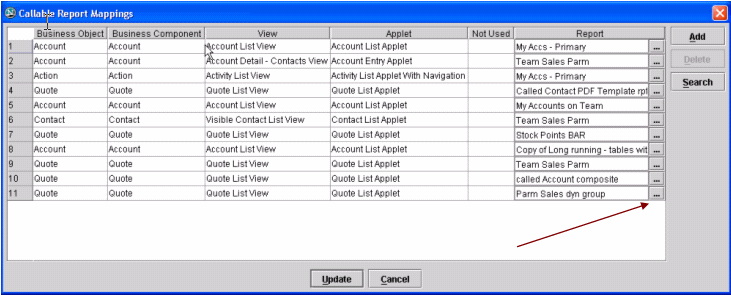
In here, we can simply enter the values. As you can see the Column headers displayed are the ones that you have modified in the Admin.properties file(C:\BIPLUS\Tomcat7\webapps\BIPLUS\resources). If the language you are using is not English, then modify the corresponding file. For instance, to modify the German Admin file, open Admin_de.properties.
Now you simply enter the values from the Siebel pop-up screen that displays where the user is inside of Siebel, and enter the corresponding values. As you enter a record, the last field is the actual report to be called. As you click the (…) button, a pop-up applet shows the list of available reports.
The url built by the calling application could look something like below
http://smdhost:8123/SMD/OpenReport?login=FERENC&&LVL1=GL&LVL2=AllAccounts&LVL3=Creditors&key=C1245.
This might be called from a system called ‘GL’ where the user has navigated to a screen called ‘AllAccounts’ and is on the sub-screen called ‘Creditors’ with the cursor on a creditor account, whose identifier is ‘C1245’. This is then passively mapped in BIPLUS, using LVL1 as the key from GL, LVL2 as the screen name, LVL3 as the sub-screen and the key placeholder to contain the row_id.
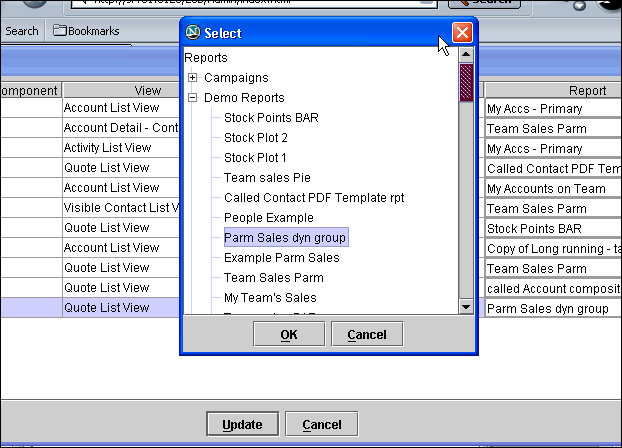
Pick the report, click OK. Once you are done with the mapping, click OK, then in the main Callable Report Mappings dialogue, click Update to save the changes to the BIPLUS Repository. Now go to Siebel application mode.
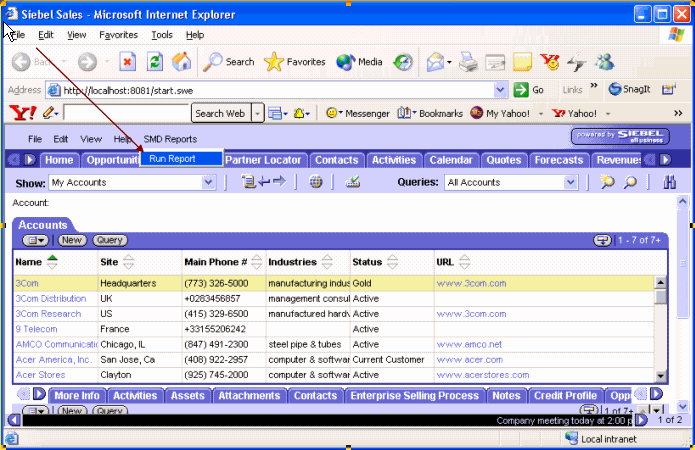
Without going into exactly how to get the BIPLUS Reports project into Siebel (BIPLUS provides a Siebel Import File, known otherwise as a .SIF file to achieve this purpose, and there are other quick steps one needs to take in the initial configuration to point the call to the right URL, activate the SMD Reports Business Process, etc.), click on the Menu item ‘SMD Reports’ and then the ‘Run Report’ option.
In this example, multiple reports have been mapped to be called from the one place in Siebel. This is evidenced by the fact that an intermediate new browser window is opened, asking the user to select the report they wish to run.
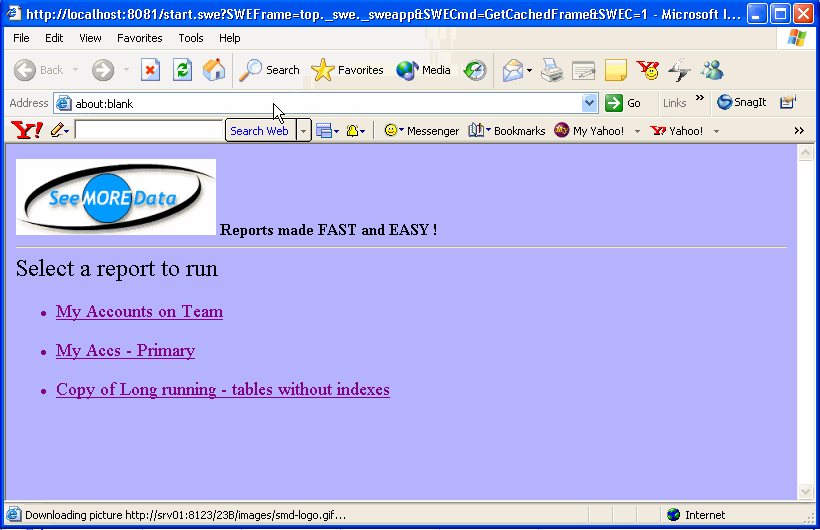
As the user clicks on the report they wish to run, a request is sent back to SMD server, the report is generated on the server and then sent back as an http request fulfillment to the calling environment, where it is opened in a new window.
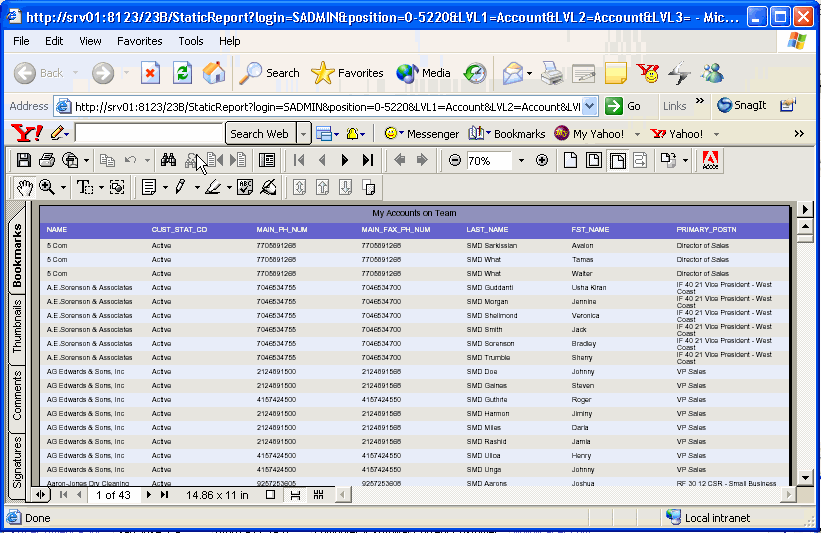
This was defined as a PDF static output format report, and thus the PDF file is returned to the calling environment.


