Data Sources in BI PLUS
Data Sources in BI PLUS enable the connections set up to an external database from BI PLUS server. BI PLUS supports multiple Database drivers using which can connect to a specific database. You need to enter the connection URL, User Name, and Password to make this connection work (Your DBA team will provide you with this information). When the report runs, it first establishes a connection with database and then pulls the data according to your SQL query.
You can access the Data Sources feature from the Admin menu.
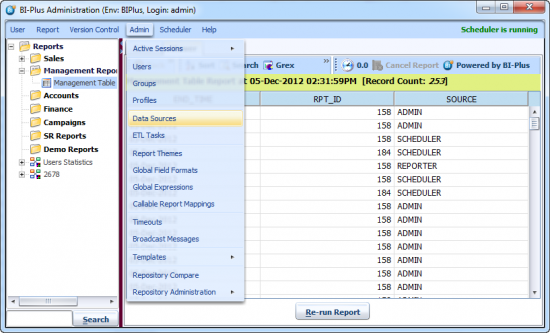
This opens the Data Source dialog, which contains a list of all data-sources.
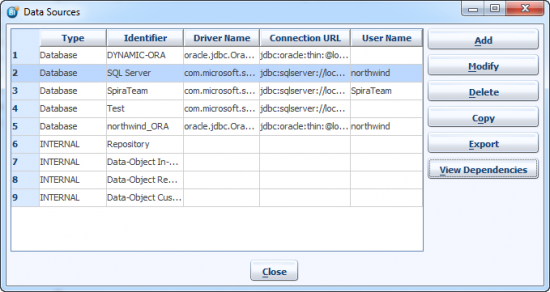
The Data Source dialog allows you to Add, Modify, Delete, Copy, Export and View Dependencies of each datasource.
Adding a Data Source
Click on the Add button in Data Source dialog, which opens the DataSource Properties -New DataSource dialog, as shown below.
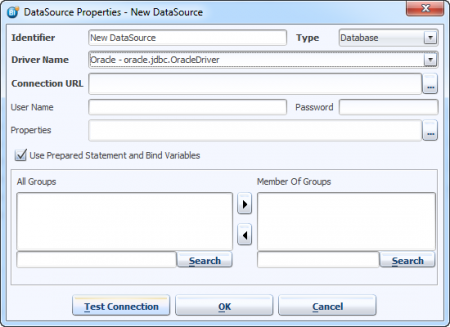
Identifier: is the logical Name given to identify the data-source. This has to be unique but can be anything, even a value like 'Bob', since it is a logical name.
Type: Four datasource types are supported by BI PLUS: Database, OLAP, ETL Target and Write-back. Choose the type for the connection.
Driver Name: Choose the driver according to your database. Various database drivers are supported by BI PLUS. The most popular drivers are Oracle, Microsoft SQL Server, My SQL, SAP, Sybase, but there are many more…
Connection URL: As databases are in general not located on your machine, you need to use a Connection String to connect to the database.
User Name: Username to make the connection to database.
Password: Password for the username which will make connection to database.
Properties: If there are any properties you wish to set for the connection (for instance, in Oracle, you could set the schema or other 'alter session set ..' variables). Example: Alter session set sort_area_size = 104857600
Use Prepared Statement and Bind Variables: To prevent hard parsing in Oracle, Postgres, Sybase, the statement is prepared with parameters and drilldown values, to encourage soft parsing. This can sometimes backfire when using Sql Server so be sure to experiment to see what works best in your environment.
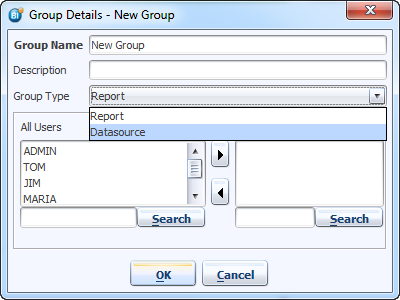
Groups: You can restrict use of this data-source using groups. However, you need to create a Group of 'Group type' Data source. See the image below and Defining Groups
Once all the required values are entered, Click on the Test Connection button to check the connection.

When you see Data source connection successful message then click on OK button to save the data-source.


