Table of Contents
Export in BIPLUS
BIPLUS allows user to export their reports via either by saving them to a file or by emailing them to an email address. One can also Print the BIPLUS report if he/she needs to. Export is BIPLUS possible in following ways.
Open As
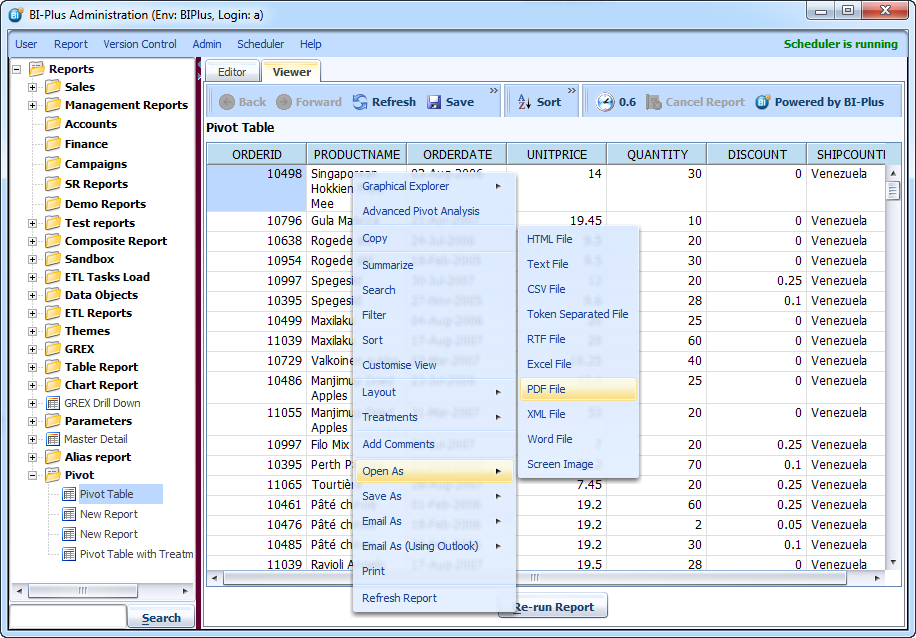
Open As menu feature opens the selected report directly into related application like PDF will be opened in Adobe and word will opened in Microsoft Office and so on…
The report can be opened as a:
- HTML File
- Text File
- CSV File
- Token Separated File
- RTF File
- Excel File
- PDF File
- XML File
- Word File
- Screen Image
Simply right click in the report to see Open As menu, select formats type to open the report. And report will get opened.
Save As
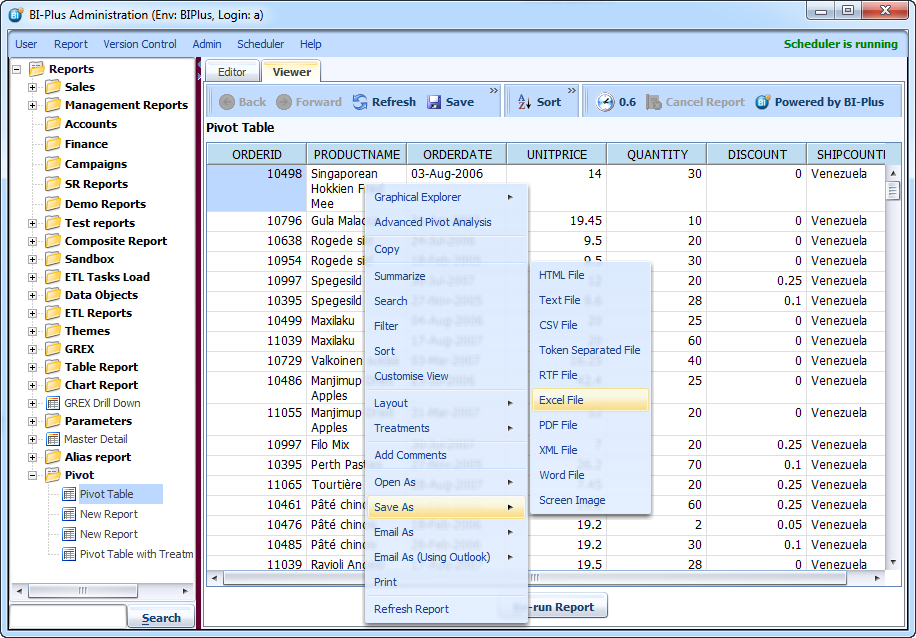
Save As menu feature saves the report on disk in selected format. The report can be saved as a:
- HTML File
- Text File
- CSV File
- Token Separated File
- RTF File
- Excel File
- PDF File
- XML File
- Word File
- Screen Image
Simply right click in the report to see Save As menu, Now select the format type to save in that format.
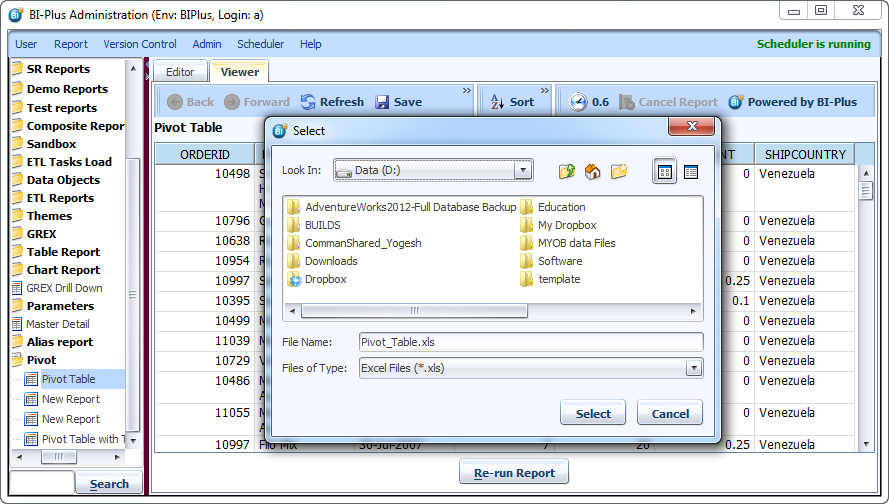
Select dialog will get displayed to select the location where file to be saved. If you notice, this dialog automatically take name of report with selected file extension (Pivot_Table.xls in this case). Click on Select button to save the report.
Email As
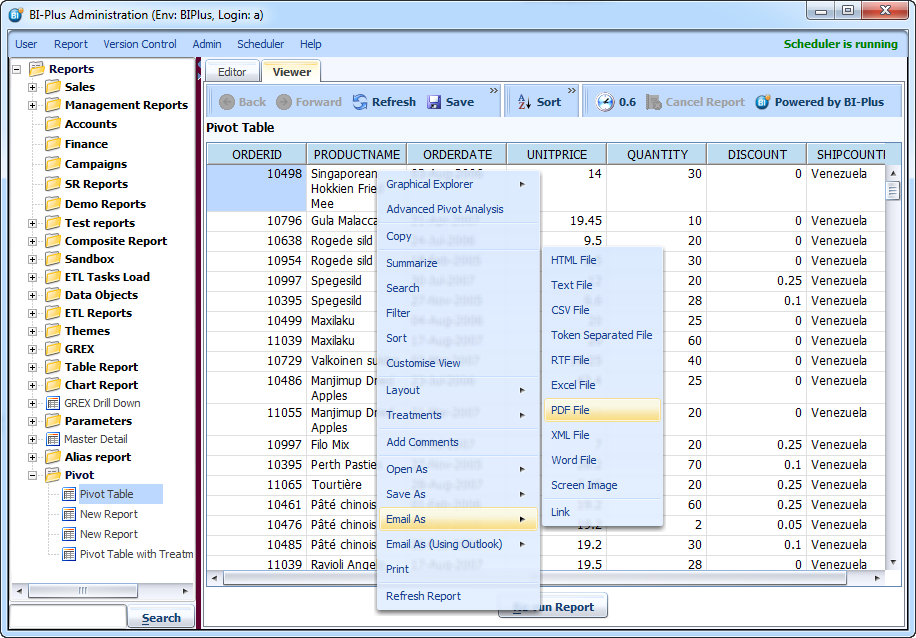
A report can be emailed directly from within BIPLUS without having to save the report first. Right click in the report ⇒ Email As menu and select preference format to open the Email dialog box.
This opens Email Dialog where one can enter recipients email address. Report can be sent as an attachment or Zip file. Click on Send button to sent the report.
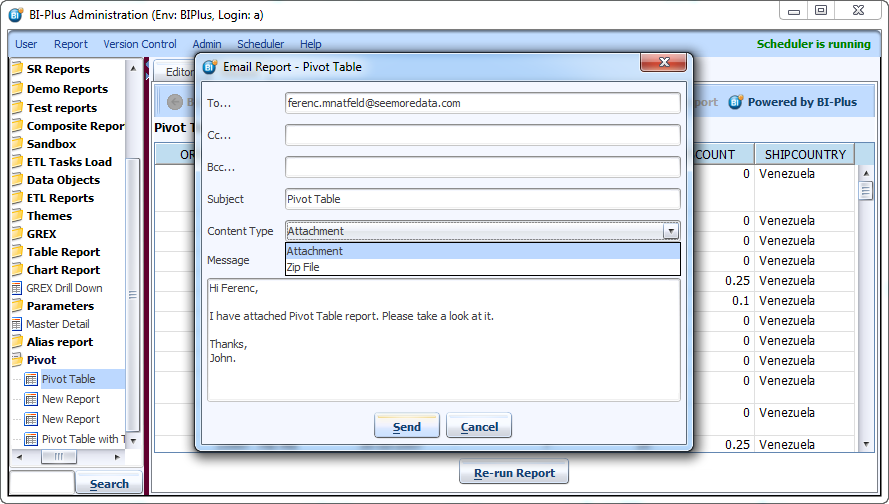
Note: Large files are best emailed as a Zip file.
Email As (Using Outlook)
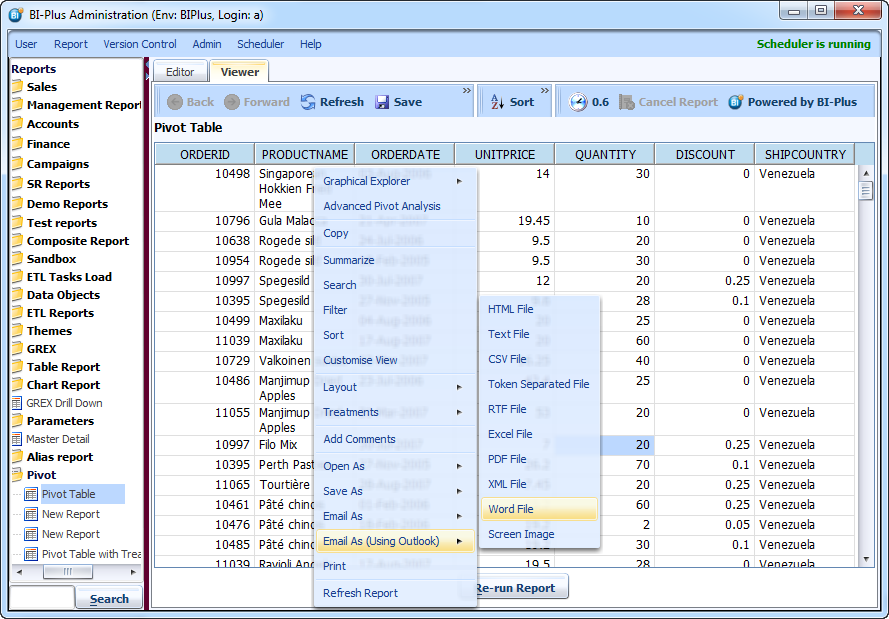
This is very similar to Email As feature, however this opens Microsoft Outlook instead of Email dialog. Right click in report ⇒ Email As (Using Outlook). Select file type of the report to be emailed using outlook.
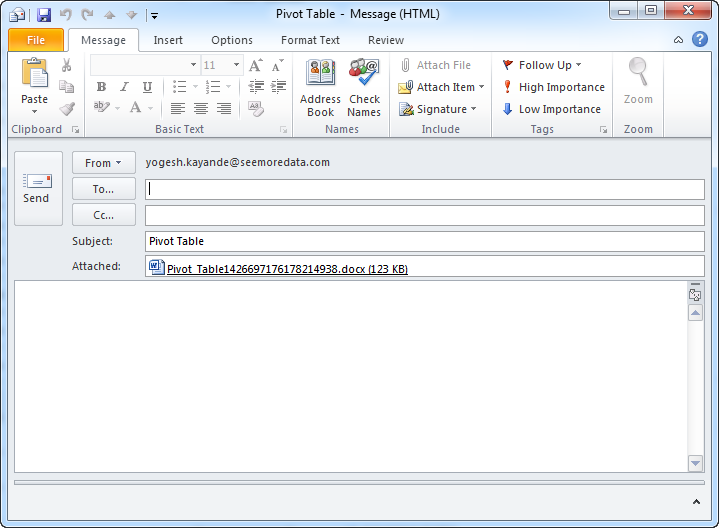
Microsoft Outlook will get opened where one can enter recipients email address and message. Click on Send button to sent the report.
User can also print the report if he/she wish to (however one can avoid unnecessary use of paper by using above mentioned methods). Right click in report will show you Print option.
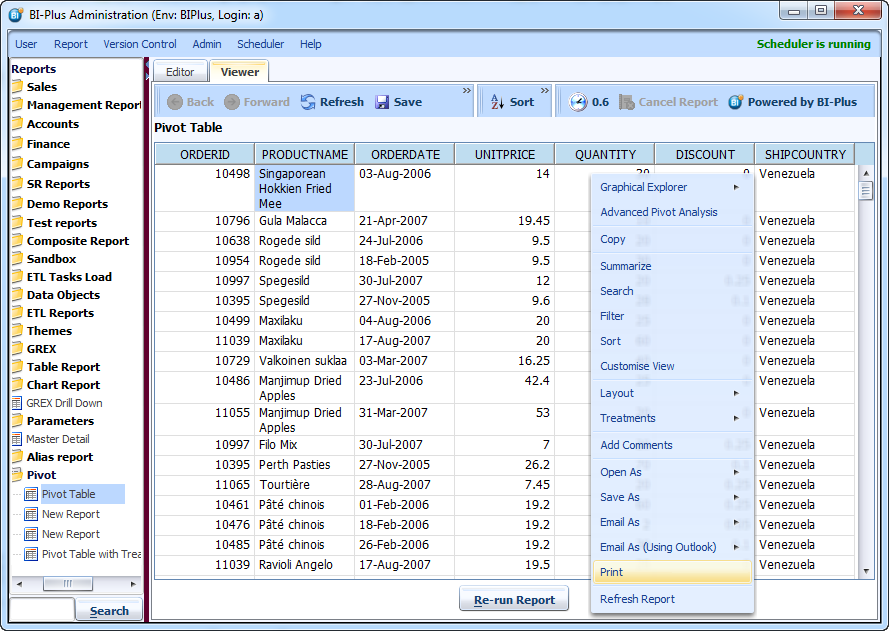
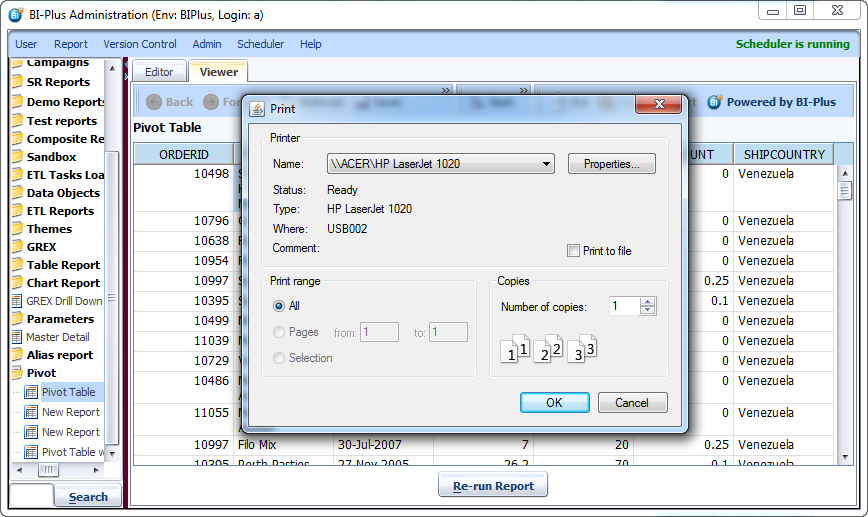
Clicking Print will display printer selection dialog where you can select printer of your choice. Click OK to start printing process.