Table of Contents
Pivot Configuration
BIPLUS gives the developer a chance to create a report as a pivot table, which is also otherwise known as a cross-tab report or cross-tab analysis. Pivot Analysis provides the ability to compare aggregated summaries side by side for a given attribute. In layman’s terms, we could sum up the value of the sales totals for each customer and present these totals by year in a cross-tab fashion.
For typical data entry and storage, data usually appear in flat tables, meaning that it consists of only columns and rows, as in the following example showing data on shirt types:

While tables such as these can contain a lot of data, it can be difficult to get summarized information from them. A pivot table can help quickly summarize the data and highlight the desired information. The usage of a pivot table is extremely broad and depends on the situation. The first question to ask is, “What am I looking for?” In the example here, let us ask, “What is OrderTotal done in each Region by each sales person (SoldBy)?”

A pivot table usually consists of row, column and data (or fact) fields. In this case, the column is Country, City, the row is Soldby and as data we would like to see is the Sum of OrderTotal. BIPLUS fields allow several kinds of aggregations including: sum, average, standard deviation, count, Maximum, Minimum, Variation etc. In this case, the total number of orders placed by sales person and by region is displayed above using a sum aggregation.
The BIPLUS Pivot Analysis functionality goes way beyond the basics and allows very powerful analytical functionality with context-sensitive drilldown. We will explore this in more detail.
BIPLUS supports two types of Pivot features.
Pivot
A GUI based Pivot analysis can be used in BIPLUS where one can drag-n-drop column to create his own pivot table. One can also select different type of aggregation functions. Pivot feature can be opened from the Toolbar.

This opens Pivot Analysis in new tab. If you notice all columns in our report are already present in Field List which is placed on the right side.

In following example we have dragged Country and City into Row Fields, SOLDBY into Pivot column and ORderTotoal into Measure Item. We have also applied Grand Total, Row Total, Pivot Total.

A Pivot feature also provides a filter option using which we can filter the data. Clicking on down arrow button will open the filter menu to select the data items.

Now, Right Click mouse click will show Field Settings which will open Pivot Grid Field dialog. Now one can apply different type of aggregation functions on this selected (SOLDBY) column. Here we are going to count orders placed by each sales person in each Country and city.
We can perform following operation here…
- Change the name of the column, like we have changed SOLDBY to SALES PERSON.
- One can apply Aggregation functions like Sum, Max Min, Count on Row and Column Fields.
- Also we can display summary and Grand Total for Data Fields. If the column is not Numeric then only Count function will work.

Now let's see the results.

We can also view detail records by double clicking on pivot records which will open detail records window. Image below shoes that how detail records will be displayed. Dock to main Window button in details window will open this window in new tab.

Once pivot table is ready then using right click menu we can save it as treatment, so that next time we don't need to apply pivot on our original report. Treatment will directly open that report as pivot table. We will see Treatments later on.

Advanced Pivot
Pivot Table
Advanced Pivot provides some additional functionalities than Pivot. Advanced Pivot Analysis can be opened either from the Toolbar or from right click menu.

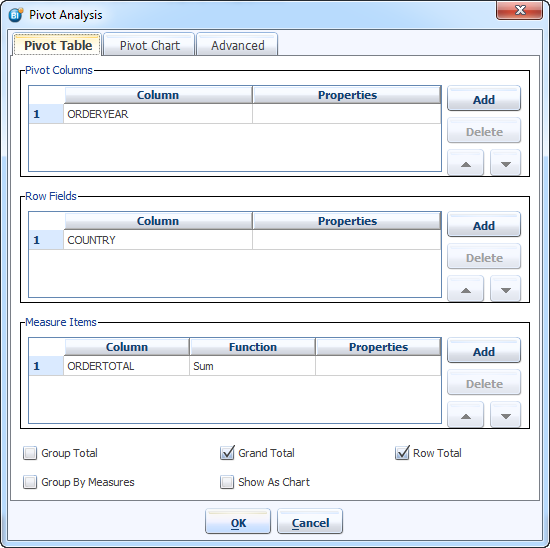
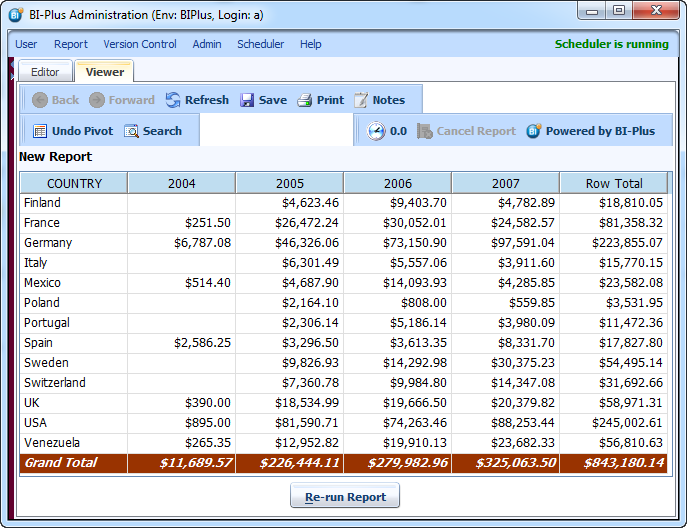
Now we state that we want the row field to be country and that we want to pivot on year and aggregate for each year and country, the total of the column “Order Total”. SO we have added ORDERYEAR in Pivot Column, COUNTRY in ROW FIELD and ORDERTOTAL in Measure Item with SUM as aggregation function.
And the result will look like as below.
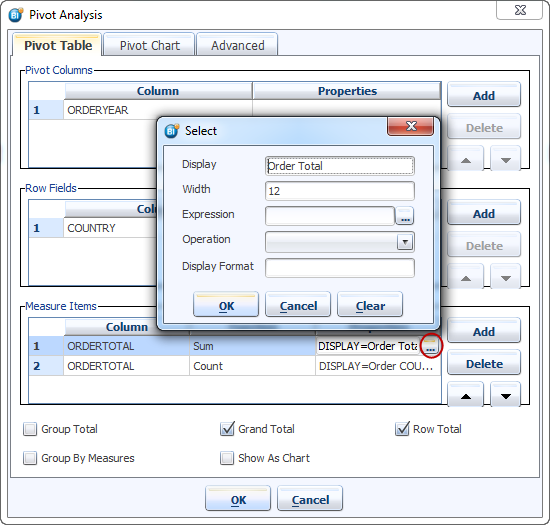
We can also add some additional properties to Measure Item using properties column. Click '…' button to browse properties.
Measure Properties:
- Display: If more than one Measure Item is used then one can give display name for each measure item.
- Width: Width of column can be set using width. Accepts integer value and width length is counted by number of characters.
- Expression: Expression is used when Measure Item's ⇒ function column's value is Calculation. Here user can write his own calculated value for measure item.
- Operation: If someone wants percentage as values instead of actual value then operation feature can be used. Grand Total % calculate percentage according grand total of measure item. In Row Total % percentage is calculated for each individual row cell based on Row Total. In Column Total % percentage is calculated based on Total of column.
- Display Format: Display format for numbers. It is similar to the Number Filed Format.
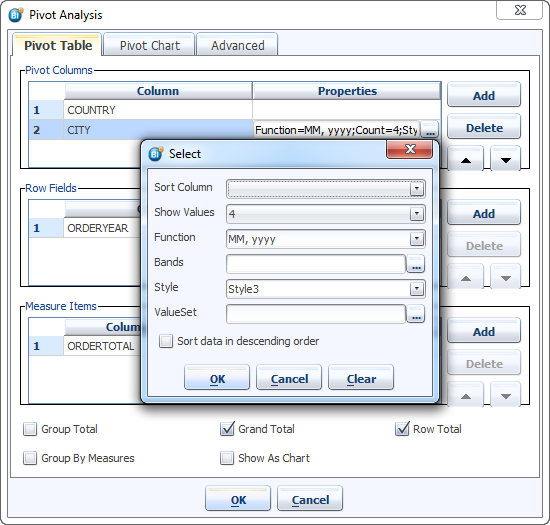
Pivot Column & Row Field Properties:
- Sort Column: Sort the selected column.
- Show Value: This feature displays the only selected number of first few columns on the report.
- Function: One can select the date format for date column. This feature only supports Date column. One can also manually fate format by typing. Date Format value is similar to the Date Field Format.
- Bands: Bands are used for grouping column item under single header. E.g. Quarter is group of 3 months or we can group all cities starting with 'A' to 'J' under single header. In bands use start & end range and display name for that range.
- Style: Style is used with multiple columns.
- Sort Data in descending order: As the name suggests this sort the data in descending manner.
Pivot Chart tab
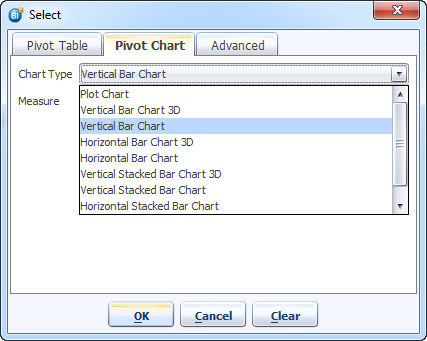
Pivot Chart tab allows user to select chart type if Show as Chart option in enabled in Pivot Table tab. Here user can click on the drop-down button to see different types of chart types. You can select a chart type according to your requirement.
Advanced tab
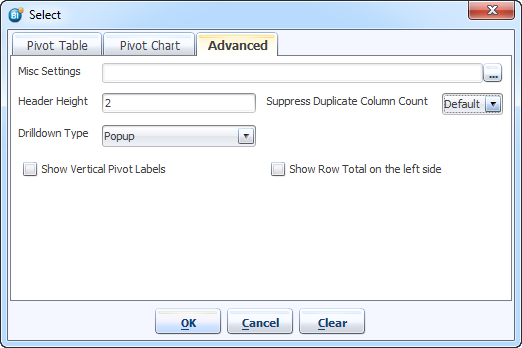
Advanced tab in Pivot have following settings…
- Header Height: Allows the user to set column header height. If you are using vertical header height then you need to increase header height.
- Suppress Dulpicate Column Count: Hide duplicate values in the column.
- Drilldown Type: On drilldown operation behavior of drilldown is set here. Drilldown type is selected in setting tab of parent report for the behavior of the child drilldown report.
- If pop-up is selected then on drilldown report will be opened as pop-up dialog.
- If Same Tab selected, drilldown report will be opened same tab.
- As the name specifies New Tab opens drilldown report in new tab.
- Show Vertical Pivot Labels: Displays all column headers label vertically.
- Show Row Total on the left side: Displays Row Total column and its data value on the left side of report.
- Misc Setting:
- ROW-TOTAL-DISPLAY:
- GRAND-TOTAL-DISPLAY:
- ROW-TOTAL-WIDTH:
- ROW-TOTAL2-WIDTH:
- AUTO-COLUMN-WIDTH:
- AUTO-COLUMN-WIDTH-MARGIN:
- SHOW-EMPTY-FOR-ZERO:
- SINGLE-CLICK-PIVOT-ACTION:
- COLUMN-MAPS:


