Table of Contents
BIPLUS Administration Guide
Pre-requisite
- Java Runtime Environment, Tomcat server, BIPLUS application must have been successfully installed.
- You have the necessary database permissions and access to connect to the database and select information from the various tables, either via roles or direct grants.
- You have your environment configured as per the configuration guide.
- You have a valid license key for your environment.
Your First Login
The BIPLUS.WAR file is installed into Tomcat, let us suppose the .WAR file is called BIPLUS.WAR and is installed on a server called 'SERVER01' and Tomcat is listening on port 8123. In this case, to access BIPLUS Admin mode you need open your browser to http://SERVER01:8123/BIPLUS/admin.jnlp and it will open the Administration application. When you first bring up Administrative mode in BIPLUS, it will look like as shown below. An easy way to know you are logging into Admin mode is that the top-left corner of BIPLUS window displays BI-PLUS Administration title.
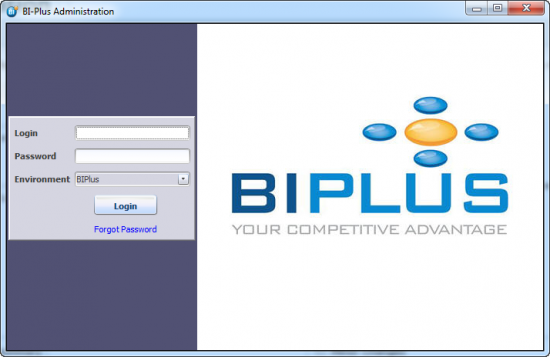
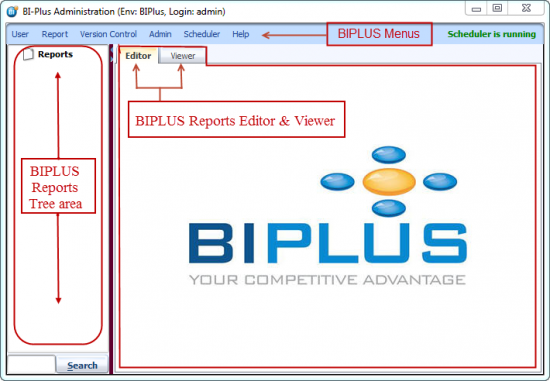
The default username is ADMIN. The default password for this user is ADMINPASS (You should change this, see Managing Users in BI PLUS later on in this guide.). Only users declared as Administrators or Developers can log into BI PLUS Admin mode. When you first log in into BI PLUS, you will see BI PLUS Menus at top of window, Reports Tree in left side of the window and the Report Editor/Viewer in the middle of window. See the image shown below.
When you want to access BI PLUS Reporter then you need open your browser to http://SERVER01:8123/BIPLUS/reporter.jnlp and it will open the Reporter Mode, or in other words the user’s view of the application.
Please note that since this is a Java Application, the URL details are case sensitive.
BIPLUS License Key
You may have already obtained a BI PLUS license key. Make sure that the license key you have is valid. License keys are unique to a particular repository database. BI PLUS will run for 7 days after installation without a license key. BI PLUS has 5 days of grace period after expiration of license key. Once this grace period expires, the entire application effectively shuts down and the only type of user allowed into the system is an Administrator user and the only function this Administrator can do in this mode is to update / enter the license key. Until a valid license key is entered, the entire environment is locked and not available to Reporter, Developers, Power Users or External Users.
Once you have logged in, you will need to enter the license key you were given. Be careful not to over-write the current license key unless you are certain of the license key you intend to insert.
To insert License Key goto Admin Menu ⇒ Repository Administration ⇒ License Key Maintenance.
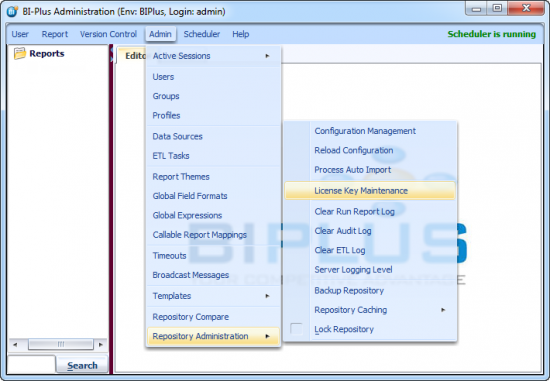
This will open the License Key dialog. Here, enter a valid License key which has been provided to you and click on the Update button. Now it will ask you to confirm the license key update. Click on the Yes button. Once you click ‘Yes’, the license key in the BI PLUS repository is overwritten and you have a new license key with notification 'License key updated'.
After the license key is updated, you can view the current license key information by opening the License Key dialog.

License keys are generated either on a Named User basis or a Concurrent user basis, where the Named user basis will let you create users, until the applicable threshold for the license is reached. If the threshold is reached, no users can log on until you end-date some users or delete them from the BI PLUS system. With concurrent user licensing, there is a limit to the number of concurrent user allowed to access the system at any one time. Once that number is exceeded, no further logons are allowed until some of the connected users log out. If you are running in Named User basis, then the number of concurrent sessions can never exceed the maximum named users.
The default auto-logout for inactive users is 30 minutes which you can change from Configuration Management. BI PLUS keeps the user session information inside its repository views to prevent abuse of the concurrent license limits.


