Table of Contents
Query Designer
SQL tab
The SQL tab lets you to create/write a SQL query for a report. The following image shows the SQL tab and its available options.

The SQL tab has the following options…
- Evaluate Query
- Query Designer
- SQL Helper
- Edit Manually
- Reset SQL
Evaluate Query:
This feature evaluates the SQL query and returns the result data set. If a developer is writing a report and wants to quickly view the output of the current SQL query, then this button supports an easy way to view the returned data.

SQL Helper
When constructing a query it is very helpful to use the Tables and Columns feature displayed on the right of the SQL edit window. This makes it very easy to ensure that all of your table and column names are correct. It is especially useful when joining multiple tables. The SQL Helper also shows the metadata for the tables or views in the dialog, showing any primary keys and foreign key constraints that may be enabled at the database level.
To enable the SQL Helper, click the SQL Helper in the SQL pane of the Developer application. This will invoke a dialog with the particular database to obtain the list of tables in the database, which is displayed to the right of the SQL pane.

The tables shown will be based on the datasource that you are working with. As you click on a table name, its list of columns will appear on the right. If you double-click on a column name, it is inserted into the main SQL statement. As you mouse-over the columns, the datatype, precision, scale, primary and foreign key constraints will appear as a tooltip.

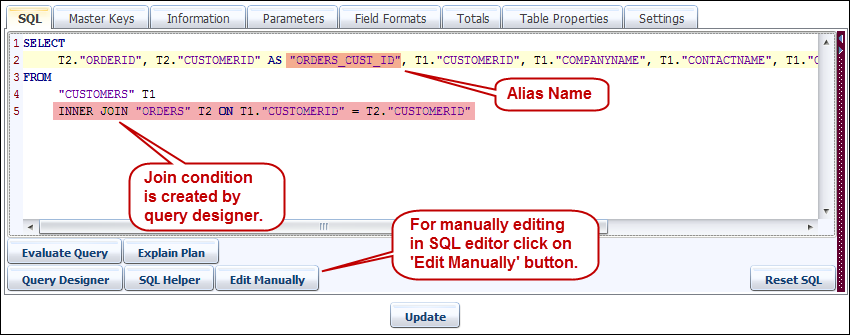
Edit Manually: As could be guessed, a query generator is one of those 80 / 20 solutions, or maybe more like 90 / 10, in that for most of the time, you need a simple query and a GQD (Graphical Query Designer) is smart enough to create a simple statement in SQL that can be executed by the database. However, there are those few times when you want and need something much more sophisticated and complex than what an automatic query designer is able to provide. In such a case, you may want to override the generated query with a more meaningful query that needs to be manually coded.
When a SQL query is created using Query Designer, it is stored in the repository as a generated query, together with the offset and relative position of the objects in the designer, to each other. To override the generated query then to edit that query, click this [Edit Manually] button.
Reset SQL: If you have made any changes in the SQL query and have not saved the report yet, then you can revert back to the previously saved SQL query. If the report is saved then you cannot revert using the Reset SQL function. This is supported by another feature called Version Control, which is invoked by the Show Version menu option. This involves checking out and checking in and is covered in greater depth in the Version Control topic.
Query Designer
BIPLUS has a graphical query designer that can assist developers and power users with the creation of simple queries that can join table / view data from multiple locations.
Note: GQD is NOT meant for complex queries, analytical or ranking type queries. In these cases, an expert SQL coder will be able to create very powerful queries which are reusable in terms of a view.
GQD Basics
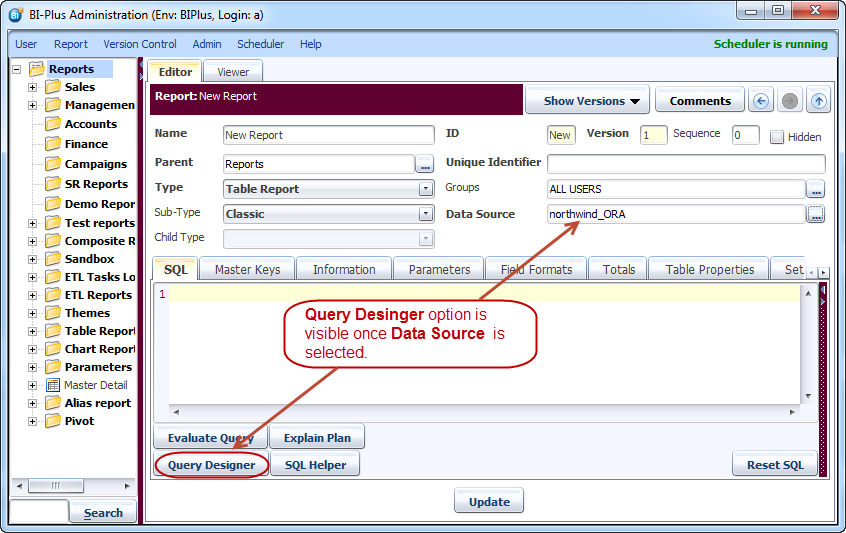
Create a simple report using GQD to show a query being inserted into the SQL editor. Select a data-source as this will enable the Query Designer button. Click on the Query Designer button.
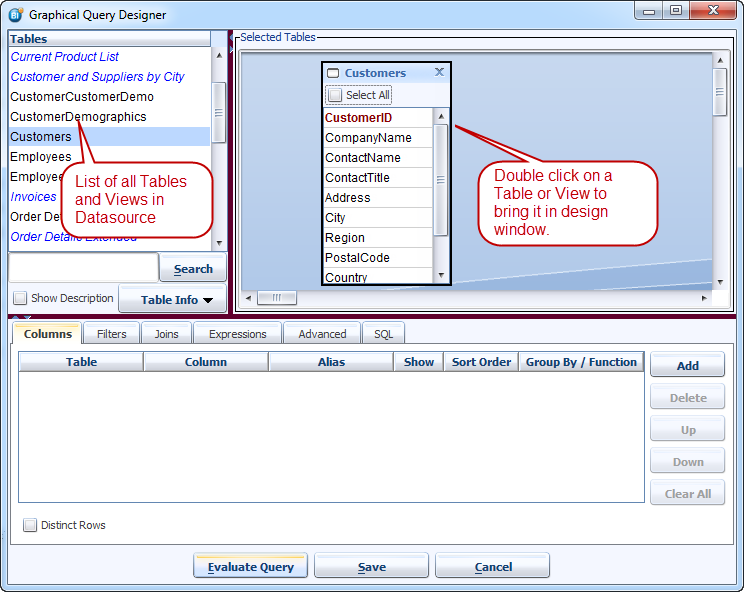
The Query Designer button opens the BI PLUS drag-and-drop type query builder, where you can create some of the more common queries. The list of tables / views and materialized views that are available in the datasource (which connects as a particular user) appear on the left side. As the you double-click a table, the table will appear in the designer window. Notice that where the database table contains a Primary Key constraint on the table, this appears in red color (CustomerID). As you drag the mouse over a column, a tool-tip displays the datatype of that column, so you will know whether they are dealing with a numeric, alpha or date / timestamp field at its source.
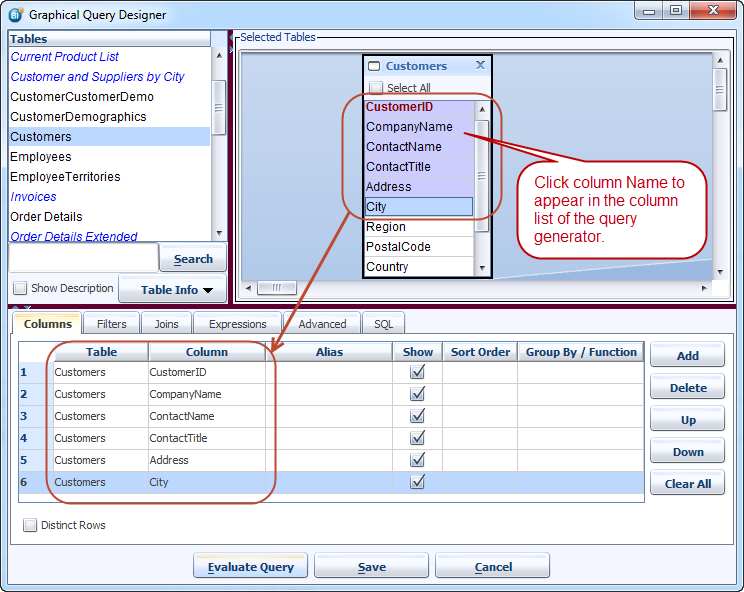
To select a table, double-click on it or drag it into design area. The illustrations has the CUSTOMERS table selected, now click on columns of this table and those columns will appear in Columns tab. Clicking on the Evaluate Query button will display the records returned and clicking on the Save button will save the query into the query editor.
Let's demonstrate how to join two tables. The image shows that the CUSTOMER table is JOINED with the ORDERS table on the CUSTOMERID key. Select OrderID and CustomerID column of ORDERS table in the columns tab and give an alias name to CUSTOMERID to avoid conflict.

Once done click on the OK button to save the query. This will close the dialog and the query will be inserted in the query editor. Your query is automatically created by GQD(Graphical Query Desiner) with the correct joins and alias names.
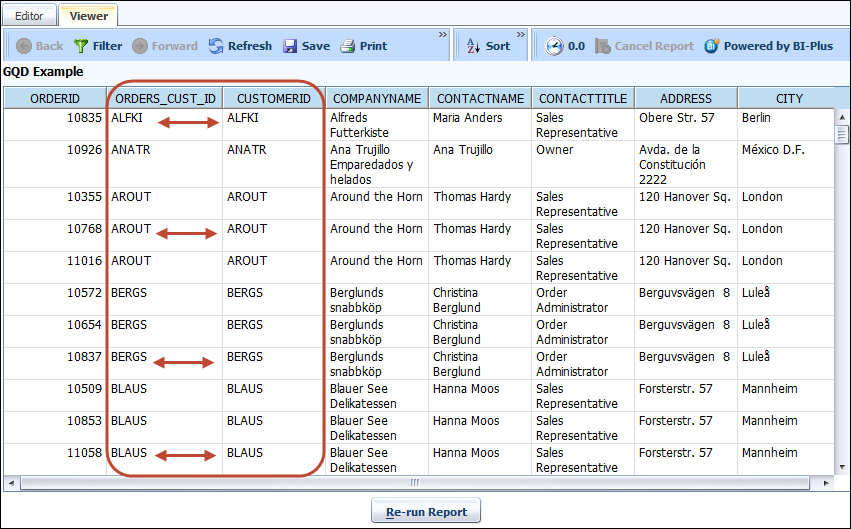
If you run the report you now see the records retrieved from both tables, joined on the CUSTOMERID value, as per the illustration below. All this without having to manually write a single line of SQL.