Repository Compare
Repository Compare tool makes migrations much easier is to have a visual comparison tool that could tell us exactly what the differences are between objects in different repositories. This way, you can compare a maximum of 2 environments and highlight the differences. You can also show objects that exist in 1 environment and not the other (either way).
Open Repository Compare from Admin ⇒ Repository Compare menu.
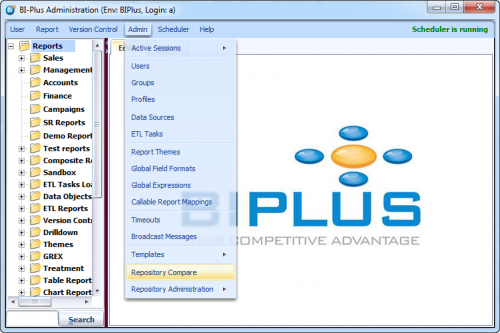
This will open Compare with Repository window. Here, click on the Browse button to select a .smd file. Browse dialog box will appear and select the .smd file to compare with the repository.

Once .smd file is selected, its path will appear. Now you can click on the compare button to start the comparison.

When the comparison process will be finished, comparison result will be displayed.

Comparison records are highlighted in different colors according to their status.
- New: The result is not in the BIPLUS repository but is in the comparative .smd file.
- Modified: The result is modified in the BIPLUS repository.
- Unmodified: The result is exactly same in both repositories.
- Missing: The result is in the BIPLUS repository but not in the comparative .smd file.
At the bottom of window, number of records found for that respective status will be displayed.

The above image shows another example of the result.


