Table of Contents
Templates
BIPLUS supports PDF form templates, HTML templates, XSL Stylesheets or Word XML templates in which to display the contents of a report. This is mainly where the flexibility is sought and the requirements of the report format cannot be satisfied with the normal default formats that BIPLUS create as built-in formats.
The template is created outside BIPLUS with any editor or with Adobe PageMaker / Acrobat/ MS Word. Once the forms are created and ready to be populated automatically by BIPLUS, they need to be loaded.
Forms are stored in BIPLUS in the repository database as database BLOB (binary large objects) objects. This eases backup requirements, not having anyone ‘accidentally’ wipe the template file from the server directory, and this also facilitates the moving of template records from one environment to the other.
When reports refer to a template, a single template can be shared by multiple reports, but a single report can use only one template . The template is retrieved from the database at runtime.
There is a performance enhancing process that checks the user’s local hard drive for the template name and the date of last modification, and if the file is found on the user’s hard drive, BIPLUS does not try to load the template from the database again, unless the template file in the database is newer than the template file on disk. Thus there is an easy mechanism for pushing any changes to template files down to the client so that it can be ensured that the reports will always run with the most up-to-date versions of any template files.
Loading Templates into BIPLUS Repository.
To load a PDF template into BIPLUS, simply click the PDF Template option of the Admin ⇒ Template menu in Admin mode. To load other types of Templates like HTML Templates, XSL Style Sheets or Word template, click the appropriate selection from the Admin ⇒ Template menu as shown adjacent

This opens a PDF Report Template. Click the Add button in the top right corner of the dialog. This will add a blank row to the list of templates. See image below.

Now click on the Attach button to attach and select the PDF form template.
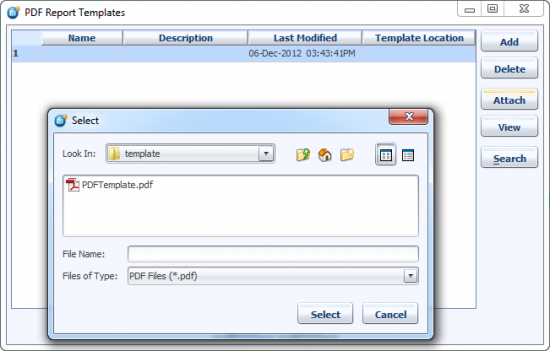
Then fill in the name and description of the template file. The name field is how you will reference the PDF template when you look for templates to attach to a particular report.
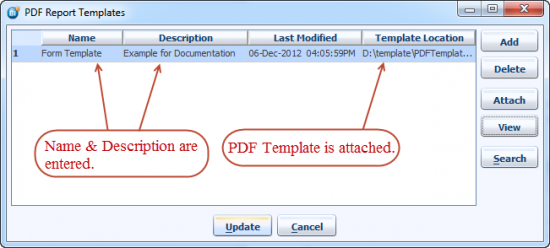
Once the template is attached, you can always view the template by bringing up this same dialog. Clicking the particular template and then clicking the View button, should open Adobe Reader or Acrobat (if you have it licensed and installed on your machine).
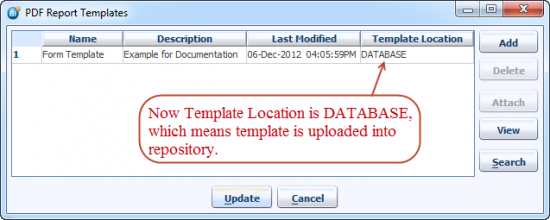
Click the update button and the template will be loaded into the BIPLUS repository as a BLOB (binary large object) datatype. Once the template is loaded into repository template location parameter changes to DATABASE as shown below.
How to create a template-based Report
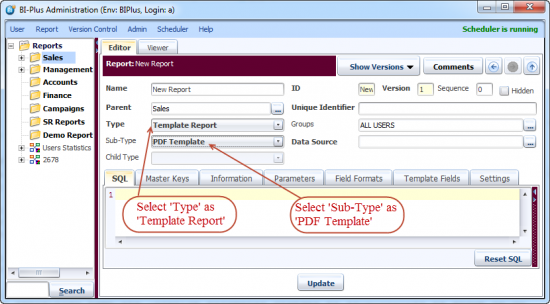
You can create a template report by selecting Type as Template Report. Select the Sub-type according to your requirement, here PDF Template report is selected.
When specifying which template (optional) is to be used for a report, once the report has been defined, go to the Template Fields tab, where you will see the Report Template field level specification. You can click on this to bring up the dialog that will let you choose from one of the templates loaded into the repository.

Even at this point, you can verify that the template is indeed the template that is to be used. By clicking the View button, the template will be displayed up in a new window using Adobe Reader or Acrobat. See above image.
Once you select the appropriate template, then click on the OK button to return to the Report definition screen, where you now click the Update button at the bottom, to update the report.
Once the template is added into the report, you need to map columns to template fields, so that each template field will be populated with the specific value from the mapped column. Mapping is done using the Field Name, Column Name and Row Index attributes.
Field Name is a template field which is mapped to a Column Name. The Row Index is the index of rows returned using SQL query. The following image shows template fields mapped to columns.
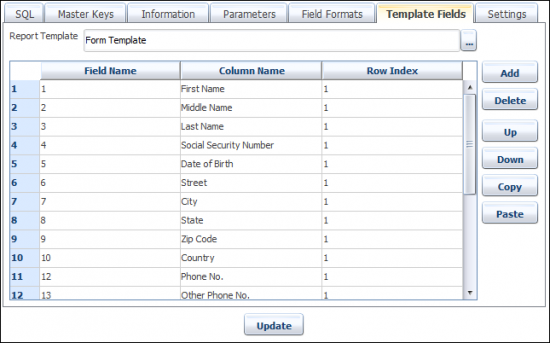
Once the columns are mapped, then you can run the report.
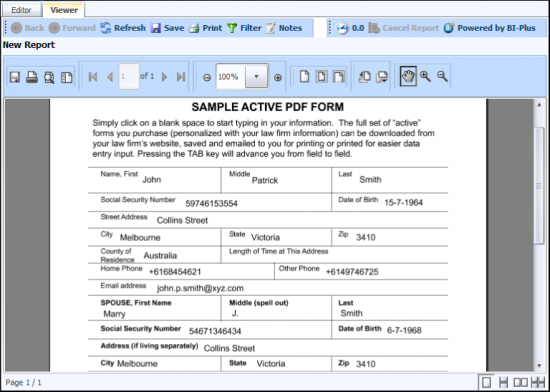
The above report displays how templates fields are filled with the values returned from a SQL query.


