Table of Contents
Creating Totals
When running a report in BI Plus, with totals configured, the user has the option of turning these on / off at runtime, using the interactive applet.
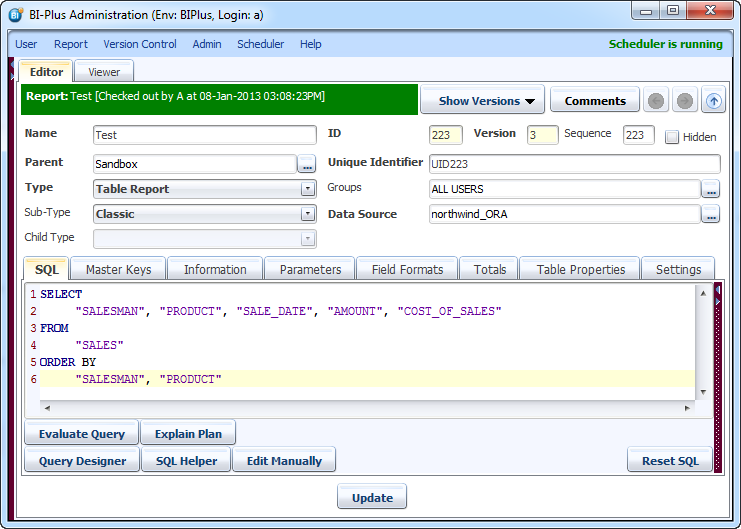
Consider the Company Sales Report as below. Note the ORDER by clause of the SQL statement.
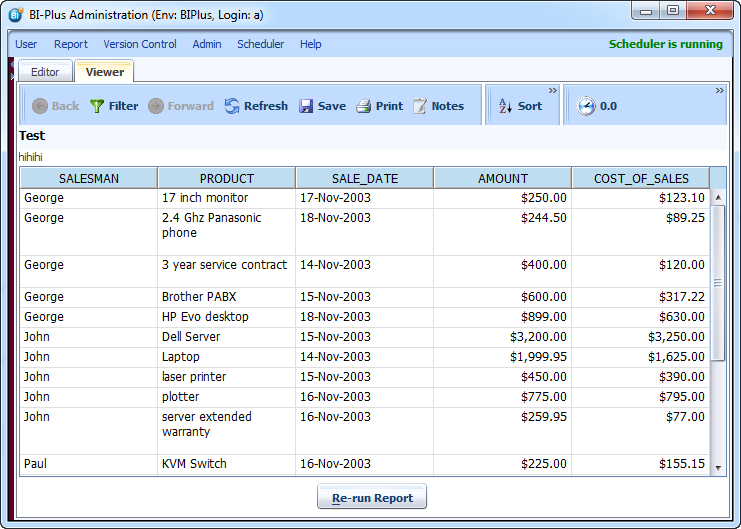
When run, it returns this result.
Adding Report Totals
To create a report total, go back into the developer mode and click on the Totals tab. There is a choice of report totals or group totals.

The Break Type to choose for Report Totals is Report, no Group Column applies here. Choose the column that you want to total. There are various aggregation types available and BI PLUS has expanded the normal aggregate functions (sum, count, min, max, average) by adding certain customer-requested aggregations, like Count excluding null, count excluding zero, count unique, Average excluding null (empty), Average excluding zero and also a function to insert a blank line.
In the example shown, you see …
- Totaling(SUM) the SALES AMOUNT, COST_OF_SALES.
- The COUNT of orders for the entire report.
- Average the SALES AMOUNT.

Save the report, run it in the Reporter interface and scroll down to the bottom of the report.
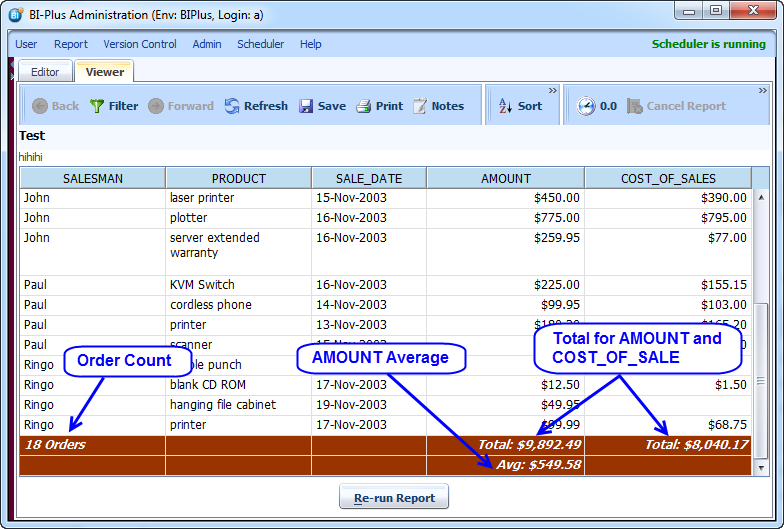
The Report totals appear at the bottom of the report. More than 1 type of total can be added for a particular column.
You can also set the Total display location (Top or Bottom) using Other Info. COUNT on Orders is shown and set its location is set to TOP.

Using Other Info you can also set the color for a specific Report Total. Select the color style from the Other Info dialog and that will be applied from the current theme.
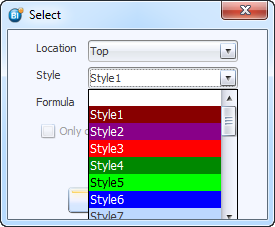
The Orders count appears at the TOP of the report. See the image below.

In addition to this, you can create a custom calculated function to depict the Total. To do this, select Calculation in the function column and then you specify your formula in the Formula section. This is generally used for percentages, where if a percentage is shown in the row, it does not make sense to add percentage values or worse still, to try to average percentages or average a collection of averages, so specifying formulas, you can code the average cost to be something like: sum(ordertotal) / count(orderid).
Adding Group Totals
You may want to add a total for each group in the report. Using the same report as in the example above, you will now group the report into sections (groups) per salesman, and suppress the repeating column values, so that the Salesman column only appears populated when the value changes.
Navigate to the Totals tab. The example shows less clutter, just the average and sum totals for Report totals have been kept. Now add the group totals.
When adding group totals, it is recommended to have SQL that contains an order by clause, to sort the data into its logical groups. If you examine the SQL statement used to retrieve the data for this report, you will see that the dataset is ordered by SALESMAN. This provides a natural group break column.
Since SALESMAN is the first column of the SQL statement, this is also used as the number of the column to provide group totals on, by selecting 1 from the drop-down list in the ‘Group Column Count’ column of the totals dialog tab.
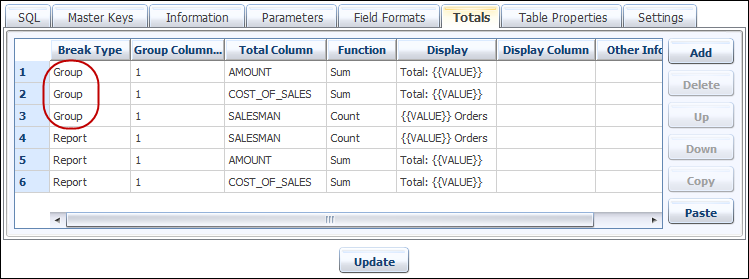
On running the report, the totals show the total sum of the AMOUNT column, the average of the AMOUNT column, and also the same totals for each break of group (SALESMAN). The report totals are still included.

One of the types of breaks supported is the inclusion of a blank line between group totals. This is for visual ease. To do this, select ‘Empty line’ from the aggregation type.
Let's see another example of Group Total functionality. For this example, the report shows information sorted first by the sales agent, then by product within sales agent. To apply group totals for the product, since it is the second column in the query, the Group Column Count referencing the product is 2.

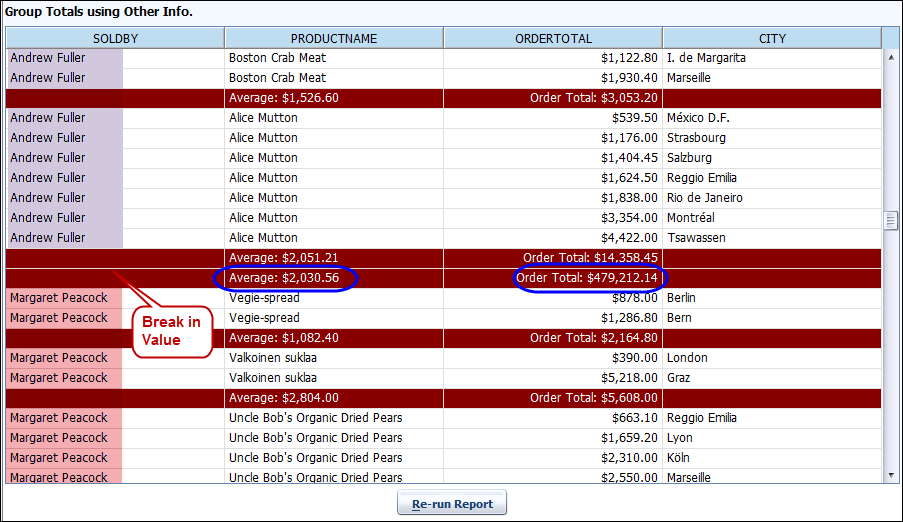
After running this report, you will see that whenever there is a break in the value of the SOLDBY column (highlighted in two different colors) an additional SUM and AVERAGE value will be also get created. This rolled up total line is based on column SOLDBY. This is the default behaviour, but we can turn this off, so that the aggregations do NOT roll up to the next level.
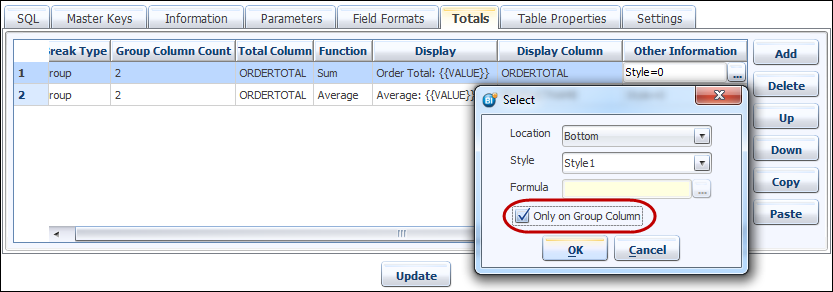
In the totals tab, find the Other Information property, and open it. There is an option to disable the rollup behaviour, by checking the Only on Group Column property. Now let’s see the result.
The result shows that values are getting displayed in Group columns. Look at the report and you will see that the information is sorted by Product Name within Sales Agent. What was specified is that on the break of product, show totals, but do not roll this total up to the Agent. The report shows that after each product, a total is displayed, but when the values for Sales Agent change from 'Andrew Fuller' to 'Margaret Peacock', there is no rollup total for the product at the sales agent level. This is exactly what was specified by checking the option 'Only on Group Columm'.
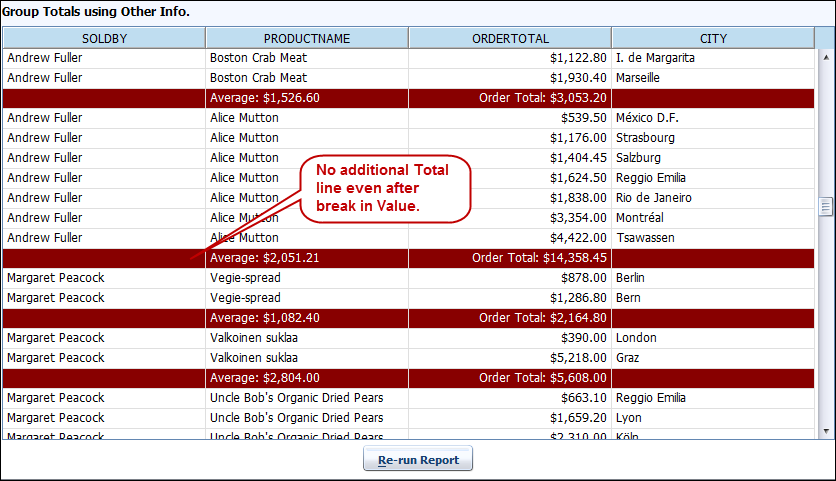
One of the other options you can set is the location of the group total: does it follow the information (bottom) or precede it (top). Thus it is possible to first show the group total value, then show the rows of information that make up that total.
Formulas for group totals are applied in the same way as for report totals.
Important ! Since using group totals depends wholly on the data being sorted in a particular order, if the user invokes a sort at runtime, either by clicking a column header or by using the sort wizard dialog, the group totals immediately disappear. This is because the original order is no longer guaranteed, thus group breaks have been eliminated accordingly.
Totals Label
In the Totals tab, the Display column allows the customization what is displayed on the total line. Two values that are kept for each total, one is the {{NAME}} (the value of the column used for group breaks, and the values for the above report are “George”, “John”, “Paul” or “Ringo”) and the other is {{VALUE}} , which is the computed aggregate function value (Sum, Avg, Min, Max, Count).
To show an alternate display text, enter something similar to the example below in the Display column:
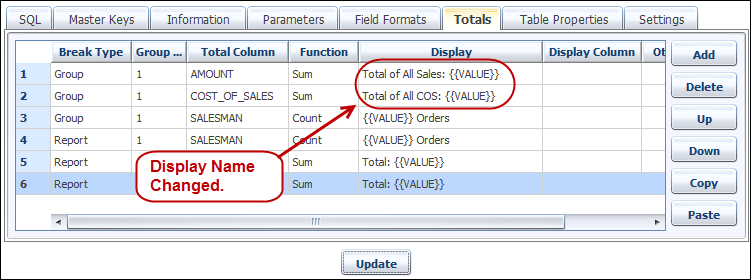
This has the effect of producing the following output. Notice the text of the Group break totals and the Report grand totals now reflects what was configured in the Totals tab.
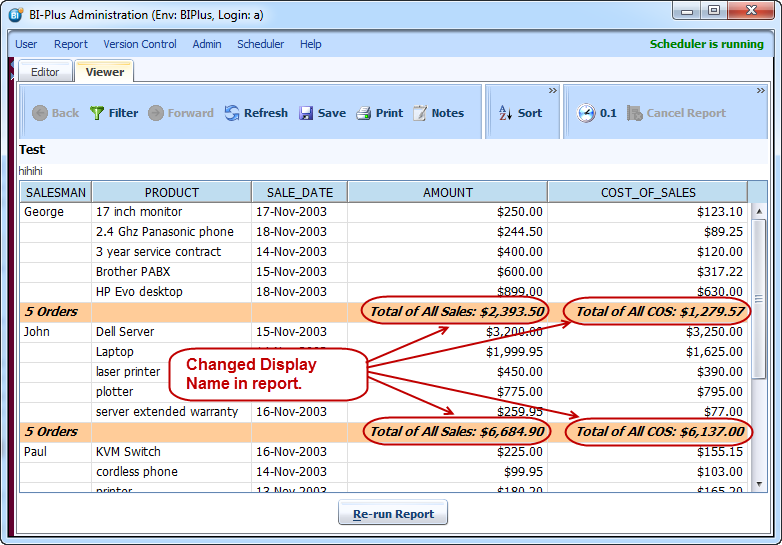
The previous report shows 2 report totals, one for the total of all Sales, the other for the Average Sale amount. Since these aggregations are both based on the AMOUNT column, they logically appear one under the other, in the order they were specified.
But what if you wanted to display the 2 aggregations in the same line, and put the average sale amount under one of the other columns ?
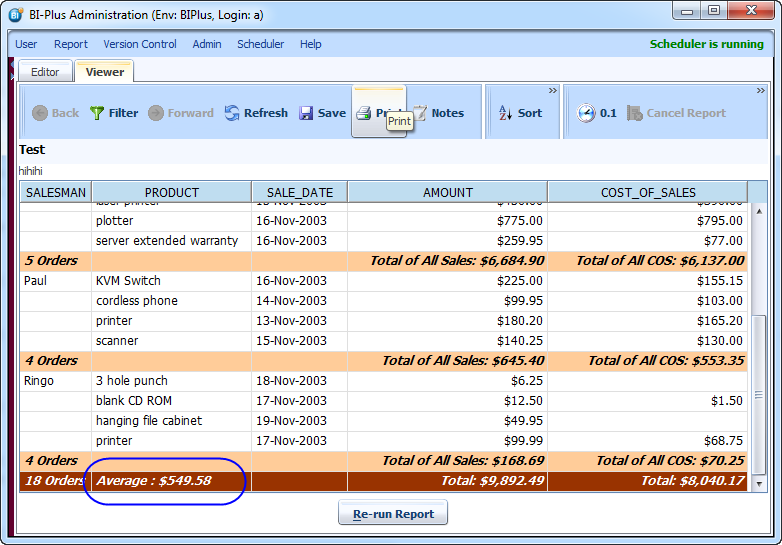
By selecting a column from the ‘Display Column’ field, this can be easily achieved. Observe the results, the order average for the entire report is configured to appear at the bottom:
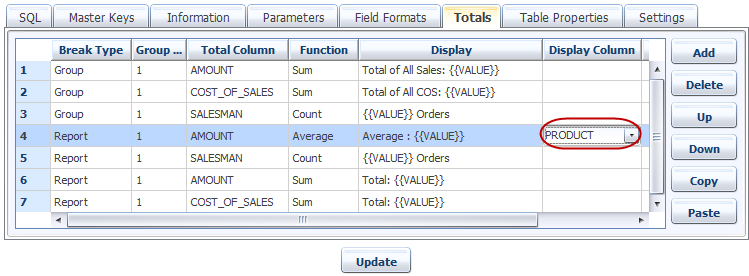
The resultant report looks as follows:
Suppression of Repeating Columns
In the examples above, you have seen that the value for the salesman gets repeated on each and every line. We can suppress this is a very similar way that it is done with the Sql*Plus BREAK ON command.
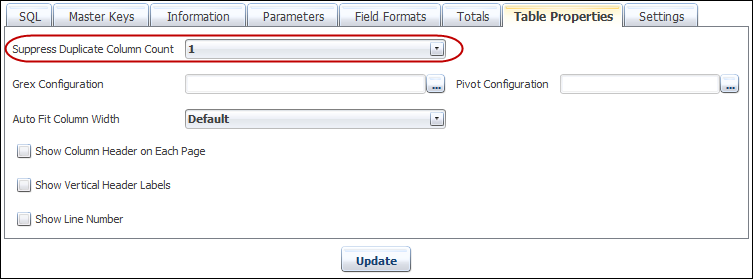
Go to the ‘Table Properties’ tab of the report, and in the field ‘Suppress Duplicate Column count’, you can choose a number, as long as the ORDER by clause contains at least as many columns, and then in this case, it is important to have the ORDER BY clause in the same sequence as the SELECT statement itself.
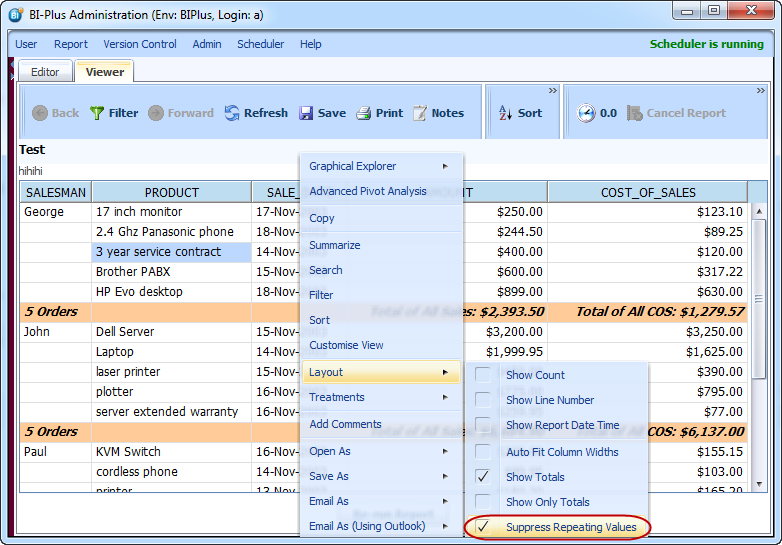
When the user right-clicks in the report, a menu will have these options at the bottom to enable the user to turn off break suppression or totals.