Table of Contents
Version Control
Version Control has been designed to prevent one developer from over-writing a report while another developer is working with it. Reports are either checked out to you (developer) or checked into the repository. You (developer) can only make changes to a report that is checked out to you. It is good practice to check-in the reports once development / modifications are complete before migration but this behaviour is not enforced.

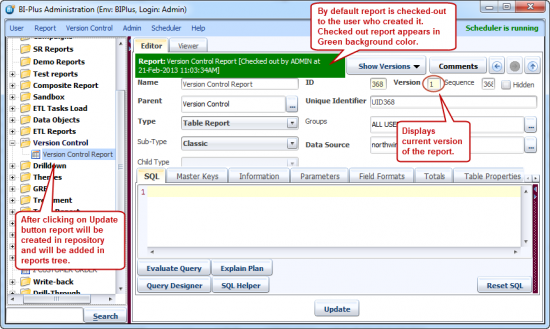
Above screen shows that how reports tree look like before creating a report.
When a new report is created, as soon as the Update button is clicked, it is stored in the repository. By default created report is checked out to the developer who created it. As the report evolves, certain versions can be saved in the repository.
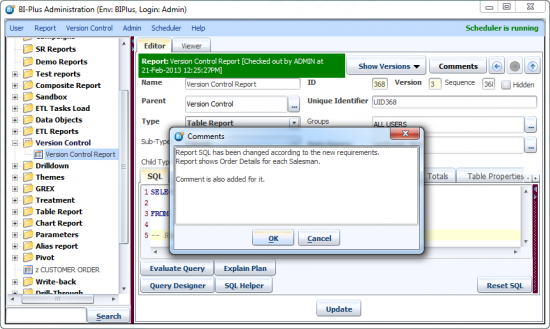
The screenshot below shows a report that is now on its 3rd version. To save a particular version of a report object in the repository, right-click the report name from the report tree on the left. Choose the check-in option option from the menu.

When you check in, you will be asked to enter an optional comment to describe the motivation for the new version and the changes. Click on OK button to continue.
At checkin, you will get a confirmation message that Report checked-in successfully. The report is now checked in, thus preventing any further updates to it. You can also visually confirm this by looking at the report title bar. The bar is converted to red / maroon background (editable reports have a green background).

Check-in Cascade allows you to check in selected category/report and all its child categories/reports.
Checkout Cascade allows you to check out the selected category/report and all its child categories/reports.
Cancel Checkout Cascade cancels the checkout for selected category/report and all child categories/reports.
We have divided the Version Control into following two sections.
Repository Version
A version control system is a system that tracks incremental versions (or revisions) of the reports. Repository Version saves multiple version of the same reports in the repository. When you check-in a report that report version is saved in the repository. A version control system allows you to explore the changes which resulted in each of those versions and facilitates the arbitrary recall of the same. You can also revert back your current report to the previous version. BIPLUS supports Diff tool which compares two versions of the same report and highlight the differences between them.

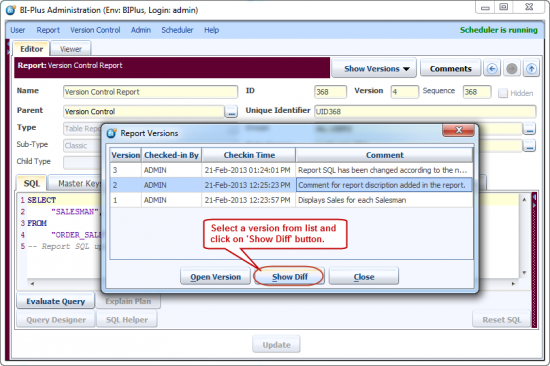
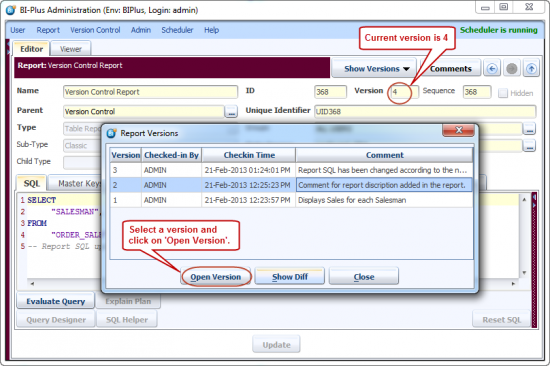
Clicking on Repository Version will open Report Versions dialog. This dialog displays all versions for the current selected report. Below image shows that current report version is 4 and there are another 3 versions available in the repository. A Show Diff button allows you to compare current version, i.e. version 4 with selected repository version.
Now, click on Show Diff button.
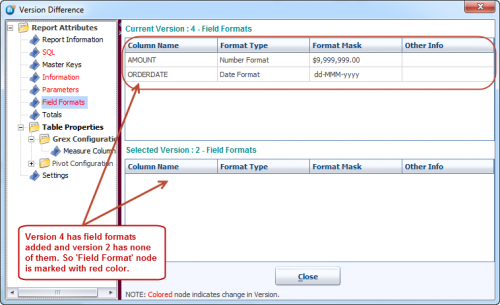
This will open Version Differences dialog. On the left side of this dialog you will see different features supported by the report. These features are report dependent. On the right side, feature values are compared for two selected versions. If any kind of mismatch is found then that feature is highlighted in RED color. See image below.
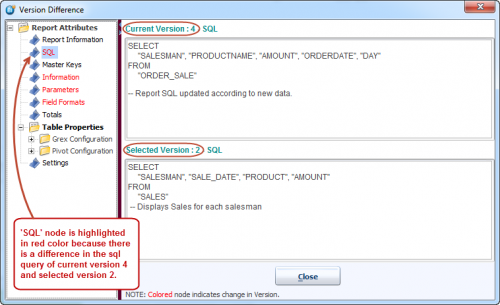
Following image shows another example of Diff tool.
Now close the Diff tool dialog. Select a report version and click on Open Version button, as shown below.
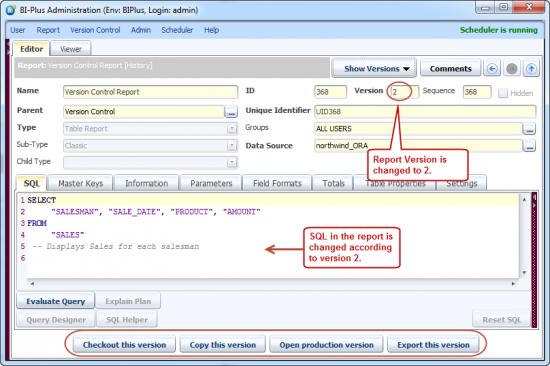
This will open selected version in view mode. Here you can we the report in detail. By looking at the version number you can check that which report version is opened. Right now this report version is neither checked-in to repository nor checked-out. In order to make any changes in open version 2 you have to check-out it. At the bottom you there are several options, one of them is Checkout this version. Clicking on this button will replace current report version i.e. 4 with report version 2.
Copy this Version button will create a new report for opened version 2.
Open Production Version button will open a production version in this case which is verison 4.
Export this Version button will export opened version 2 in a .SMD file.
If you decide that this is the version we want, we then click the Checkout this version button at the bottom of the report.
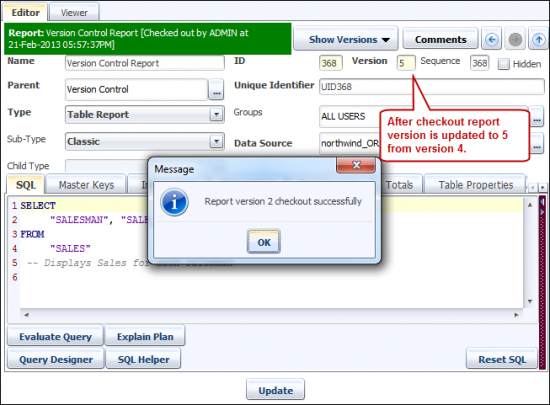
Now you will get a confirmation message that version 2 is checked-out. A new version number will be assigned to report i.e. version 5. Version 4 will now forever remain in the history inside the repository.
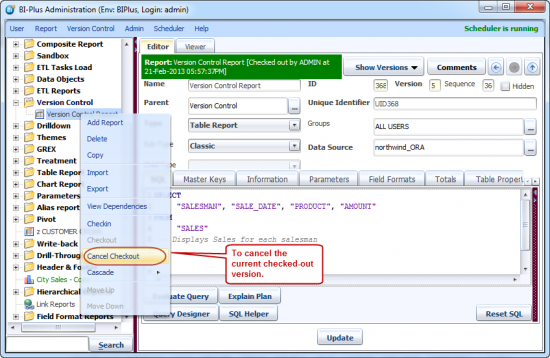
Let us assume this is not what we wanted. We can simply cancel the checkout. To cancel the right click on the report in reports tree and select Cancel Checkout menu.
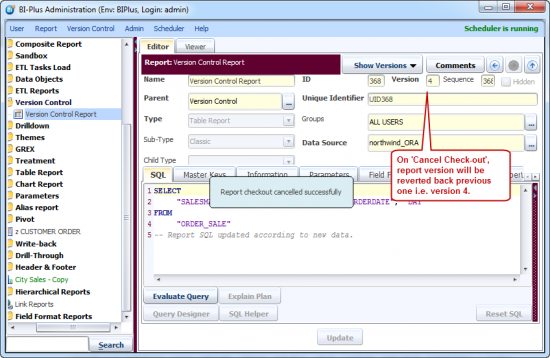
You will get a notification message that Report checkout cancelled successfully. This will also make your previous version 4 as the default version.
What if you want to see which reports are checked out to you? This is easily achieved by clicking the Version control menu and selecting Show My Checkout Reports.

Clicking on Show My Checkout Reports button opens My Checked Out Reports dialog. Using this dialog you can see all checked out reports to you. By selecting a report (or selecting multiple reports while holding down the control key) you can either check in the report/s or cancel the checkout on the relevant report/s.
A browse button in front of Report Name (highlighted in the image below) displays where that report appears in reports tree.

An Admin user has the power to check in reports on behalf of you or other developers and cancel those checkout reports. Simply select the Show All Checked out Reports option of the Version Control menu.

This opens the All Checked out Reports dialog, which let you (Administrator) check-in or cancel the checkout of one or more reports.

A browse button in front of Report Name (highlighted in the above image) displays that where that report appears in reports tree.
Local History
Local History is similar to the repository version feature. The only difference is, in the repository version report is saved inside repository only after report is checked-in. In Local history report is saved locally whenever report is updated using Update button. Local history is user specific and as soon the user logs out of BIPLUS, this saved local history gets deleted. To view local history click on the Local history option under Show Version.

This opens Local History dialog. This dialog shows the different updated version of the current report. We have seen an Open version and a Show Diff option in Repository Versions. The exactly similar buttons are here. You can compare these versions using Show Diff button. To check-out any of the version, select Open Version button.


