Graphical Explorer(GREX) Configuration
Graphical explorer or analytical explorer allows the user to take a spreadsheet-like or matrix report and turn it into useful and powerful information by slicing and dicing the report by any attribute, using any measure and aggregation. E.g. All Orders Matrix Report. Lets start with some basic of GREX.
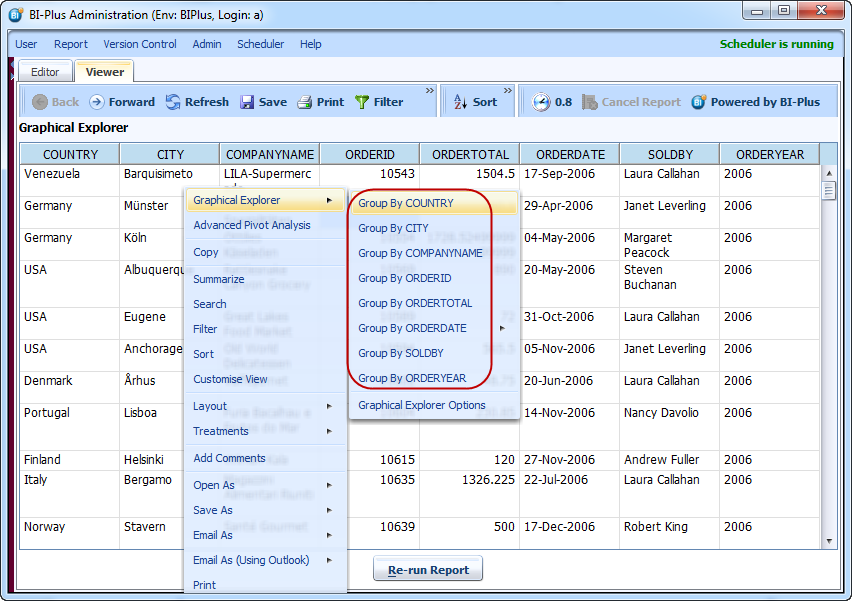
GREX feature is applied using right click and then Graphical Explorer menu. Following image shows that how group by feature can be used. Here have performed Group by COUNTRY operation.
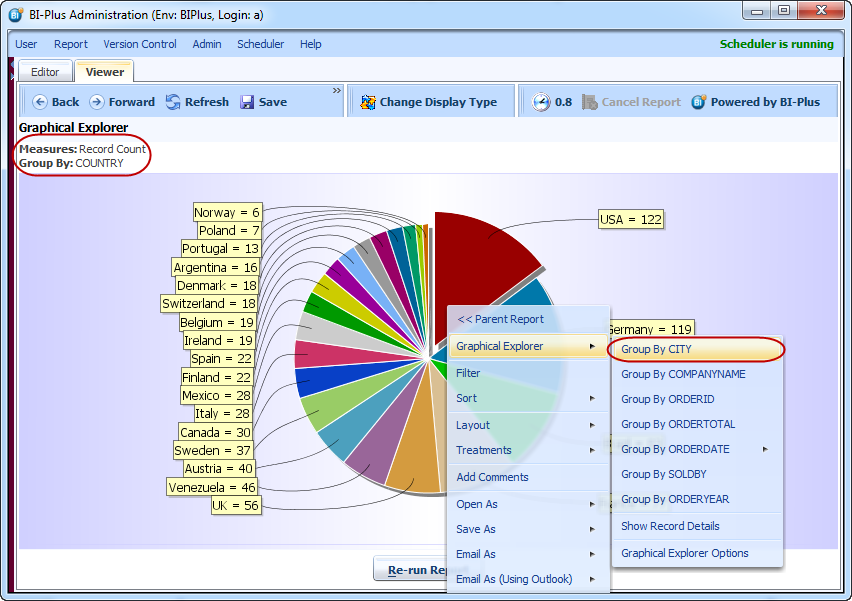
In result you will see that a pie chart is displaying record count for all orders which are group by COUNTRY. See upper left corner for Measure and Group by details. The default aggregation for GREX is count. One can also apply different types of aggregations which is described

In above pie chart result now once again we are applying GREX on country USA. So right click and select Group by CITY from Graphical Explorer.
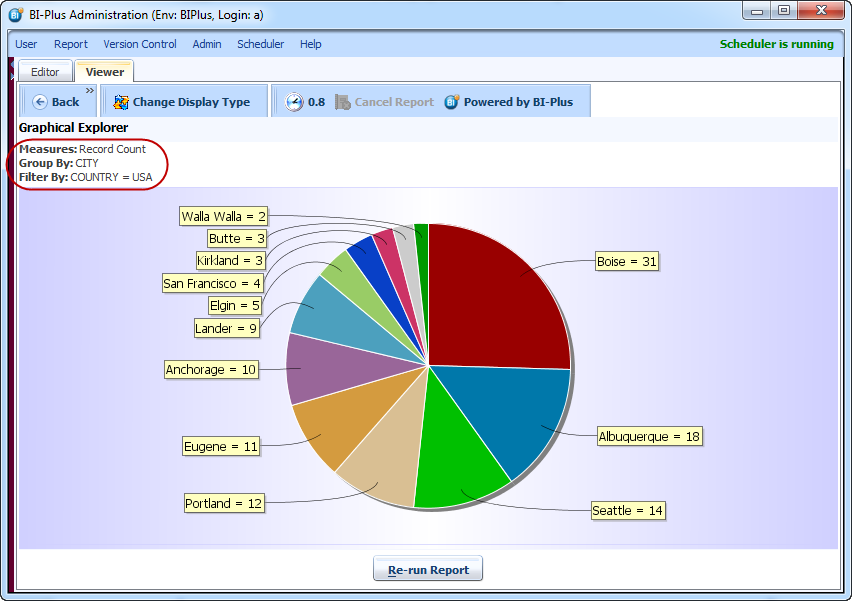
In result we will get records count for all countries in USA and group by Cities.
What if we want to apply different aggregation function OR want different chart type. BIPLUS has taken care of this very well. One can also set his own measure columns and aggregation functions.
The user would like to analyze this report by seeing the total of the order totals, by year, in a pie chart. Right click in the report, click Graphical Explorer and select Graphical Explorer Options to invoke the Graphical Explorer Options Dialog Box.

In Graphical Exploprer dialog we have made some changes according to our requirement. See image below.
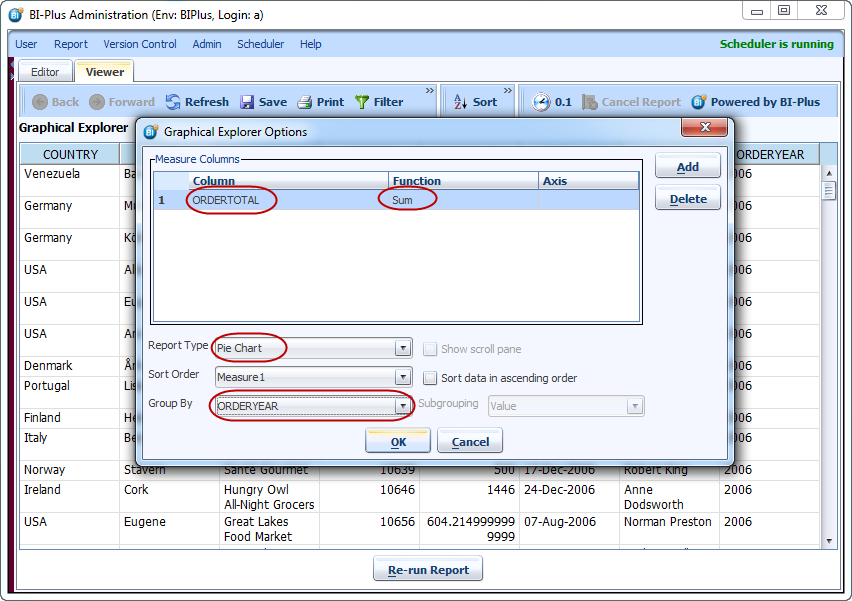
Result is showing sum of all ORDERTOTAL is grouped by ORDERYEAR.
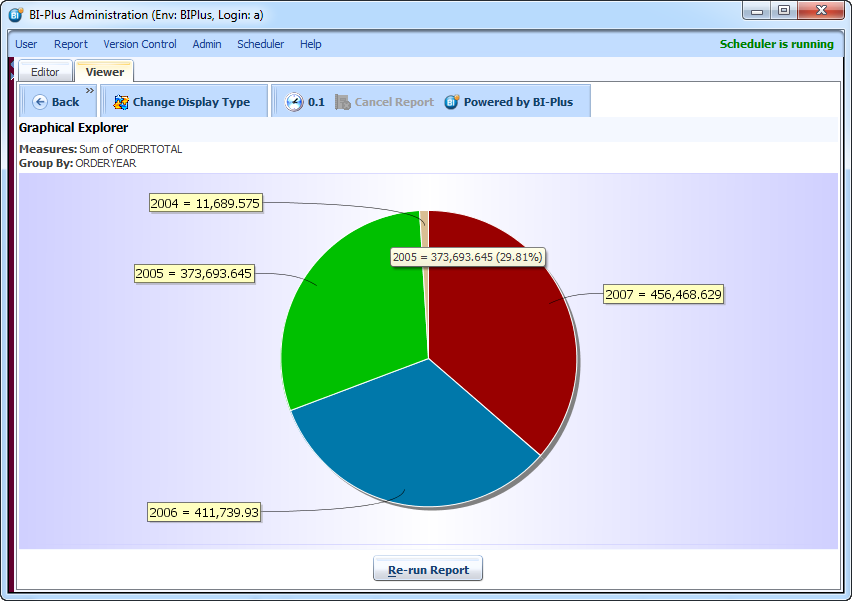
There are also some other option in Graphical explorer Dialog.
- Show Scroll Pane is used to show scroll bar if have large number of items in chart. This is used with all all report type other than Pie Chart.
- Sort Data in ascending Order sort the data in ascending order.
- Subgrouping is allowed only to Date column. One can do subgrouping into Date, Quarter, Month, Year, Month-Year, Quarter-Year.
We can also do pre-GREX configuration from Table Properties so that report result will be displayed with grex configuration.
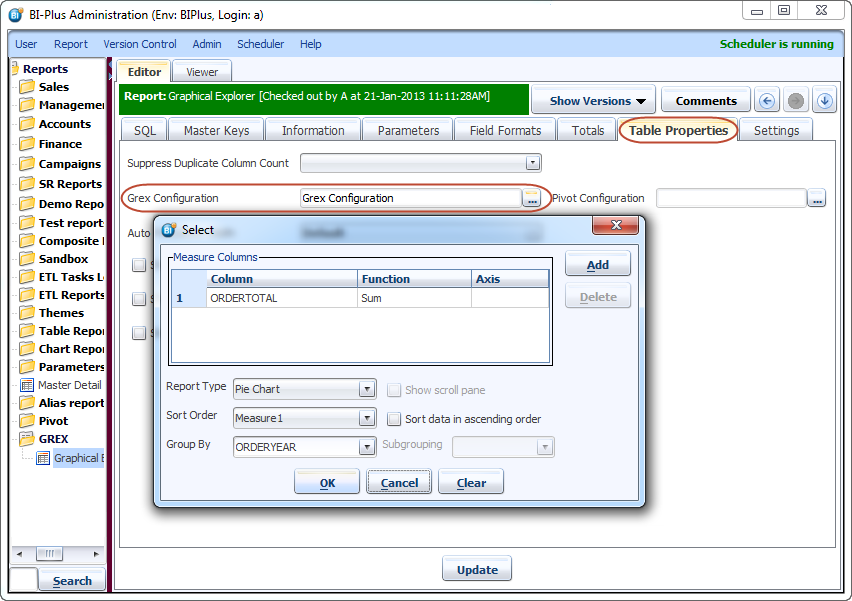
Launch from Desktop shortcut
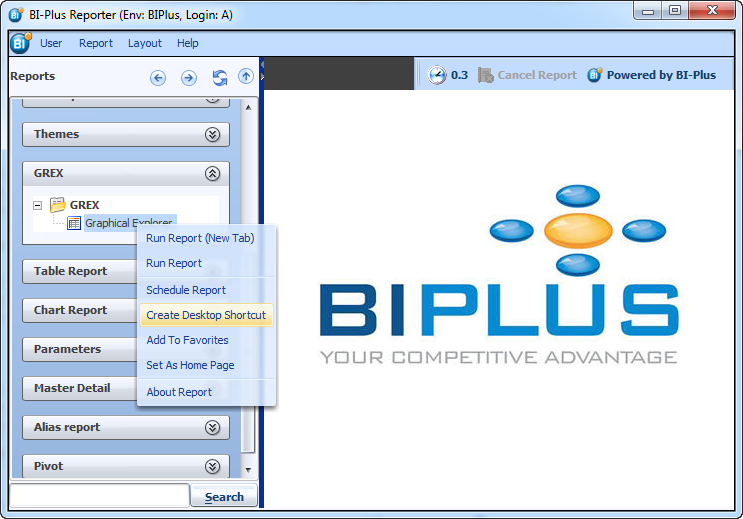
To create a desktop shortcut of one of the reports in the report tree, right click on the report name within the report tree(Reporter interface) to invoke a drop-down list, select create desktop shortcut.
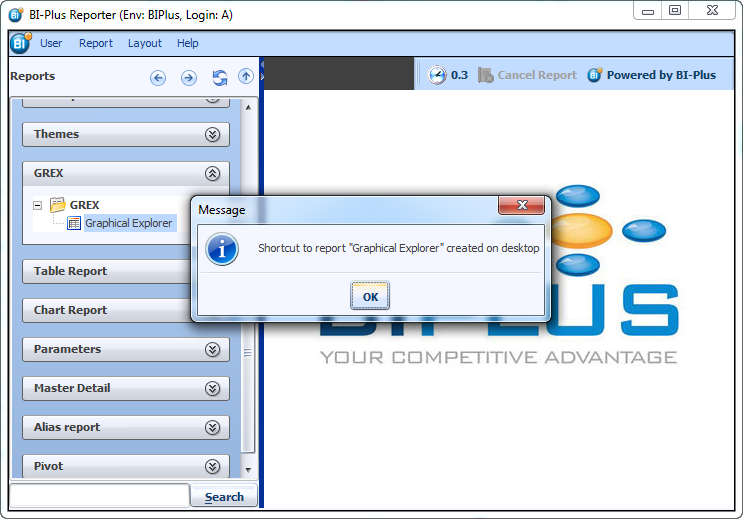
select OK in the message dialog box confirming the report to be created as a desktop shortcut.
To open a report from a short cut, double-click the desktop shortcut icon. This will open the BIPLUS login window, type in user and password and select OK. BIPLUS will open with this report with GREX configuration if applied in Table Properties.


