Creating Categories and Reports
When you open BI PLUS, you will see that the reports are organized into categories or reports. In following image, Reports category is root of the tree hierarchy. You will see the categories as the highest level, kind of like sub-directories in a Windows File Explorer.
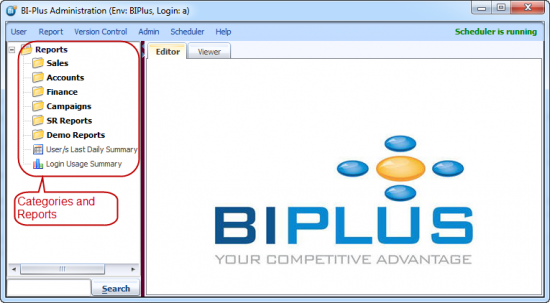
Categories: The categories in the above BIPLUS system are Sales, Accounts, Finance, Campaigns, SR Reports and Demo Reports. Categories are always displayed with a yellow folder icon. Categories in BIPLUS can have multiple categories and reports under them as their child category or child report.
Reports: Reports in BIPLUS are displayed with an icon that corresponds to the report type. For example 'User/s Last Daily Summary' report is a Table report and 'Login Usage Summary' report is a Vertical Bar Chart report and that is what their icon indicates. Reports can have multiple child reports under them but reports cannot have categories under them. This is very much like the leaf nodes of a Windows directory contains files but the files themselves may not have sub-directories. See the image below.
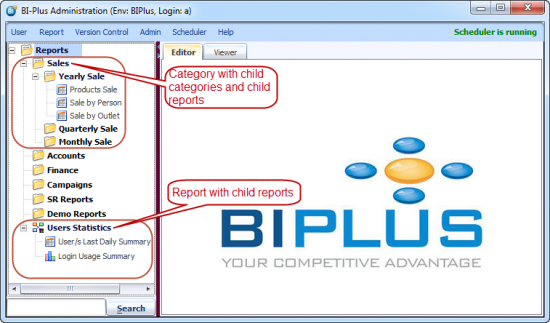
To create a category, right click on top-level node of the reports tree called Reports and then select the Add Category option. This will add a category under Reports category.

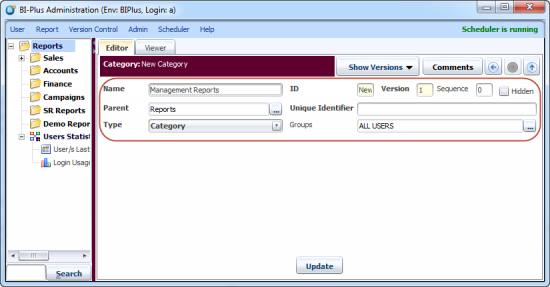
As soon as you click on the 'Add Category' option you will see a form to create a new category. Following are the fields in the form.
- Name field allows you to give any name of your choice for new category. In this case we are giving name as 'Management Reports'.
- Parent field allows you to set the parent for the new category.
- Type field is used to select whether it is a Category or a Report.
- Unique Identifier is given to each category and report so that the categories and reports are different from each other and can be uniquely identified.
- Group field allows you to link an entire category to a particular report privilege group. The default group is ALL USERS.
- Hidden is used when you want to hide current report in reporter interface.
Once you are done with the above, click on the Update button to save the category information and the category will be created in the Reports Tree under the Reports node. This way you can create multiple categories under any category.
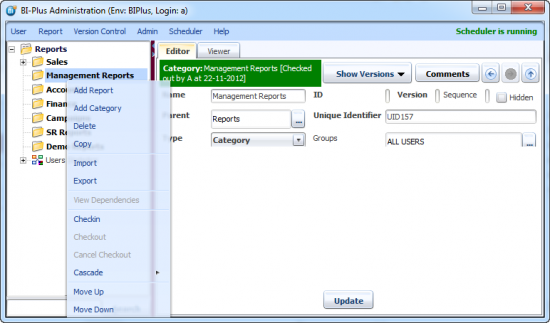
The following image shows that once the category is created, you can perform several operations on that category using the right click menu. Some of them are:
- Add Report lets you add a report under the current category.
- Add Category lets you add a category under the current category.
- Delete is used to delete the selected category.
- Copy is used to make a copy of the selected category.
- Import lets you import a set of categories or reports from a .smd file.
- Export lets you export the current category and its content to a .smd file.
- Check-in checks current category into BIPLUS repository, to allow other users to check it out. When you check-in a category, its dependent child objects are not automatically checked-in without the cascade option.
- Cascade ⇒ Check-in Cascade lets you check-in the current category and its subordinates into BI PLUS.
- Move Up moves the location of the selected category one level up amongst its peers. Another way to do this is select the category via left-click, hold down the 'Ctrl' button and use the '↑' (up arrow).
- Move Down moves the location of the selected category one level down amongst its peers. Another way to do this is select the category via left-click, hold down the 'Ctrl' button and use the '↓' (down arrow).
Adding Reports to Categories
Now that you know how to define categories in BI PLUS, you can add reports under categories.
To add a report to a category, simply right click the category in the Reports Tree on the left pane, and select the ‘Add Report’ option.
Once you have done that, you will see the Name of the report will always be called ‘New Report’ by default. This is an editable field in the online application, so the name can be changed here by clicking in the Report Name text box and replacing the name. In this case, enter 'Management Table Report'.
Type lets you select the type of report. By default the Display Type will always be ‘Table Report’. You can always change this by clicking the drop-down Display Type list from the dialog and selecting the desired output type: such as Table, Chart, Composite and many more.
Using Datasource you can choose the datasource on which to run this report. Data Source selection is mandatory for creating reports. See Data Sources.

When you click on the Update button, the 'Management Table Report' will be saved in 'Management Report' category in the repository. BI Plus automatically checks the report out to the current developer. The Unique Identifier provides a UID to newly created report.
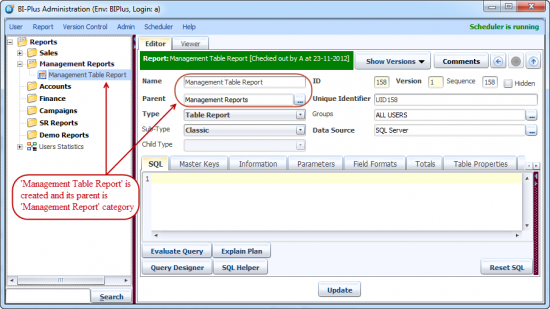
Once the report is created in the report tree, you can write a SQL query for the report, which will be executed against the datasource selected. You can also write a SQL query while creating a report. The SQL query determines the data to be used in the report.
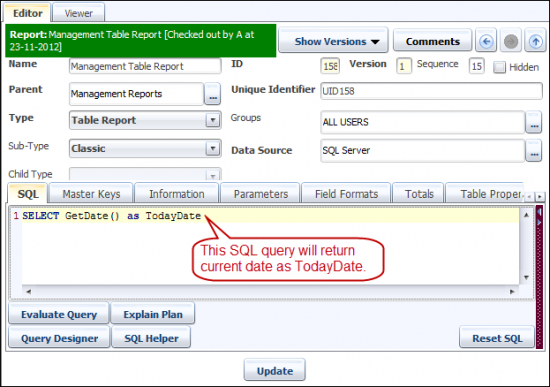
When you click on the Evaluate Query button, it will execute the SQL statement against the database, displaying the results in a 2 dimensional grid.
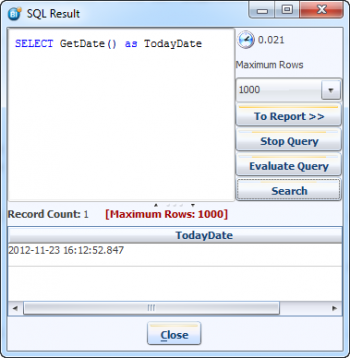
You can now continue to adjust the SQL statement until the output looks exactly as you want to see it.
- To Report updates the report with the changes made in SQL query.
- Stop Query stops execution of the SQL query.
- Evaluate Query lets you evaluate SQL query for new changes in SQL.
- Search lets you search for a keyword in SQL editor.
Remember, you will need to update the report by clicking the Update button to save the changes.


