Table of Contents
Parameters in BIPLUS
Sometimes you will want to run a report for a certain subset of the data. For example, if you have a huge daily sales report and there are 160 branches in your company, you may only want to run the report for the branch/es applicable to you. In this case, you may want to choose the branch/es from a list of branches that pop-up and pass this set of values as a parameter.
BIPLUS supports this and makes it very easy with many powerful features for parameterization. BIPLUS supports the following type of parameters.
Text
Text parameters are used when you want to filter a report based on a string or value. You can create multiple parameters of this kind but only single value is allowed to be passed in this kind of parameters.
This example will show how to create a text parameter and use it in report. This example displays records where COUNTRY=USA and CITY=Seattle. The graphic shows what is configured in the parameter tab.

- Two parameters have been created: they are given the logical names of COUNTRY_PARA and CITY_PARA.
- The Parameter Type is Text.
- The Prompt is used as the description dialog when the parameter is presented to the user.
- The Text parameter has three types of Expressions(Number, Unquoted, Quoted). When the parameter value is a number, then only numbers are accepted in the input field. Typing any non-numeric characters will be ignored. When the parameter value is unquoted text, then the values entered will be passed unquoted to the report query otherwise a quoted string is used.
- Default lets you specify a default value to be populated. This can be over-ridden at runtime
- Mandatory: Unless used with conditional or hidden parameters, leave this value true.
- Datasource is used when you want to populate the parameter value/s by running a sql query based on different data source from the main report. This is not used with Text parameter as it is strictly an input field and does not support SQL statements in the expression.
Once you create parameters, you can bind them into the report by Right-Clicking → Parameters. in the report query editor window, as shown below.

When you run a parameterized report, you will be prompted to enter a parameter. The example below shows the parameter with the default parameter values, as configured.

By accepting the default values, when the report runs, only those records are selected where the values for Country=USA and City=Seattle.

Parameter Wild Cards
BI Plus supports a wildcard in a parameter. The challenge here is to escape the binding and to return in a string exactly what is entered and enclose this inside the SQL % wildcard characters.
For instance, using the previously created report, if I am looking records only for Switzerland country, but you might don't know exactly how it is written in actual record. It might be SWITZERLAND, Switzerland initcaps (first letter capitalized) or switzerland all lower case. So you might want to retrieve all records where the sales method contains the string land since you know that ought to cover all possibilities. This would be equivalent to placing the where clause query filter as:
Where COUNTRY like ‘%land%'.
So to achieve this create a regular Text type parameter with a prompt to enter part of the wildcard for COUNTRY. By default, text value parameters will always be passed back as a quoted literal, otherwise the SQL query parser will take this as a query variable (which we don’t want).

In the main query, we don’t want the parameter passed back as a parameter («COUNTRY_PARA»), rather, we want the value of the COUNTRY_PARA parameter resolved and that string passed back. Thus we need to refer to the resolved parameter value, and we can do this by overriding the angle brackets and replacing them with curly braces, like {{COUNTRY_PARA}}. Using {{COUNTRY_PARA}}, we can now resolve its value and include it in the string we are passing into the query as a wildcard. In SQL, the wildcard character is ‘%’. By having % on either side, we are looking for the occurrence of whatever is entered into the parameter.

At runtime, you will get pop-up dialog to enter a string for the country value.

The results show all the records where COUNTRY column contains the string land anywhere in the value.

List
List parameters let you show multiple values but only one is selected and will be passed into the SQL query. Generally this type of parameter is used when you have limited number of known parameter values to pass. You need to manually declare those values in the expression field. List parameters do not support SQL statements in its expression field. The following screenshot shows that how to create a list parameter.

On the list parameter report execution, you will see that the parameter dialog displays multiple values. John is the default value selected, as configured in the parameter definition. You can also perform a search operation using a filter, which is at the bottom of the parameter dialog. Only one value can be selected in this kind of parameter.

List Multi-Select
List Multi-Select parameter is similar to List parameter. The only difference is you can select multiple values to pass to SQL query. Note: you need to use the 'IN' operator in the filter condition when working with multiple parameters (example: where COUNTRY IN ( «LIST_PARA» ).

The List Multi-Select parameter value dialog looks like this. Multiple parameter value selection is possible and can be done by checking each value you want to select.

The difference between List Multi-Select(numeric) and List multi-select is in List Multi-select when multiple parameters are passed in 'IN' statement of SQL query they are passed with quotes. e.g IN ('Ringo', 'John', 'George', 'Paul') and when parameters are passed in List Multi-select(numeric) they are passed without quotes e.g. IN (100,200,300)
List Multi-Select(Numeric)
This is similar to the List Multi-Select parameter and used with numeric values. The difference between List multi-select and List Multi-Select(numeric) is that in the List Multi-select, when multiple parameters are passed using 'IN' to the SQL query, they are passed with quotes. e.g IN ('Ringo', 'John', 'George', 'Paul') but when parameters are passed using List Multi-select(numeric) they are passed without quotes e.g. IN (100,200,300)
SQL
The parameter values may comprise hundreds of values, or the values may change dynamically depending on other data. In this case, you do not want to have to edit the report definition in the BI PLUS repository each time and then save it, or hope that you have all the parameters or have not made a spelling error in any of the values.
To dynamically populate the parameter values from real data, change the Type of parameter to SQL from the drop-down list in the parameters tab.

Then save the report by clicking the update button.
There is no difference in the way this report displays or handles, except that now if there is a new salesman in the table, the SQL used to populate the parameter values will automatically pick it up, without the developer having to change anything from the report. Thus, dynamic parameter values based on querying existing data from one or more datasources.

Select a single parameter value for the report, if you want to pass multiple parameter then use SQL Multi-Select parameter and use the IN compare operator .
SQL Multi-Select
The SQL Multi-Select parameter supports multiple parameter values being passed to the query, in a comma-separated list. Don't forget to use the IN compare operator in the SQL.

SQL Multi-Select parameter supports multiple parameter value selection, which is not allowed in simple SQL parameter.

Note: Always use 'IN' statement when passing multiple parameters.
SQL Multi-Select(Numeric)
SQL Multi-Select(numeric) is similar to List Multi-Select(numeric) parameter and mostly used with numeric values and these values are populated using a SQL query. The difference between SQL multi-select and SQL Multi-Select(numeric) is in SQL Multi-select when multiple parameters are passed in 'IN' statement of SQL query they are passed with quotes. e.g IN ('Ringo', 'John', 'George', 'Paul') and when parameters are passed in SQL Multi-Select(Numeric) they are passed without quotes e.g. IN (100,200,300). Otherwise it is works in exactly the same way.
SQL Substitution
SQL Substitution substitutes/replaces a piece of a sql statement in the query, depending on the parameter selection. the example shows a SQL Substitution parameter with the columns Amount or Amount & Taxed Amount.

A second SQL Substitution parameter controls the SALESMAN filter.

The example shows that the first SQL parameter substitutes the «SQL_SUB_PARA» and displays columns according to selection. «SQL_SUB_PARA_2» replaces SALESMAN.
Thus it is possible to build a semi-dynamic query based on the parameter values chosen, as the parameter's SQL attributes are passed, depending on the Display value chosen.

The example shows that 'TAXED AMOUNT' was chosen from the parameters, and therefore the parameter substituted «SQL_SUB_PARA_2» with TAXED_AMT.

The report displays the data for Taxed Amount and Paul salesman.

SQL Substitution Multi-Select
SQL Substitution Multi-Select allows you to substitute one or more piece of SQL statements in the query, depending on the parameter selected. This type of parameter is mostly used when you want to show/hide columns dynamically. On the report run SQL Substitution displays a dialog box so that the user can select multiple parameter values. After selection of values, respective SQL is substituted in the SQL query. You can also use this in a conditional statement like a WHERE clause. Let's see how to use the SQL Substitution Multi-Select.
In this example we are going to dynamically display the columns and also going to substitute values for a condition statement. We have created a simple table report which shows orders information.
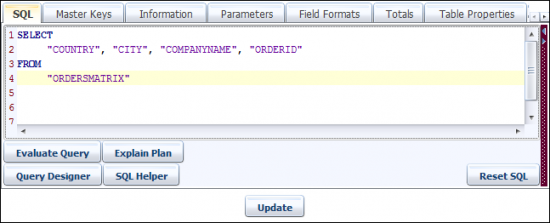
Now create a SQL Substitution Multi-Select Parameter as shown below. Give it a name (P_SHOW_COL). Once the parameter is created you can add the default value for it (Default highlighted).
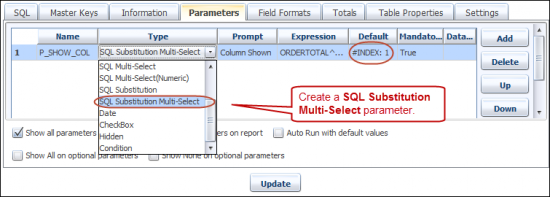
See image below. Using the expressions you can add SQL statements, values and join types.
- SQL column allows you to add SQL statements which will be replaced in the SQL query.
- Display Name is the name which will appear in parameter dialog.
- Join Type specifies that how these statements will be joined (using Coma, OR & AND). As we are using these to display column, in SQL they must be separated by comma. So select join type as comma (,). If you are going to use this parameter inside condition then you can use OR & AND operators.
- Prefix allows you to set a prefix value for the parameter using Comma, OR & AND.

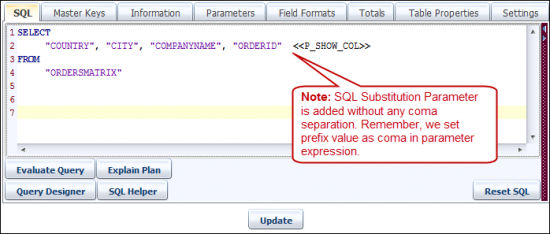
Now add the created parameter (P_SHOW_COL) into the SQL query. Right click in SQL editor and Parameter option will allows you to add the parameter.
Remember, we have not added any coma (,) into the SQL query just before the parameter. Because we had already set the Prefix type to comma (,) in the expression.
Now run the report. You will get the prompt for parameter selection. Select the columns which you want to add in the report. The first parameter value will be always selected because we had set this in Defaults (#INDEX:1). When finished with the value selection, click on the OK button.
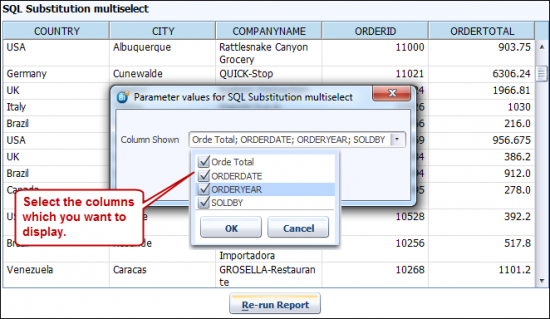
Columns selected in parameter dialog will be added into the report.

Now open the Server Log using Help ⇒ Support ⇒ Show Server Log menu. As you can see, original query in the report is replaced by the SQL of parameters selected. Also join type and prefix is added to the query. The below image shows that how a query is replaced.

Now let's add a condition in the SQL query. The condition will display the Orders by Year. For this create a another SQL Substitution Multi-Select Parameter. Give it a name (P_YEAR). Select parameter Type as SQL Substitution Multi-Select.
In expression column, we have added some conditional statements. If multiple statements are selected then these statements will be joined by operator OR. And these joined statements will be passed in the WHERE clause of SQL query.
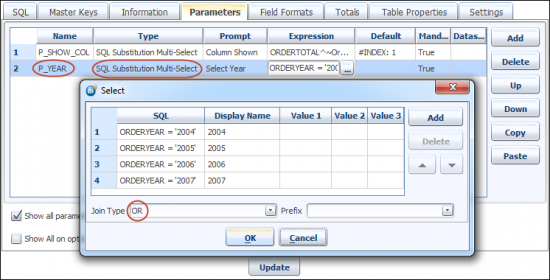
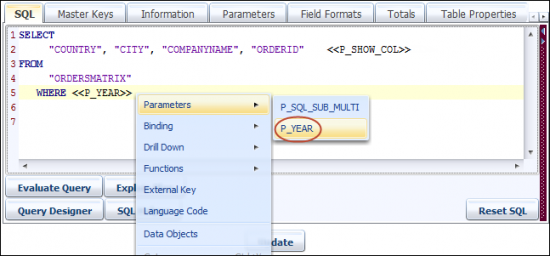
Now add the WHERE clause in the SQL query. Using the right click menu add the parameter «P_YEAR». SQL statements of selected parameter values will be replaced with the «P_YEAR» parameter.
Now run the report. The first parameter allows you to select the columns to be shown. Second parameter allows you to select the Year/s and the Orders will be displayed according to the selected year/s.

The report will display columns and orders for the year according to the parameters selected. Here we have dynamically added the columns (ORDERTOTAL, ORDERDATE, ORDERYEAR, SOLDBY) and also getting the records for orders for selected years (2004, 2005, 2006, 2007).

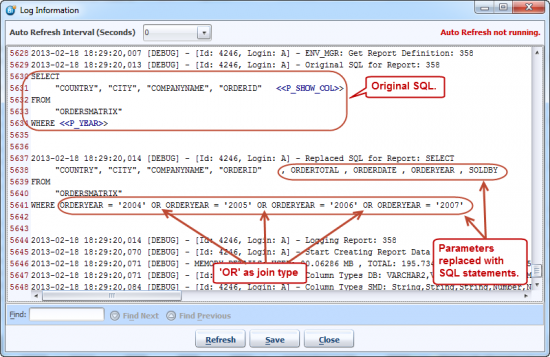
Now once again open the Server Log using Help ⇒ Support ⇒ Show Server Log menu. The log shows that both parameters «P_SHOW_COL» and «P_YEAR» are replaced with respective SQL statements and join types.
Date
We often have reports that processes data for a given date range and that is where DATE parameters are useful (e.g. sale of a product from July to December.) Date range can imply a logical range, like “Last month's sales” or “Last week's sales”. This can be also used as monthly, quarterly, yearly. This directly translates to a start date and end date parameter.
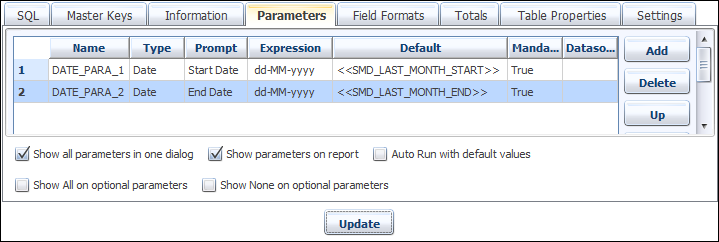
Add two parameters of type DATE. The example shows these parameters as DATE_PARA_1 & DATE_PARA_2. These parameters will be used to define the date range.

While creating a Date parameter you can also set the Date format for it, using Date Format option. This controls how the date is displayed, as in which parts of the date (Month number or name, include year, or hours, minutes, etc.)

Now add these parameters in the WHERE clause of the SQL query to filter the date range using the parameter values at runtime. Use the right-click option in the SQL query editor to invoke the dialog as shown below.

BI PLUS provides an option for selecting dates using a Calendar object, see the picture below from the run-time invocation of this feature. Choose a date by clicking on it. The values will returned in the default format mask which you have set while creating parameters.

After selecting the parameter values to pass to the report, parameter dialog will look as below. Click the OK button and the parameters will be passed to the SQL query.

The resultant records are filtered by the parameter values.

Specifying a default Date in the parameter
In the previous example, the report was parameterized and in effect could be the sales for ANY date range. To truly give us a feeling of last month’s sales, it would be good to have the parameter values defaulting to the 1st and last day of the previous month. This saves several key strokes and user interaction at runtime, especially if it is known that for the most part, the end user wants to run the report based on “last month's” data.
This is supported by entering a BI Plus date function in the Default value of the parameter.
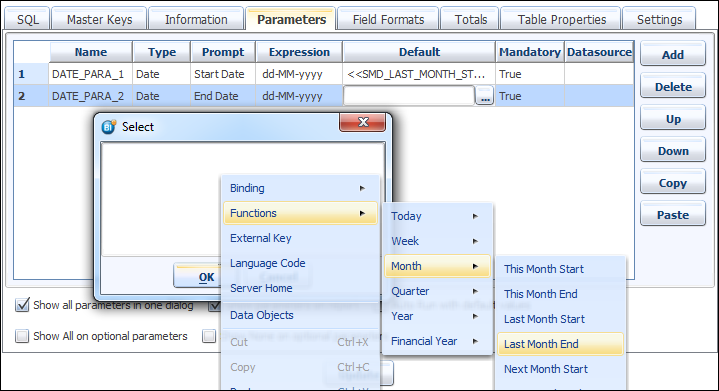
Open the Default editor by clicking '…'. Using the right-click menu in the Default editor, you can set different types of default date values for Day, Week, Month, Quarter, Year and Financial Year. Once done then your parameter dialog will look like this, where DATE_PARA_1 is set automatically to last month's start date and DATE_PARA_2 is set to last month's end date, by default.
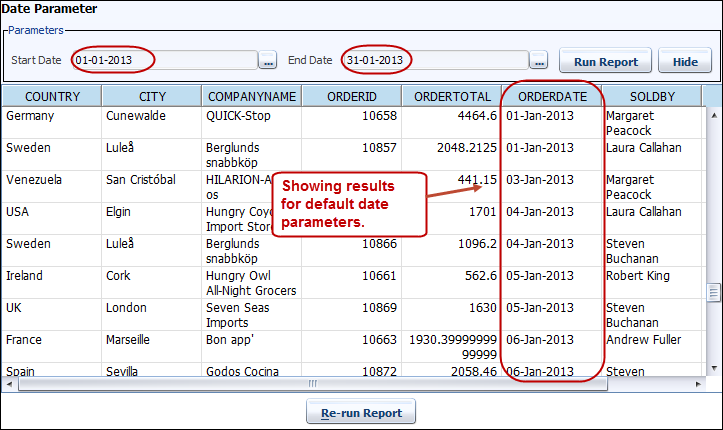
At runtime, you can see that the Start Date and End Date parameters are pre-populated with the default dates which are last month's Start and End dates (based on the runtime date being sometime in February 2013).

Click OK to see the resultant data using default values.
Hours and Minutes as part of the Date parameter
Sometimes the level of granularity for a date parameter needs to be to hours, minutes or even seconds. Since the date parameter is passed to the query as a prepared statement / bind variable, BI Plus uses the accepted date-time format for each individual datasource type, each of which support to the level of seconds or even to milliseconds in some instances (dependent on data type). Enable Make Editable option from Expression section of parameters.
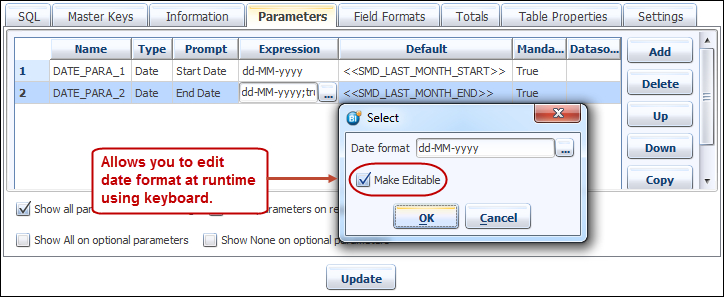
If your report has any default value then it will be populated. Clicking in the parameter field will let you manually edit the parameter value.

Relative Date
This concept is very important for scheduling periodic reports. Read carefully!
A relative date filter lets you define a logical date based on the date and time the report runs. A relative date range is a period of time that is relative to the current date. (Last Week, Next Month, and During the Next 3 Quarters are examples of relative date ranges). Using relative date ranges you can create reports that can be run periodically without needing to alter your query. For example, on 31 January 2013, 'last month' means December 2012, but just a day later, on February 2013, 'last month' means 'January 2012'. for this reason, if you want to schedule a report that runs on the first or second day of each month, containing the previous month's figures, without relative dates the scheduler will accept a date based on the time you schedule it. the downside to this is that if you set up the schedule during January of 2013 and you select the absolute date range as 1 Dec 2012 - 31 Dec 2012, then when it comes to February, you really want the date range to be 1 Jan 2013 - 31 Jan 2013. However, the scheduler has accepted the parameters 1 Dec 2012 - 31 Dec 2012 and each month, you will generate the report for December 2012, which is not what you want.
What you want to see happen is that during February 2013, BI Plus automatically picks up the records for Jan 2013. In March, it should pick up the records for February, etc. When you open the date parameter's Calender object, find the Relative Dates option.

The main purpose of this feature is to enable the end user to create Scheduled reports or treatments without having to change the date for each time the report is scheduled or run. BI PLUS provides an option for Current, Previous and Next date, like Current Month, Last Month and Next month. Using the index feature you set your own required date function. The following image shows that an index value of -10 indicates 10 months before the current month and 3 indicates 3 months after the current month, based on the run-time date.

Once the index is set, it will look like as shown below in the Relative Date field. This specifies that “Get Month Start as 10 months before the current month', based on the report run-time date.

Dependent Parameters
Often, you can have one parameter dependent on another. What is meant by this, suppose you want to find sale done by a SALESMAN which is part of some CITY and that CITY is obviously part of some COUNTRY. Here SALESMAN is dependent on CITY and CITY is dependent on the COUNTRY. Now if your parameter list has 20 Countries and each country contains 5-7 cities and and the city has averaged 4-5 salesman then it becomes very time consuming to select a parameter for a single report.
The example shows a SQL statement that selects all records for a parameterized Country, City and Saleman.

Create the parameter for the report starting with COUNTRY. This parameter selects all distinct Countries.

Create the second parameter for City which is dependent on the value/s of the COUNTRY parameter. This parameter selects all distinct cities which are part of selected countries from the COUNTRY parameter. You can see from the screenshot how the value of the «COUNTRY» parameter is invoked to populate the list of cities.

The third parameter SALESMAN is dependent on CITY. This parameter returns all distinct records for the SALESMAN (SOLDBY) which are in the CITY parameter. The CITY parameter retrieves all records which are part of the countries chosen in the COUNTRY parameter. Also enable the Show all parameters on the dialog option from the parameter tab.

Now run the report and all the parameters appear in a single dialog. Select a value from the country parameter.

On invoking the CITY parameter, you can see that all the cities in the list are part of the selected COUNTRY value i.e. USA. The example shows Seattle and San Francisco selected.

The SALESMAN parameter will show a distinct list for all the values of SALESMAN (SOLDBY) for the selected cities (i.e. Seattle and San Francisco).

Once all the parameters are selected you can click on the OK button to pass these parameters to the report.

The report shows the resultant information based on the selected parameters.

You can change the values of the parameters on the fly. When you change the value of parent parameter all child dependent parameters are cleared out. Here parameter value for previously ran report is edited.
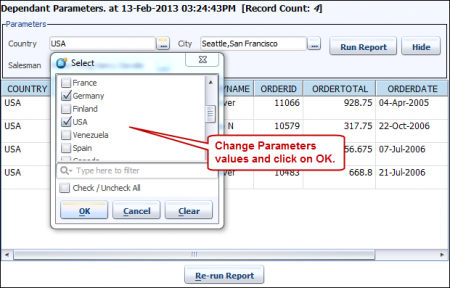
when you click on OK button of parameter dialog, all child dependent parameters will be cleared out.

If you try to select the city parameter first, since the city parameter is based on the country parameter. If no COUNTRY is chosen, BIPLUS warns with pop-up message.

CheckBox
Sometimes you may have a Y / N type flag or a Boolean type of expression. For this, BI Plus supports a type of parameter called Checkbox parameter. Checkbox parameters are versatile, as they return either Null or True or a Y/N value depending on the expression coded in the expression. The default value is false.
Consider the example of where you want see the sales for a week including weekends and excluding weekends.
First we create a query where we put a value of 1 into a calculated column to show whether the sale occurred on a Saturday or Sunday or 0 if not. We will then compare this value to a check box parameter response. First the query to retrieve a simple dataset and to calculate based on the English day of the week, whether the sale occurred on a weekend or not.

The result of your SQL query will look like this, which includes the W_DAY column showing a value of 0 for weekdays and 1 for weekends.

Define a parameter of type Checkbox. Place a value of 1 into the SELECTED option of the Expression property so that when the checkbox is checked, BI Plus sends a value of 1 to the main report query instead of a Boolean true else 0.
For other examples, you could include alpha literals too based on whether the box is checked or not.

Once you create the checkbox parameter, bind it into your SQL query.

Now run the report. If the checkbox is not 'checked' the result will not contain sales data for weekends.

If the checkbox is 'checked', then the result will include weekends, reflected in the total shown.

Hidden
When you want to use a calculated value inside another parameter or to populate the parameters then Hidden parameters are used. It can also be used to calculate the Totals and display it in the header. You can also use these parameters in reports without any prompt. To write SQL expression, start the SQL with #SQL:.
Here we are going to create drill-through report. On drill-through child report's parameter will get populated, which later will be used to filter the records. Let's create a chart report which shows countries and its respective order totals.
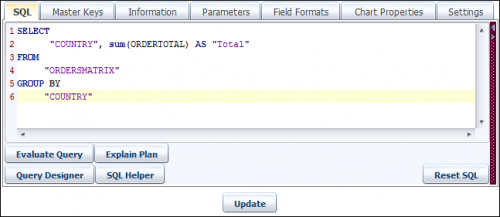
Create a Vertical Bar chart report. Give it a Name (COUNTRY SALE) and write down following SQL in it.
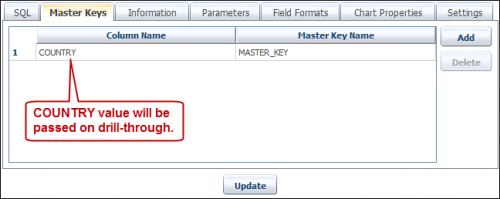
Now create COUNTRY as a MASTER_KEY. As this is going to be drill-through report, we will pass COUNTRY value to child report on the drill-thorugh to view the details of Sale by city.
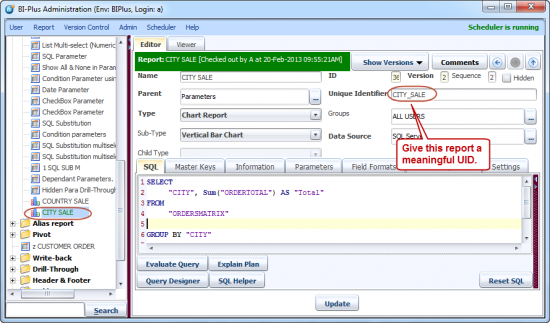
Now create a another Vertical Bar Chart report. Give the report a name(CITY SALE). Write down SQL for the report as shown below. Here we have given a meaningful name to Unique Identifier. This UID name will tell the parent report that in which report to drill-through.
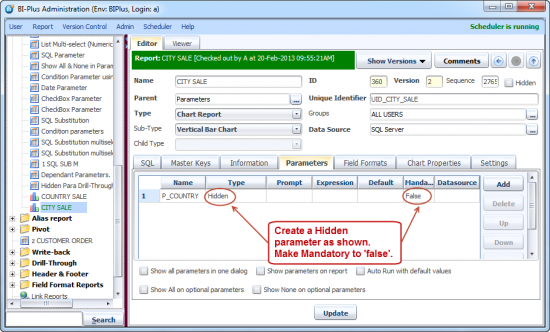
Go to the parameter tab of CITY SALE report. There create a hidden parameter. This parameter will accept the value passed by parent report.
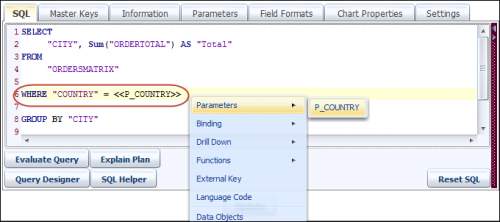
Now go back into the SQL tab of CITY SALE report. Add a WHERE clause to filter the record by COUNTRY. Add the create parameter in it.
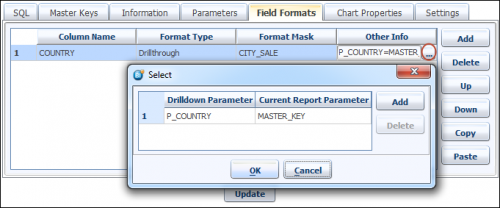
Once again go back to COUNTRY SALE report. Create a Drill-through field format on column COUNTRY. Enter CITY_SALE as Format Mask. CITY_SALE is the UID of child report in which parent report will drill-through.

In Other Info column contains Drilldown Parameter & Current Report Parameter.
Drilldown Parameter specifies for which parameter to pass the value. Enter P_COUNTRY here.
Current Report Parameter specifies which value to pass. Enter MASTER_KEY here.
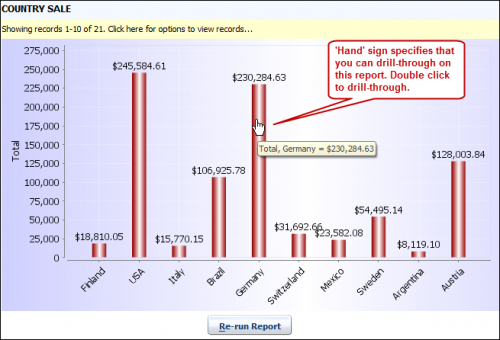
Now run the COUNTRY SALE report. Move mouse cursor on any vertical bar of the chart report. This will change the mouse cursor to Hand icon. Using hand icon double click on a bar.
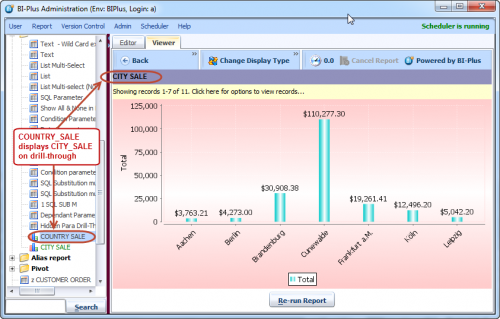
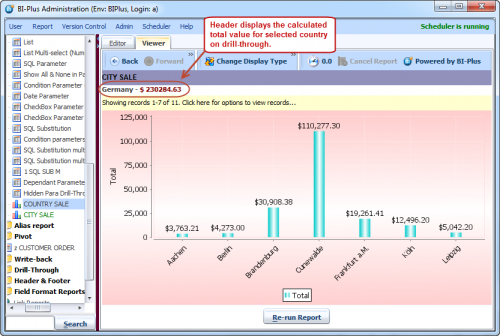
When you double click on a bar. BIPLUS performs the drill-through action and opens the CITY SALE report. CITY SALE report shows sale by city for selected country.
Let's see how we can use Hidden Parameter to display the total. Add a second parameter in the CITY SALE report. Give it a suitable name (P_TOTAL). In expression section add SQL as shown below. This SQL returns the total for selected country in MASTER_KEY.

Add the Total information in the header using HTML tags. Below HTML tag displays the Country value passed from parent in MASTER_KEY and Country total caluculated by hidden parameter P_COUNTRY.
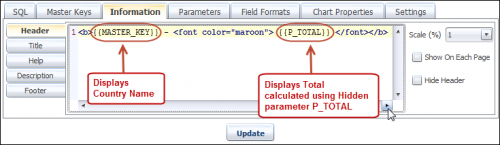
Run the COUNTRY SALE report. Drill-through on a vertical bar by double click operation.
CITY SALE report will get opened as before with Header as Total.
Condition
It may happen that you want to select ALL the values of a parameter list (for instance, select country parameter when you really want to run the report for ALL countries) or want to run the report for all cities of a particular country. So in essence, you do not want to choose a parameter value, you want ALL the values.
If the list of values is too exhaustive, it can take very long time to scroll through them all. Moreover, since when running a query, there might be a limit on the number of members an IN list subquery can have, especially if you are running prepared statements. Also, this causes performance problems.
This simple example will make the country and city parameters Conditional. If the user does not choose a value for either parameter, it is effectively eliminated from the query filter.
We start off with the 2 parameters and make them non-mandatory

Since the BIPLUS query parser cannot know how many filters (WHERE CLAUSE predicates) there are, for each parameter where the end user does not answer, we need to eliminate the clause from the filter. Each clause is separated by ‘AND’ unless there is only 1, in which case the entire where clause should disappear.
What if you do not select a value or select the All option. If you do this then the piece of the query that compares the data to the parameter, is replaced with ‘ 1 = 1 ‘. Since this condition will always be true. Thus having a query like select …. From …. Where 1 = 1 means that all rows are considered since 1 always equals 1. So there will not be any performance impact on the query engine.
Add conditional parameters.

Below image shows that we have created PAIRS of parameters for each 'WHERE' condition. Each parameter pair has the base condition and the dynamic evaluation of what is sent back to the query should the user select a value.
Thus if you select countries UK,France, the query would be like: Select …. From …. Where country in (‘UK’,’France’). However, if no country is selected, the query that would be run is: Select …. From … where 1 = 1.

Let’s examine what all this means:
P_COUNTRY: In the P_COUNTRY parameter, the list of available countries is presented in a picklist. This type of parameter we have covered earlier, except that this time the parameter value selection is not mandatory, in other words, it will be presented but there is no need to choose any of the values.
COUNTRY_COND: COUNTRY_COND is the expression that evaluates the P_COUNTRY parameter. If a value or a set of values is chosen from P_COUNTRY, suppose 3 countries were chosen from the list provided by P_COUNTRY then the expression of COUNTRY_COND is invoked and the piece of the query that is passed back to the main query is: COUNTRY in (?, ?, ?)
If you do not choose any value from P_COUNTRY, then P_COUNTRY_COND evaluates to 1 = 1
P_CITY: P_CITY now has a dependency on COUNTRY_COND. If a parameter set of values is chosen for P_COUNTRY then the expression in P_CITY equates to
SELECT distinct CITY from ORDERSMATRIX where country in (?, ?, ?)
If no countries were chosen from the P_COUNTRY picklist then the expression in P_CITY resolves as:
SELECT distinct CITY from ORDERSMATRIX where 1 = 1
Thus all cities are presented if the filter is “1 = 1”, since no selection of country means remove the country criteria (thus all countries).
CITY_COND: Similar to COUNTRY_COND, as the resolution of the expression depends on which cities (if any are chosen).
Thus you can see that the main query contains only the condition parameters, so that if either of them are not chosen, the main query resolves with “1 = 1” as a substitution for the parameter, otherwise it resolves with the full expression of the conditional parameter.

We will run the query and choose 2 countries in Country Parameter.

However, we will not choose any cities, meaning we want to see the information for ALL the cities in selected two countries (France, Germany). This is the equivalent of effectively removing the CITY filter from the query and replacing it with 1 = 1.

After report run, you will get records for all cities available in selected countries (France and Germany) as a result.

Let’s take a look at the server logs generated while using conditional parameters. Go to Help ⇒ Support ⇒ Show Server Log.
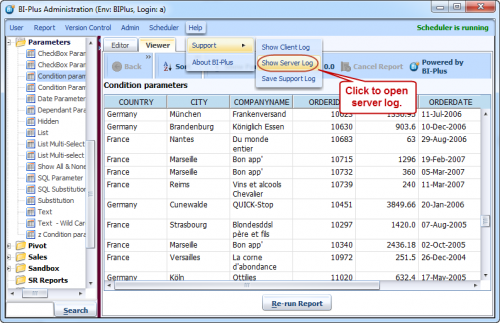
Log Information dialog will get opened. In log Parameter Values for report will show you parameters selected (P_COUNTRY=France,Germany). The log also shows replaced SQL for the report.

Finally, to have the All option for conditional parameters, simply check the check box for this setting (all or none) on the main parameter maintenance dialog.

So when you run the report, you will see All as the default parameter value. You will also see All and None buttons.
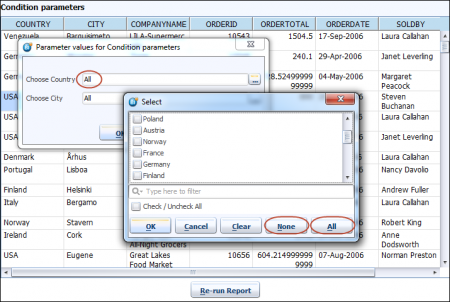
When you run the report with All as the parameter value, you get all the records. All replaces WHERE condition to 1=1. This makes the WHERE condition to true and returns all the records.

Check the server log from Help ⇒ Support to see how SQL is replaced when All is selected.
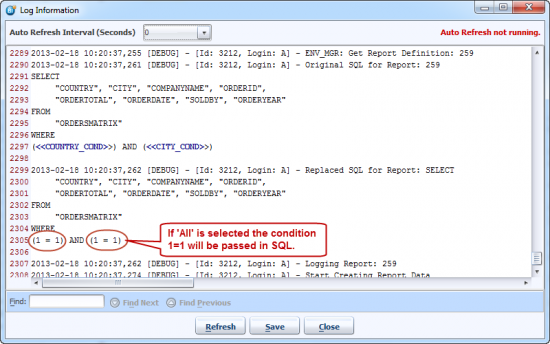
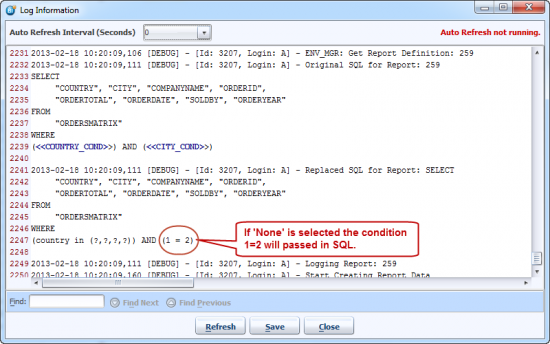
When you run the report with None as the parameter value, you get no records. None replaces WHERE condition to 1=2. This makes the WHERE condition to false and return nothing.

Check the server log from Help ⇒ Support to see how SQL is replaced when None is selected.
Tips and Tricks
Displaying all parameters at once
If you have multiple parameters in a single report then the parameters presented to you in one by one fashion, in the order in which they appear in the parameter maintenance dialog. Sometimes this can be burdensome. Imagine for a moment your report has 12 parameters and as you get to #12, you realize you wanted to include some other values from the pick list into parameter 1 or 2. Using default sequencing, BI+ does not offer a way to go back to a previous parameter once the “launch sequence” has initiated. You would have to start all over again. BIPLUS provides a feature called as Show all Parameters in one dialog.

As you can see, above image shows that using parameter tab you can set behaviour of parameters.
- Show all Parameters in one dialog: displays all parameters of the report in single dialog.
- Show parameters on report: displays parameters on report after report run.
- Auto Run with default values: run the report with default parameters (if selected) without giving any prompt to user.
- Show all on optional parameters: Displays 'All' button in parameter selection dialog of 'List Multi-select', 'SQL Multi-select'.
- Show none on optional parameters: Displays 'None' button in parameter selection dialog of 'List Multi-select', 'SQL Multi-select'.
Following image shows the result when Show all Parameters in one dialog is enabled.

Example shows the result when Show parameters on report is enabled.

Image displays Show all on optional parameters and Show none on optional parameters features. Clicking on All button will select all parameter values from parameter dialog and will display All as caption in parameter field.

Parameter Default Values
BI Plus allows you to set a parameter default (like current date or the first parameter or the first 3 parameter values of a parameter list). Defaults are used to minimize keystrokes or interaction for the end user. We have already seen with Date type parameters how default parameter values can be populated. A similar method exists for non-date type parameters.
In Defaults section of parameters you can use #INDEX: keyword to specify certain occurrence from pick list as a default value. Image shows that how to do that. If you decide (as a developer) that more than one value should be pre-selected as the default/s, you can just use comma to separate the entries in the pick-list as per the screenshot below.

On report run BIPLUS will pre-select first three values from pick-list.

You can also specify hard-code values in defaults, like we have added Ringo and Paul as defaults values. Remember, if you are entering hard-code values then enter case-sensitive values.

On the report run salesman Ringo and Paul will be pre-selected.

Keep in mind that you can override these defaults at run time.
Accepting a list of values as input
BIPLUS allows you to display selected a list of parameters in Title, Header or Footer. Example shows that the report accepts selected salesman's as parameters which are then passed to the report as an input list and will be displayed in report Title.
In the Parameters definition, create a parameter. Note down name of the parameter.

Created parameter is used in main query. This parameter will filter the records in the report.

Now you can use this parameter in Title/Header/Footer of your report. Just enter parameter name inside curly braces. Image shows that we have entered Title using some HTML code. You can use HTML code to set font, color etc. Here we have given maroon as color and BOLD as style.

Run your report and select some parameters. These parameters will be displayed as report title.
Let’s see in the header what we entered. As you can see report title is displaying selected parameters.

This example serves to illustrate the flexibility of BIPLUS parameters and how much control the developer has over the design and runtime behaviour.


