Table of Contents
Report Cache
Cached Reports
There are time when it makes more sense to run a report from a data cache as opposed to extracting the data from the datasource. For instance, if 100 users all access the same information, and the report takes a minute to generate and its data is valid for a whole day, only the first user to run the report need take the hit of running the report in real-time from the database. Reports run from cache process in about 1/5th of a second, and when processed in real-time from the database, the time depends on the database load and the efficiency of the SQL statement written to access the data.
If the report is cached, then the results of the report are stored on the server in a byte stream at the location specified in the BIPLUS.xml configuration file at: <report-cache-dir> tag. If it is a generic cache (as opposed to user specific), then all subsequent requests for the particular report within the caching period will not go to the database to get the report data, but will read in the stored byte stream on the server, and then present the data to whomever is calling for it.
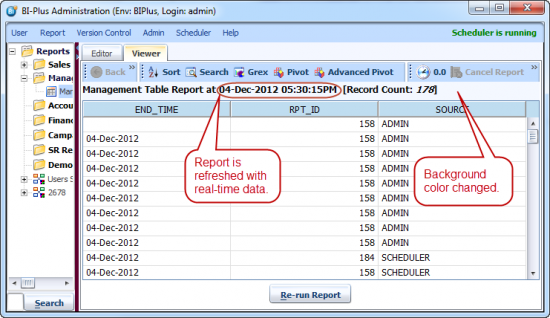
BIPLUS displays cached reports slightly differently than real-time reports. A report retrieved from server cache will have its title in a luminous-tennis-ball yellow background color, whereas a real-time report will have its title in a light blue background color. Also, the time of relevance (when the report was run in real-time) will be displayed on cached reports. Also, cached reports shows the time the report was last run in real-time right after the report title. The following diagrams illustrate this.
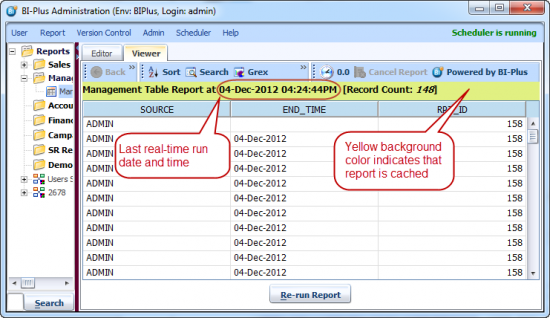
With cached reports, it is easy to request a fresh data of the report, by simply right-clicking in the report and selecting the Refresh Report and Cache option. Once the report is refreshed, it will show the title in a blue background since it has been run in real-time against the particular data-source.
Configuring Report Cache
The developer will set the report maximum cache retention period, whether the cache is user specific or not, and also whether the user has the ability to refresh the cache, and if the cache MUST expire at a certain period in time (like at midnight each night).
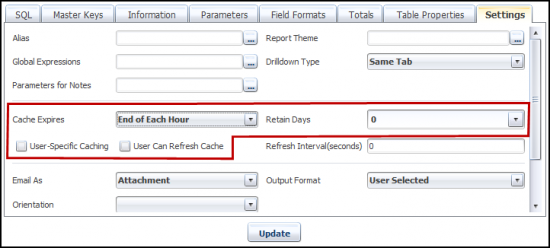
The above screenshot shows how the developer has set the cache.
The maximum cache retention is 1 day, but it MUST expire at midnight each day. This is because if the cache is refreshed at say 4 p.m. and the cache retention period is 1 day, then by default, this cache will only be deemed invalid by the server at 4 p.m. of the next day, but if the cache is expired at the end of each day, the first process to run the report at say 7 a.m. of the following day, will invoke a fresh dataset and overwrite (refresh) the cache.
In this example, the user does have the right to refresh the report, but there may be times when the developer may not grant the user this privilege: This may be because the developer / administrator understands that this report runs for about 1 hour, and the end user may not be aware of that fact (almost guaranteed), and running a refresh of the cache during production hours may be in contrast to production resource usage policies, where no batch-type, long-running queries are permitted against the datasource.
Cache Expires: describes that when cache should expire.
Retain Days: keeps the cache for selected number of days.
User-Specific Caching: Each user will have his/her own cached data when user runs the report.
User can Refresh Cache: Allows Reporter user to refresh the report for new real-time data. So a previously cached report will have a new set of data.
Clearing Report Cache
The server Reports cache has to be cleared out every so often as this leads to consumption of storage space. When the Scheduler is started, it has an automatic routine to clear out the server cache for all reports older than their cache retention period. An alternate way to manually force this without bringing up the scheduler is to invoke the ‘Clear Report Cache’ option of the Admin menu in Admin mode. BIPLUS allows the Administrator to clear the cache for a specific report or for all reports.
Clear selected Report cache option is in Report menu.
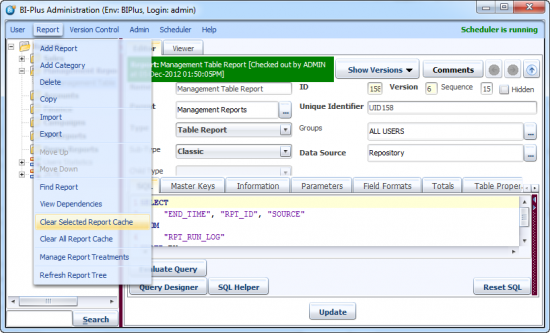
Clear all report Cache option is available in Report menu.
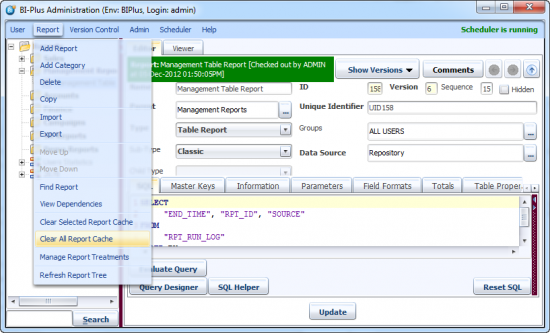
For the Clear All Report Cache option, the following screen asks you for how many days you want to retain the cache.
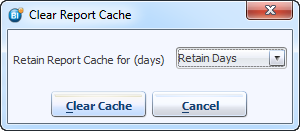
Select the number of Retain Days to keep from the dropdown combo box, then click the ‘Clear Cache’ button and the reports cache will be cleared accordingly.


