Table of Contents
Right-click Menus in BIPLUS
When you click on a report using your right click mouse button then you will see several menu options. A BIPLUS right click menu allows several tools which user can use. Following images is showing the right click menu and its options.
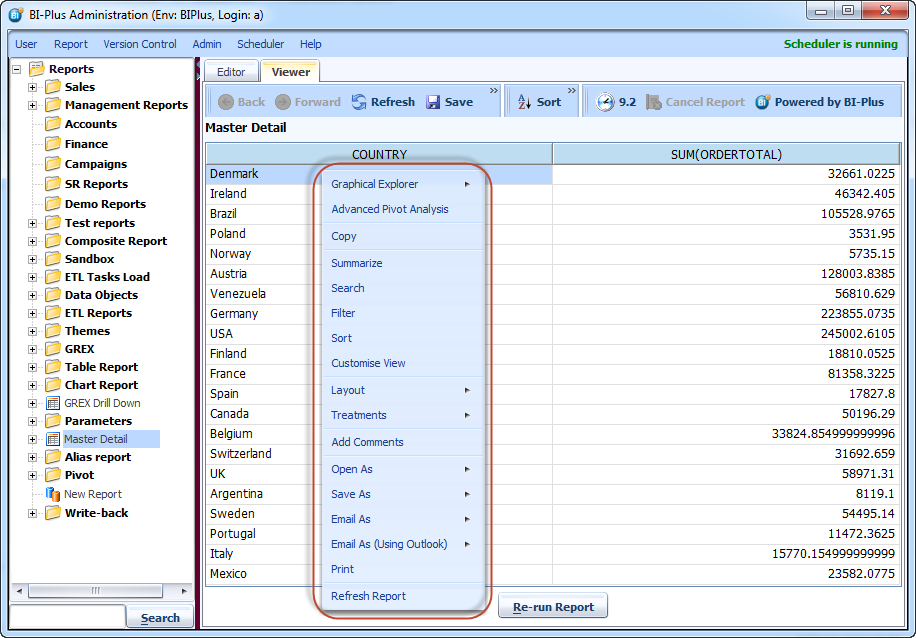
Some of the tools in this menu are already covered in the documentation section. Lets see those which are not covered.
Graphical Explorer
See GREX Configuration (Graphical Explorer) for more details.
Advanced Pivot
See Pivot Configuration for more details.
Summarize
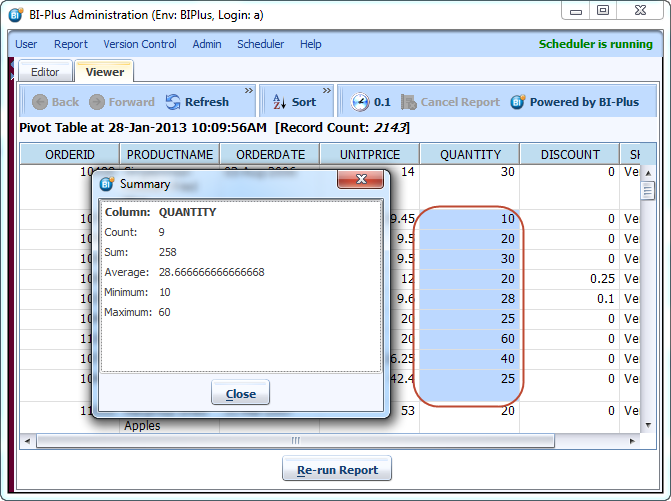
Summarize allows user to view a summary of selected cells. This tool is specially for Table Reports. To use this tool just select the cells for which you want summary then right click and click on Summarize. A pop-up screen will display a summary of the selected rows. The report shows the 5 most common aggregations for the selected cells. An aggregation is the sum, average, minimum, maximum or count of the selected items (members of the group to be aggregated). If applied on multiple column then separate summary is shown for each column.
Search
Search tools allow you to search a keyword in the report. To search for a certain string (i.e. name, product, city etc.) inside a report, right click on the report to invoke the search dialog box. Inside the dialog box the search can be refined by:
- Selecting which column to search;
- Checking inside the buttons of the match case and/or match whole words and/ or sounds like;
- Nominating where to search either before or after the current cursor position by checking the up radio button for before and the down radio button for after.

Filter
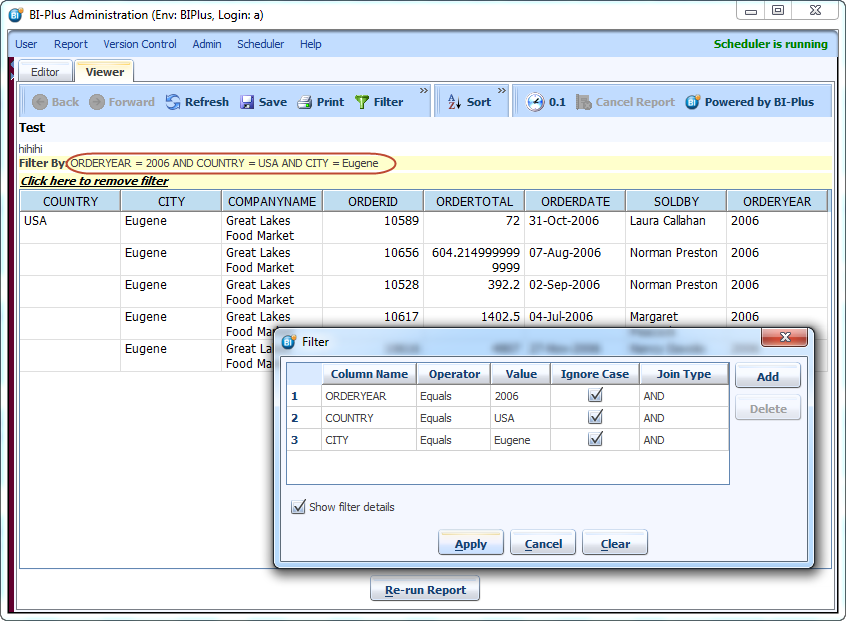
To invoke the filter dialog box, right click on the report or click the filter icon. To add various filter elements, click on the add button which will open up a filter line. The columns for which the filter is to apply will be available from a drop down combo. Select an operator to apply to a column by clicking the one chosen and tab to the next criteria to filter by. Following image shows that after applying filter how filtered data are displayed.
Sort
To sort the data in ascending or descending order within a column click on the column header and an up arrow will invoke an ascending sort and the down arrow will invoke a descending sort. For a more detailed sort within a report, right click on the report to invoke a sort dialog box. Click the add key to open the criteria sort by line and select the criteria to be sorted and nominate whether the criteria is to be sorted in ascending order or descending order.
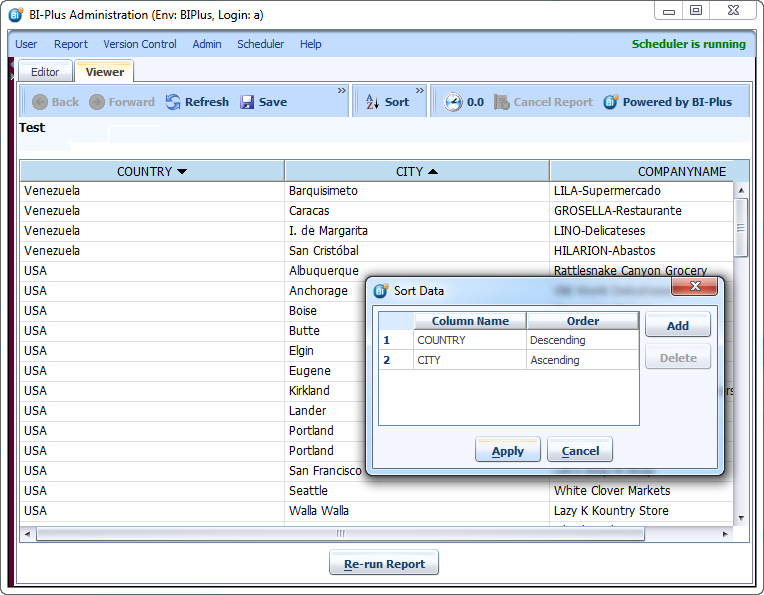
Note: Unlike Excel, where there is a limit of only 3 columns to be sorted at once within the report, BIPLUS has no limits as to how many columns to sort on.
Customize View
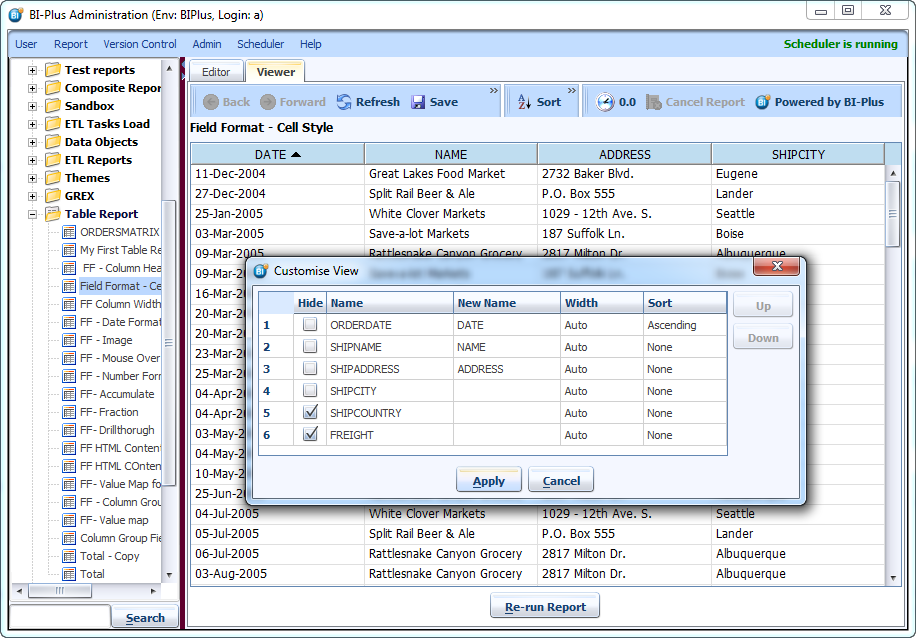
Customize View allows you to make some changes in reports column like, Hiding, Renaming, Width adjusting and Sorting. Right click on the report to invoke the Customize View dialog. Below image displays that how table report looks like after applying Customize view. We have given new name to few columns. We are also hiding two columns SHIPCOUNTRY and FREIGHT and sorting ORDERDATE column.
Layout
Layout options changes according to report type. The most common used is Display Type for chart report. To change the display type right click in the report to invoke the drop-down list. Select layout then select change display type.
Treatments
See Treatments for more details.
Add Comments
Open As / Save As / Email As
See Export for more details.
Clicking on prints button opens print dialog which allows you to select available printer on your network. You can also set printing properties. Clicking on OK button will print the report.
Refresh Report
Refresh report refreshes the report and fetches new data from server if any.